For: CRMDAY One users with the Insurance profile.
Understand the four states
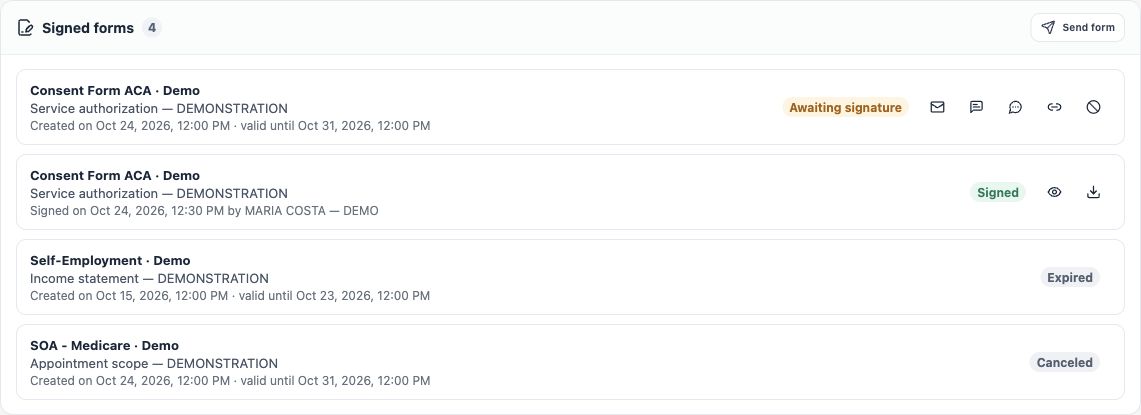
| State | Meaning and next action |
|---|---|
| Awaiting signature | A pending request exists. Check delivery and agree a follow-up. It does not necessarily mean the client opened it. |
| Signed | The system recorded the signature. Review the document and answers before continuing service. |
| Expired | The link’s validity ended. Check the request and prepare a new valid, reviewed request for the client. |
| Cancelled | The agent cancelled the request. Its link cannot be used to complete signing. |
Form state differs from message, Deal or policy state. Receiving a signature does not establish insurance issuance or carrier acceptance of a document.
Track from the contact or central list
- In the contact, check Signed forms, title and dates for each request.
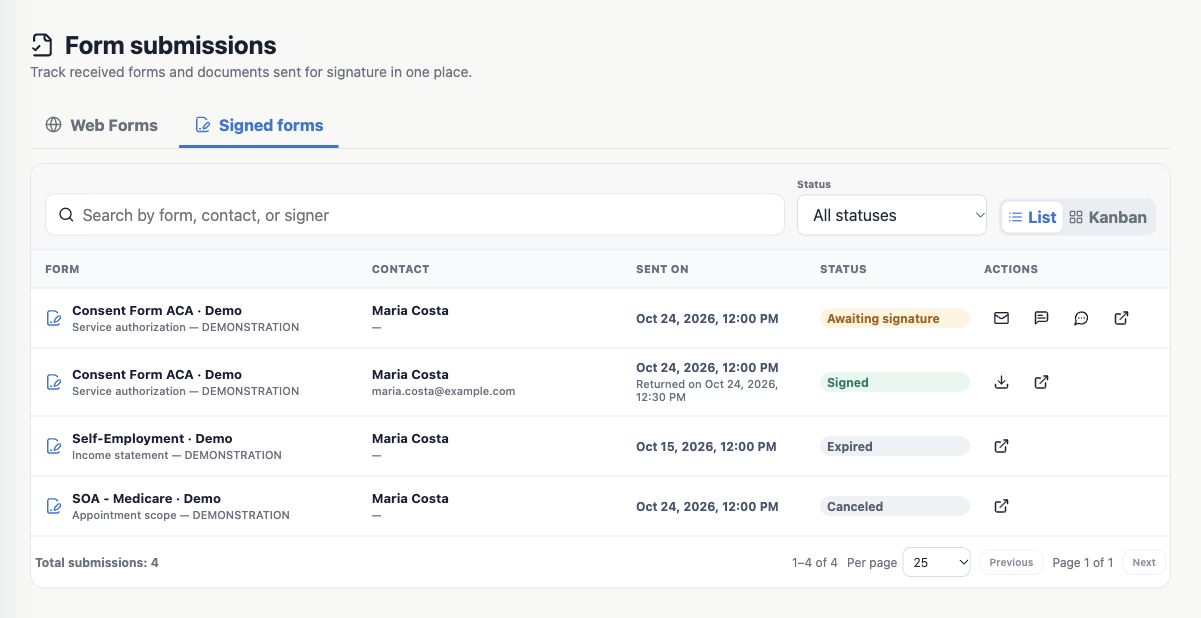
- For multiple clients, open Submissions and select Signed forms. Web Forms is a different form type.
- Use form/contact/signer search and the Status filter. Check pagination and total.
- Open the contact or document through available actions. Use that person’s context for an individual request.
- If no change appears after the client finishes, reload the record or list. Check they completed final confirmation rather than only filling fields or attaching a file.
The client lost the message or address
- Check that delivery finished through the right channel. A generated link or email draft is not a sent message.
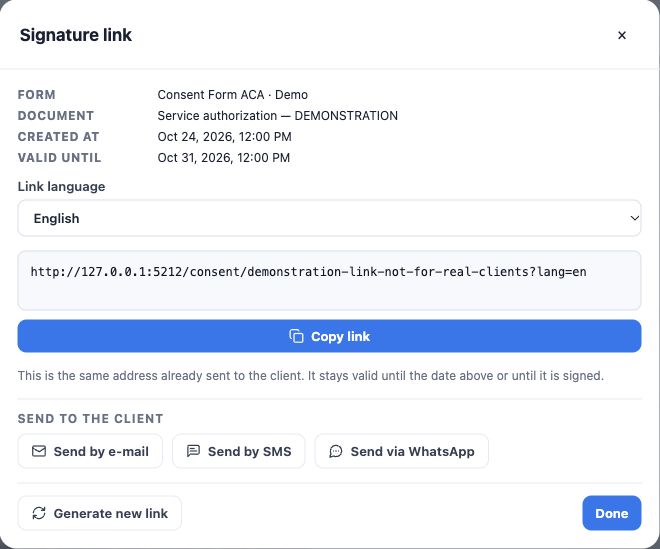
- While pending and valid, open View signature link.
- Copy or resend the same address to the correct recipient and agree a follow-up date.
- If the client uses an old address after reissuance, send the current one and explain which message to use.
When to reissue or cancel
Generate new link is an explicit decision: confirmation is required because the previous address stops working. Use it to replace a pending request’s link, not merely to view it. After reissuance, check validity and finish delivery; the new address does not reach the client by itself.
Cancel form also requests confirmation and stops link usage. Check person, template and context first. For expired or cancelled requests, review the reason and prepare another when needed. Do not cancel a signed form just to correct information; preserve the document and follow the agency’s process for a new statement.
Verify follow-up is organized
- Request identified by correct person, template and period.
- Delivery checked and follow-up agreed.
- Current link identified without duplicate creation merely to view it.
- Outstanding items assigned with a follow-up date.
If the address remains invalid, check state, expiration and reissuance before requesting support. Continue with Check answers, documents and signature.
Keep learning
- Choose the right form or document
- Prepare the request and generate its link
- Send by message or email
- Check answers, documents and signature
- Organize outstanding items and next actions
- Create the policy with the wizard
- Save and share the ACA simulation
Updated October 24, 2026.