For: CRMDAY One users with the Insurance profile.
Choose a status matching the situation
| Status | Everyday use |
|---|---|
| Open | The conversation is in progress and requires team action. |
| Pending | You are waiting for information, review or a reply needed to proceed. |
| Resolved | This conversation’s topic is complete and the client received final guidance. |
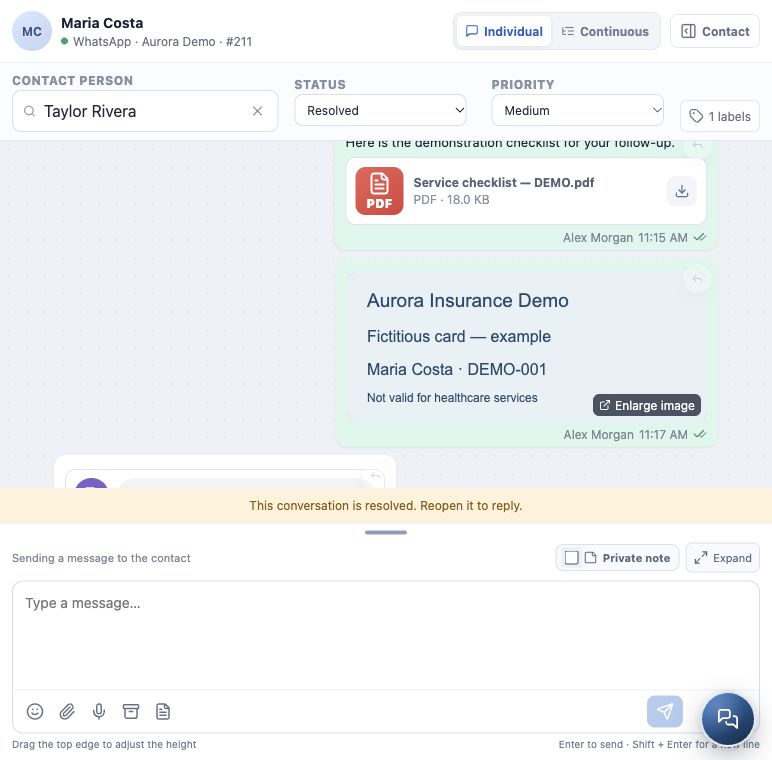
Use Status in the header to update it. Conversation status organizes service; it does not activate a policy, complete a Deal or automatically close all related Tasks.

Arrange follow-up before marking Pending
- Record the reason for waiting and what must happen in a private note.
- Confirm the assigned person, set priority to match actual urgency and use labels to classify the topic.
- Tell the client the next action and agreed deadline.
- In the Contact panel, use Create and link task for future work. Fill in action, assigned person and due date before confirming.
- Select Pending and check the header. Review the Pending queue as well as Open.
Example: Maria is awaiting proof review. Taylor takes over, the Task records tomorrow’s review and the conversation remains pending until an appropriate reply is ready. Marking Pending alone does not schedule an automatic follow-up.
Close once the topic is complete
- Check that the request has been handled and no promised reply is left without an owner.
- Send final guidance and the next steps that actually apply. Check the delivery result.
- Record an internal outcome summary and handle related Tasks according to their individual state.
- Change Status to Resolved.
- Check the notice telling you to reopen before replying, and use the Resolved filter to find the conversation later.
Reopen to continue
- Search for the contact and select Resolved if the conversation is absent from the current list.
- Open the correct history, check the new request and change status to Open.
- Review the assigned person, priority and earlier notes.
- Reply through the appropriate channel. Reopening does not remove channel restrictions, including approved-template requirements on official WhatsApp.
A simple follow-up routine
- Start the day with Mine and Unassigned, combined with Open and Pending.
- Prioritize time-sensitive requests and review follow-up Tasks.
- On handover, check the person and context; on resolution, check final guidance.
- End the day with clear next actions for conversations continuing later.
You have completed this section when you can find a conversation, reply or send material, record internal context, arrange follow-up and close the topic while preserving history. For document and signature requests, see section 07.
Keep learning
- Get to know Conversations
- Start, reply to and follow a conversation
- Send files, images and audio messages
- Use canned responses and message templates
- Record private notes and involve a colleague
- Request documents and signatures
- Create and track policies
Updated October 24, 2026.