For: CRMDAY One users with the Insurance profile.
Review before closing
- Check the returned request matches client, template and period.
- Open the document and received files; check legibility and the correct person.
- Record what was received, what remains and who will act next.
- If answers differ from the record, check the correct source before editing contact or policy. An answer does not automatically update every field in the system.
Use tasks with an assignee and deadline
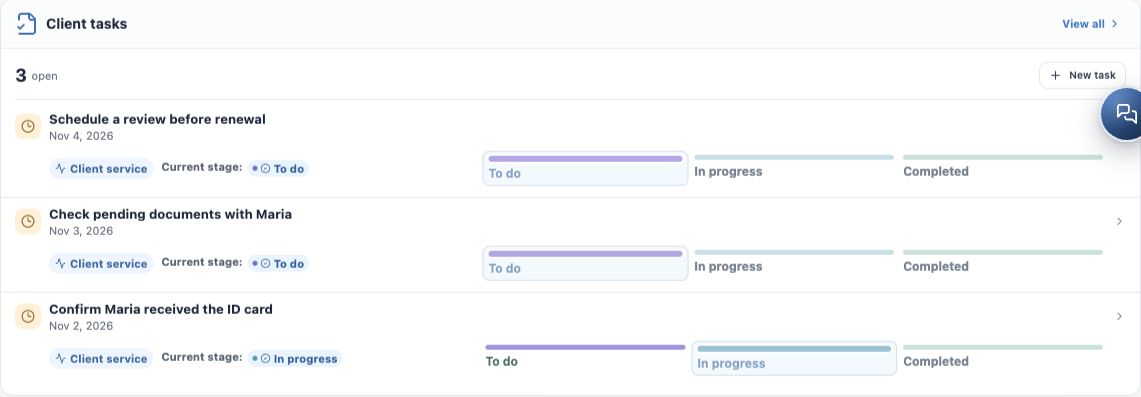
- Open the contact and review client Tasks. Avoid duplicating an open task.
- Use the new-task action with a specific outcome: “Check Maria’s income proof”, “Confirm form return” or “Review details before creating Policy”.
- Set assignee and deadline and check available interaction links.
- Save and verify in the list or Kanban. Record the result when completing it.
- If something remains, agree another follow-up. Completing a Task does not sign a form or automatically resolve policy pending items.
Continue policy entry with received details
For a signed ACA - Application Form, the new ACA policy wizard may offer Load values from the contact’s most recent signed application. Check the source document, review loaded values and fill gaps. The Policy is created only after user review and confirmation.
Open Enrollment has its own answer review and actions for updates and operational follow-through. Use them where available rather than treating every form as automatic policy creation. Editing wizard details does not rewrite the signed form.
To continue with policy entry, see Create the policy with the wizard.
Document the handover to service
A useful note records the outcome and next step. Example: “Authorization received and reviewed. Maria’s income proof attached, pending review. Alex will follow up on October 28.” Use notes for internal context and the client’s channel for the agreed follow-up.
- Check history before requesting an already-received document again.
- Do not mark a policy active merely because a form was signed.
- Do not send another person’s PDF or link when resolving an issue.
- Preserve earlier documents and record the reason for a new request.
Checklist for completing this step
- Correct request and recipient, with delivery checked.
- Signature and returned files actually reviewed.
- Record checked through appropriate fields and flows.
- Pending items with assignee, deadline and next action.
- Client informed of service continuation.
If something cannot be confirmed, keep follow-up open. This step ends when returned material is reviewed and continuation is clear, not only when the screen says Signed.
Keep learning
- Choose the right form or document
- Prepare the request and generate its link
- Send by message or email
- Track requests and resolve link issues
- Check answers, documents and signature
- Create the policy with the wizard
- Save and share the ACA simulation
Updated October 24, 2026.