For Insurance agency Owners and administrators.
Try a document follow-up Task
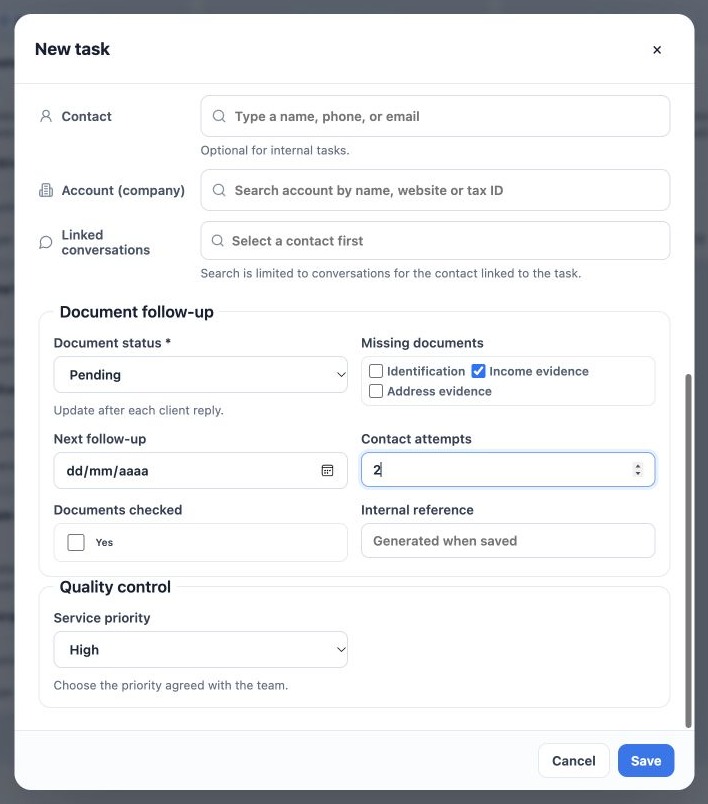
Open a Task in Kanban or the calendar; both use the same Task entity. Locate the configured section, select Document status, check missing documents and enter the next follow-up. The automatic internal reference is assigned on save rather than typed.
- Complete visible fields according to their type.
- Review required asterisks and help descriptions.
- Save the Task.
- Reopen and confirm the values.
- Also check the linked contact, owner and deadline; custom fields do not replace these relationships.
Where fields appear in other modules
Accounts, Deals and Policies display custom fields in forms and detail views, with an edit-custom-fields action when available. The new-policy wizard can also include them. In Contacts, use the corresponding record sections.
The same key on a Task and contact does not link their values. Three activities for one client can have different document statuses. Choose the correct record before updating, and do not treat a Task field as the policy’s own status.
Find records by field value
- Open the module list and its filters.
- Locate the active, visible custom field.
- Choose an appropriate operator: equality for status, a range for numbers/dates or an available list option.
- Enter the condition and apply the filter.
- Check the count and open a record to validate the result.
Active, visible fields participate in typed filters. Accounts, Deals and Policies can also offer them in column selection. Do not assume quick search covers every field; use the specific filter when needed. Hidden or inactive fields stop being operational choices.
Bulk updates and related workflows
Tasks and Deals offer editable fields in bulk-update actions, subject to permissions. Check the selection and try a small sample first. Automatic or restricted fields are not ordinary bulk-edit targets.
Creating a field does not create automation, publish a form or configure external mappings. Check supported options in workflows, imports, reports and Analytics before relying on the new data. Availability varies; confirming the field on a record is the first step.
Related guides
- Plan your fields and choose the right module
- Edit, hide and deactivate fields safely
- Validate fields, languages and integrations
- Administrator manual
Updated October 25, 2026.