For: CRMDAY One users with the Insurance profile.
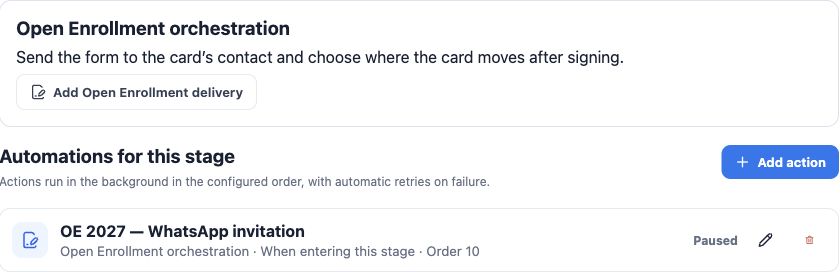
Prepare the rule in the right Kanban
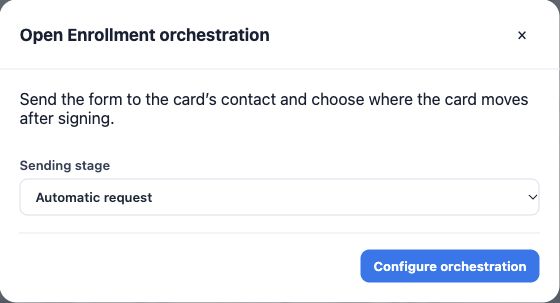
- As an administrator, open the Open Enrollment board and click Open Enrollment.
- Choose Automatic request as the Sending stage in this example.
- Click Configure orchestration. Stage automation controls also open this configuration.
- Use the Open Enrollment orchestration action on stage entry. It connects form, invitation and return after signature; a generic WhatsApp action does not replace this setup.
Set form, Producer, year and return
- Give the rule a clear name, such as “OE 2027 — WhatsApp invitation”.
- Choose the agency’s active Open Enrollment form and Responsible Producer, whose details should appear in the document.
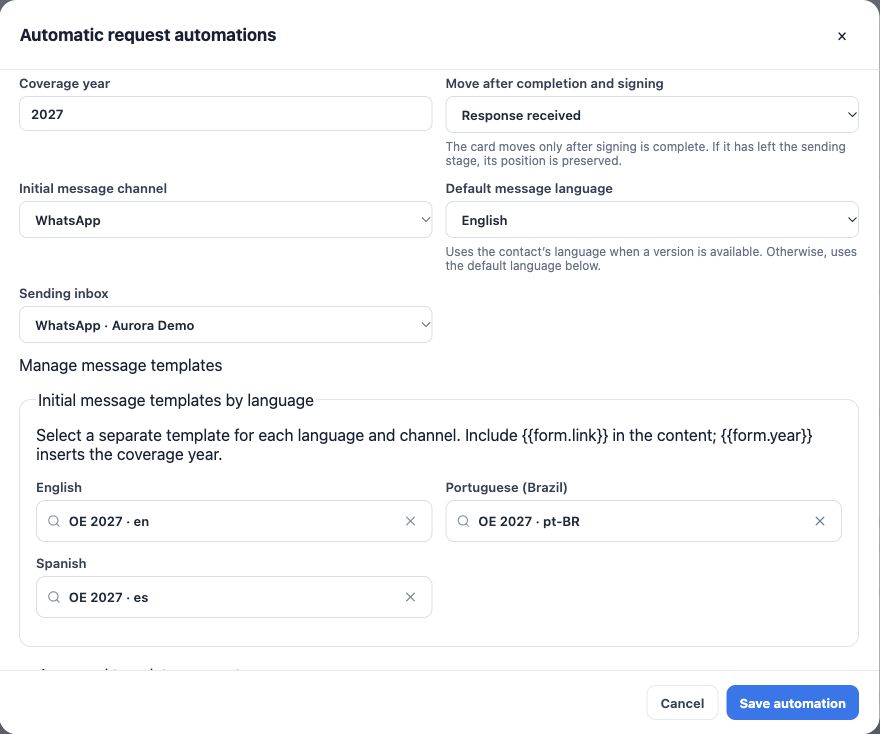
- Check Coverage year; 2027 is the example. This year is used in the form issued by the rule.
- For Move after completion and signing, choose Response received.
- Choose the Initial message channel: email, WhatsApp or SMS, and its inbox or sender. For email, also choose the available transport: connected organization mailbox or email marketing, respecting configuration and limits.
Choose message templates by language
Under Initial message templates by language, select English, Portuguese and Spanish versions. The invitation must contain {{form.link}}, replaced by the individual link; {{form.year}} inserts the year. The form and the invitation are separate templates.
- Set the Default message language. Its version must be selected.
- Associate available versions for the other languages. The contact’s preferred language chooses a matching version when available.
- If preference or version is missing, the invitation uses the action’s default language.
- Check the link language separately: it follows the contact preference, defaulting to English when no valid preference exists. The message default does not change this rule.
Clients can switch language in the form. The signed Open Enrollment PDF is saved in English; free text and customized content are not automatically translated.
Set approved parameters for official WhatsApp
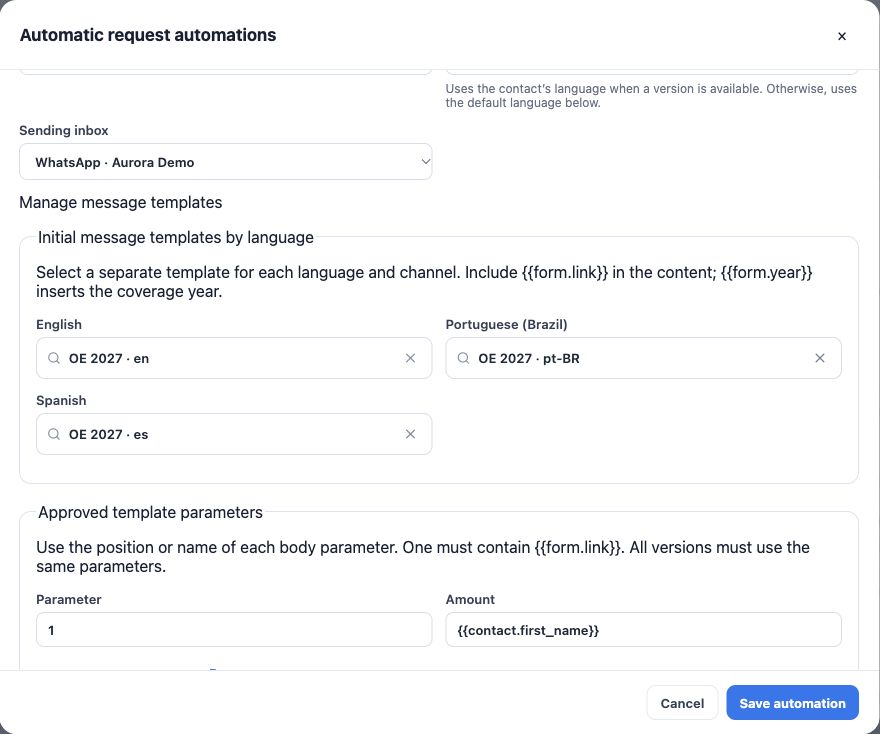
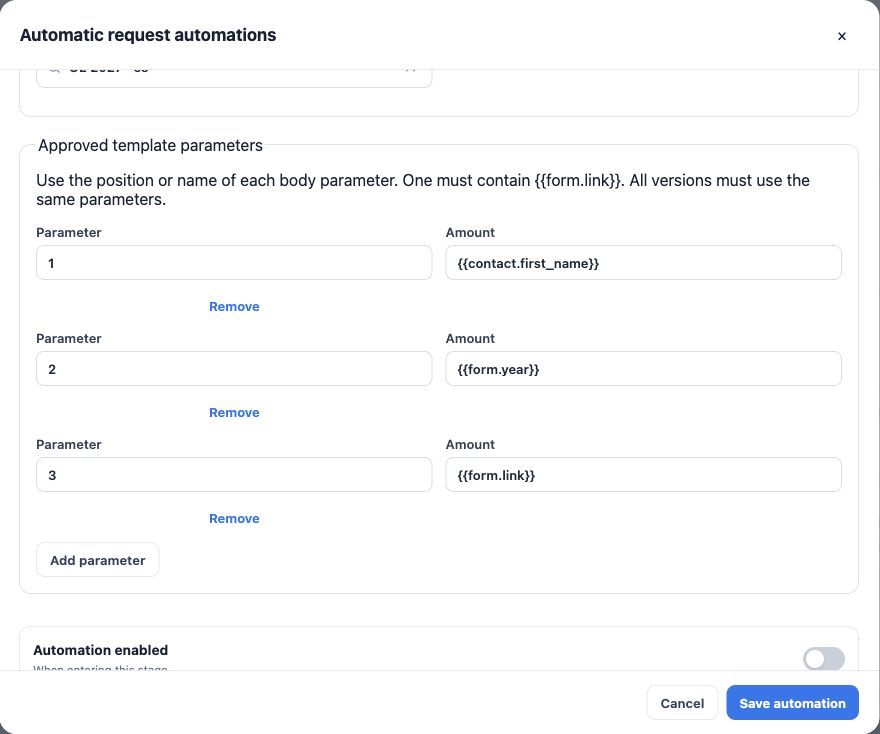
Models must match approved inbox templates and the language of each version. The fictitious example has three variables: name, year and link.
| Example parameter | Value |
|---|---|
| 1 | {{contact.first_name}} |
| 2 | {{form.year}} |
| 3 | {{form.link}} |
Check your agency’s actual template structure: names or positions may differ. At least one parameter must carry the link, and language versions need compatible structures. Do not paste one person’s link into an invitation for everyone.
Save paused, test and then activate
New orchestrations start paused. Check form, Producer, year, return, channel, languages and parameters before saving. Leave re-sending on stage reentry disabled unless repetition is intended.
- Save and reopen the rule to check its values. For email, Save paused preserves configuration while a sending blocker is resolved.
- Run a controlled test using an authorized test contact and suitable data; check the link and channel outcome.
- After review, the administrator enables the active-automation setting and saves required confirmations. Activation can lead to real sending when the trigger occurs.
- Move or create cards in the sending stage according to the plan. Saving or changing a rule’s state does not confirm that older cards have already received messages.
- Use the delivery hub to check queued, successful, failed and skipped items.
Know where cards wait and when they advance
On the automated path, a card remains in Automatic request while awaiting the client. After completion and signature, processing can move it to Response received. If someone already moved it out of the trigger stage, its position is preserved. Do not move it merely to represent that a message entered the queue.
For several channels, configure one action per channel in the same stage with the same form, year, Producer and return destination. Compatible actions share that card’s request instead of requiring a separate signature per channel. This does not authorize duplicating invitations with an independent campaign.
Confirm it works
- Rule saved in the correct board and stage, with its active/paused state checked.
- Correct language version and individual link, tracked in the delivery hub.
- Card waiting in the expected stage and advancement conditional on signature.
- No bulk-sending intermediate stage triggers a second automatic invitation.
For selecting each group before sending, use bulk sending. To handle returned forms, see responses and renewal completion.
Keep learning
- Understand Open Enrollment and prepare the Kanban
- Start Open Enrollment from your policy portfolio
- Select contacts and create cards in the renewal Kanban
- Send Open Enrollment forms in bulk from Kanban
- Track responses, review details and complete renewal
- Request documents and signatures
- Serve your clients
Updated October 24, 2026.