For Insurance agency Owners and administrators.
Open history and the timeline
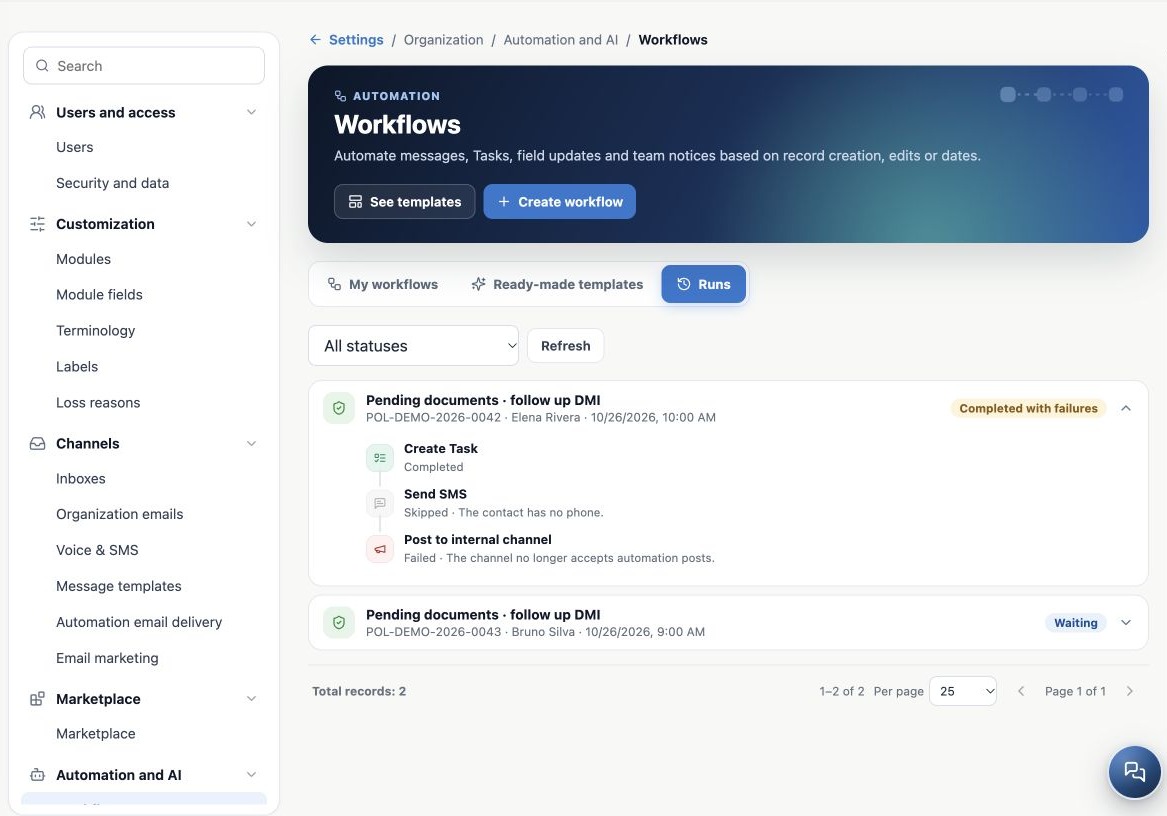
- Open Runs and filter status if needed.
- Find workflow name, record and time.
- Expand the run to see ordered steps.
- Read each action’s result/reason rather than only overall status.
- Use Refresh as needed; the view also refreshes while runs are in progress.
The example created a Task, skipped SMS for missing phone and failed an internal notice because its channel no longer accepted automations. Fixing the phone neither undoes the Task nor guarantees retrying only the message. Investigate before creating another event.
Interpret statuses
| Status | Meaning |
|---|---|
| Running | Steps are still processing. |
| Waiting | A wait or resumption is scheduled; check time/reason. |
| Completed | Steps finished, but messages may still be queued for delivery. |
| Completed with errors | Some actions failed; others may already have happened. |
| Failed | The run ended in failure; check previously completed steps. |
| Skipped | Conditions, cycle protection or another reason prevented an action. |
| Canceled | Pausing/deleting the flow, deleting a record or losing feature availability can interrupt it. |
Completed does not mean received or read. Check Delivery Center and channel history. Also verify created Tasks and internal notices at their destinations.
Resolve the specific cause
| Symptom | Check |
|---|---|
| No run | Active flow, module, new event, actual tracked-field change, frequency, filters and date/timezone. |
| Missing contact email/phone | Contact data and relation to the observed record. |
| Unavailable sender/inbox | Connection, active status and channel compatibility. |
| Archived or unavailable official template | Current selection and official approval. |
| Task/Deal not created | Board/pipeline, stage and active owner. |
| Internal notice failed | Channel exists and allows automation posts. |
| Same value or existing label | Skipping may be correct; no change is needed. |
| Conditions no longer met | Record changed while waiting; check whether the issue was resolved. |
Temporary failures may retry automatically; some configuration failures allow other actions to continue. A workflow is not a transaction undoing everything when one step fails. Cycle protection cannot make contradictory rules a correct process.
Avoid repeating completed work
Before reactivating or triggering another event, check existing messages, Tasks and Deals. Recovery preserves completed steps, but a new eligible event may create a separate run. Do not duplicate workflows to retry a failed message.
For uncertain sending results, check the destination and ask support before repeating. Provide workflow, record, time and affected step without passwords, webhook secrets or unnecessary client data.
Related guides
- Understand when to use agency Workflows
- Configure triggers, dates and frequency
- Filter records and control behavior after a wait
- Build workflow actions and channels
- Review, test and activate with control
- Administrator manual
Reviewed October 26, 2026.