For: CRMDAY One users with the Insurance profile.
Recipe 1: monthly applications
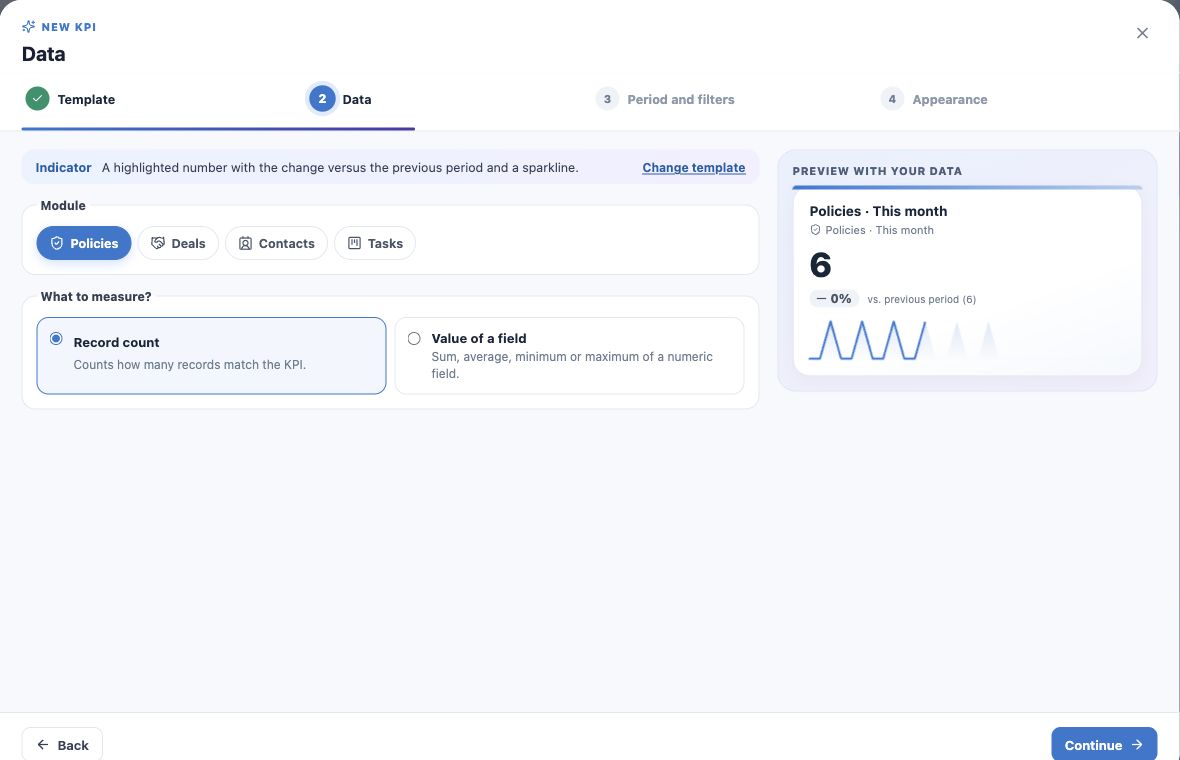
- Choose New KPI → Indicator.
- Select Policies and Number of records.
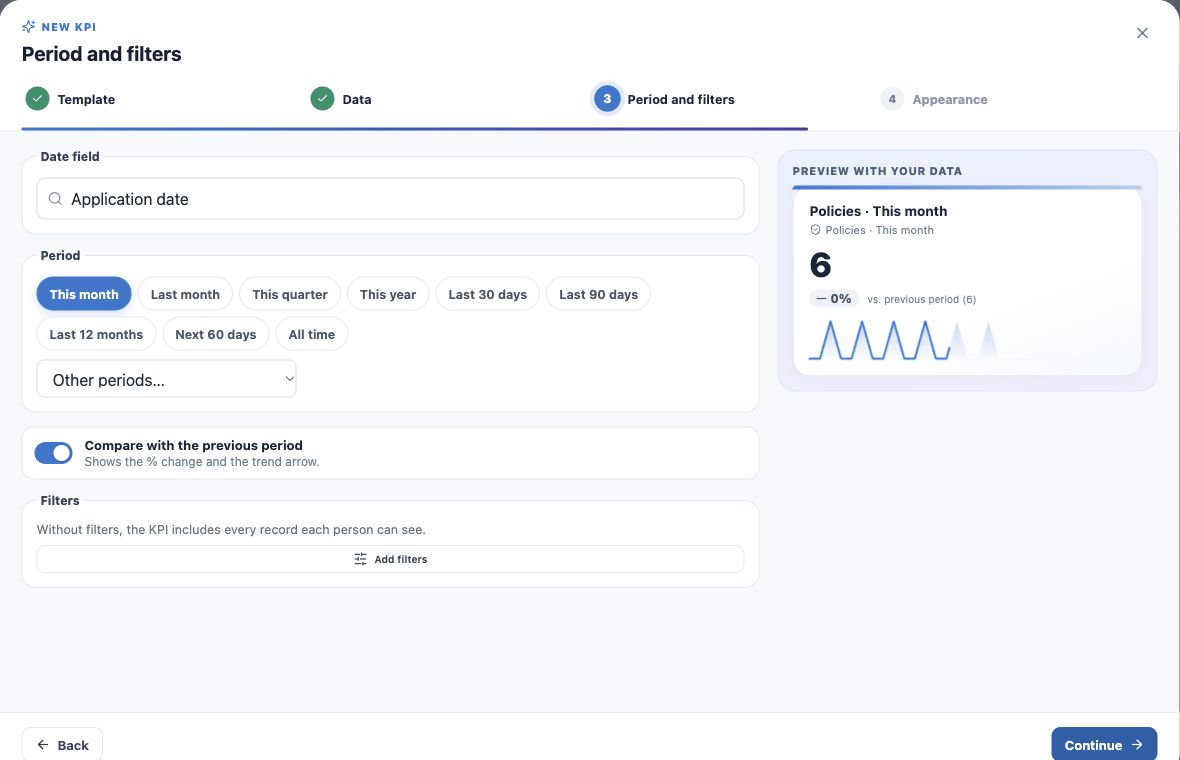
- Choose Application date and This month in Period and filters.
- Leave additional filters empty for all monthly applications, or add the intended product/owner criteria.
- Enable comparison with the previous period when applicable.
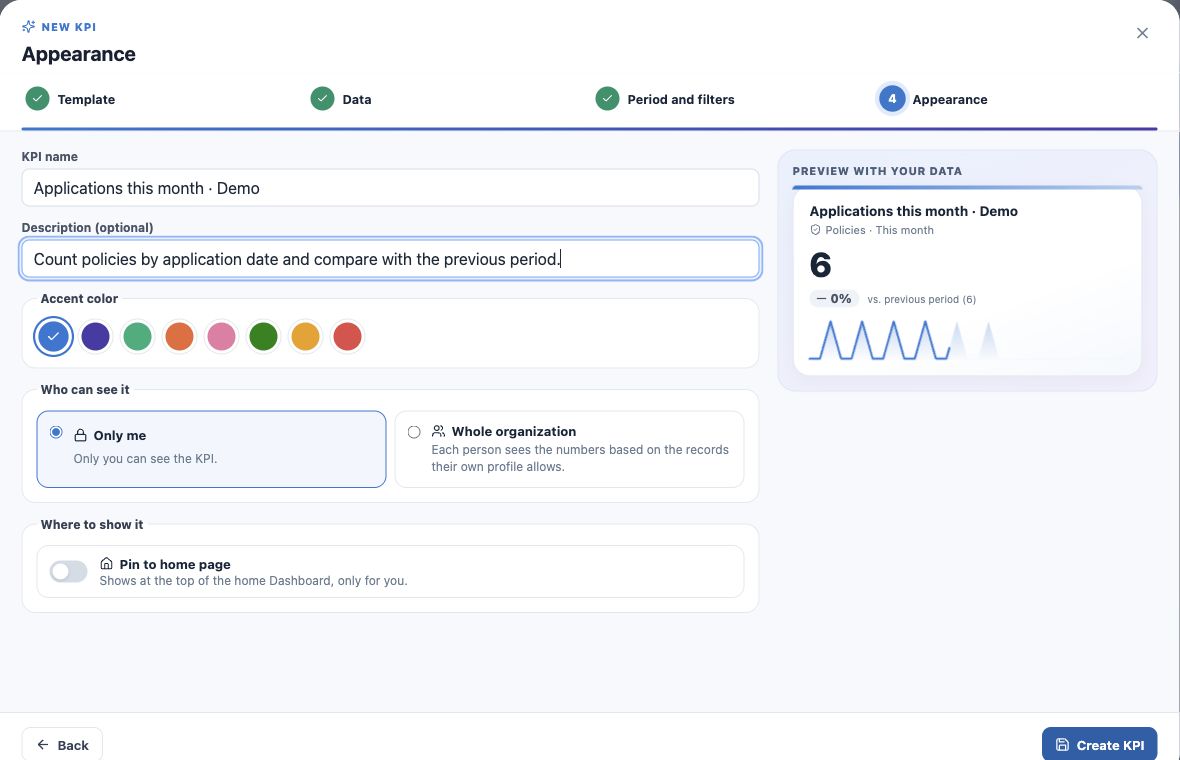
- Name it Monthly applications, describe the criteria, set visibility and create.
Check comparison and saving
The fictitious example has six applications this month and six in the compared previous-period portion: 0% change. An ongoing period can compare the equivalent portion of the previous one rather than its entire month.
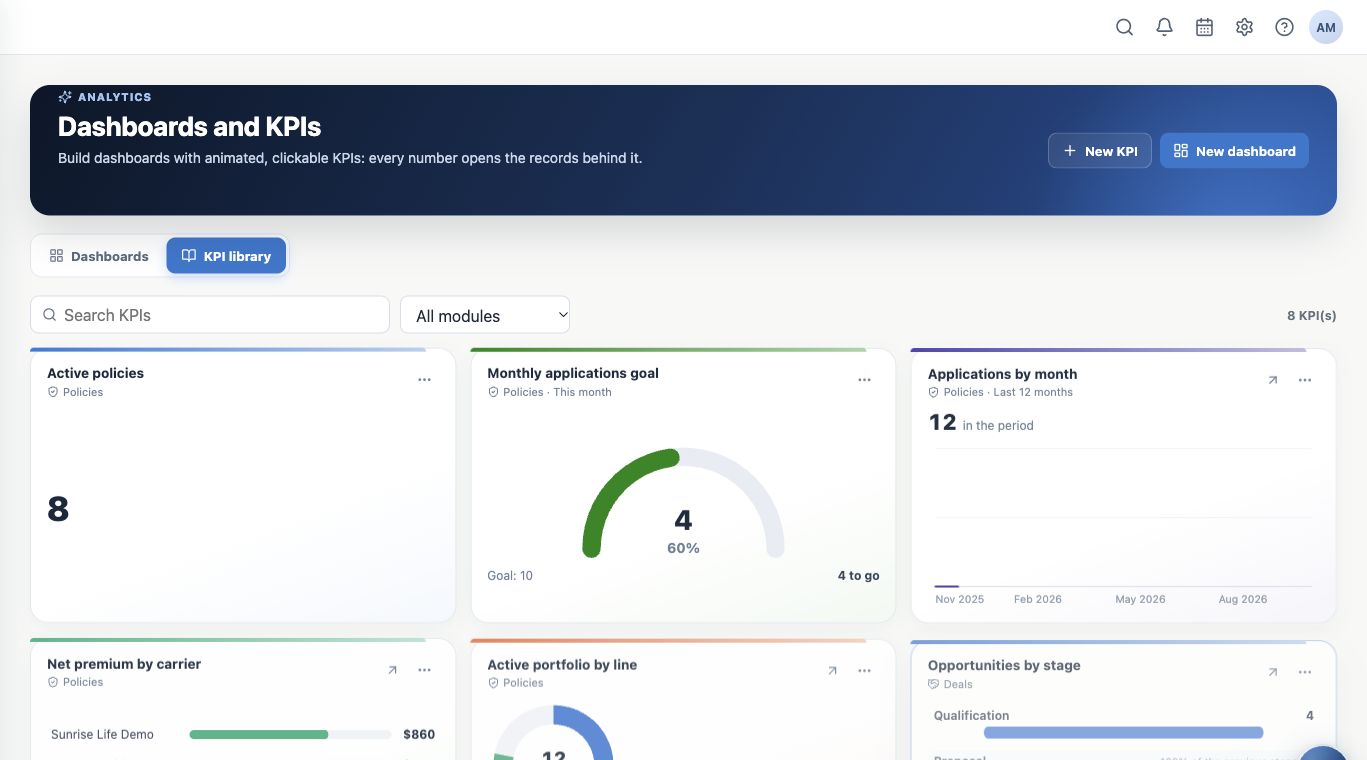
Choose Only me while validating. After creation, find the KPI in the library and reopen its actions menu. A correct preview does not replace checking the saved definition.
Recipe 2: active-book net premium
- Create another Indicator using Policies.
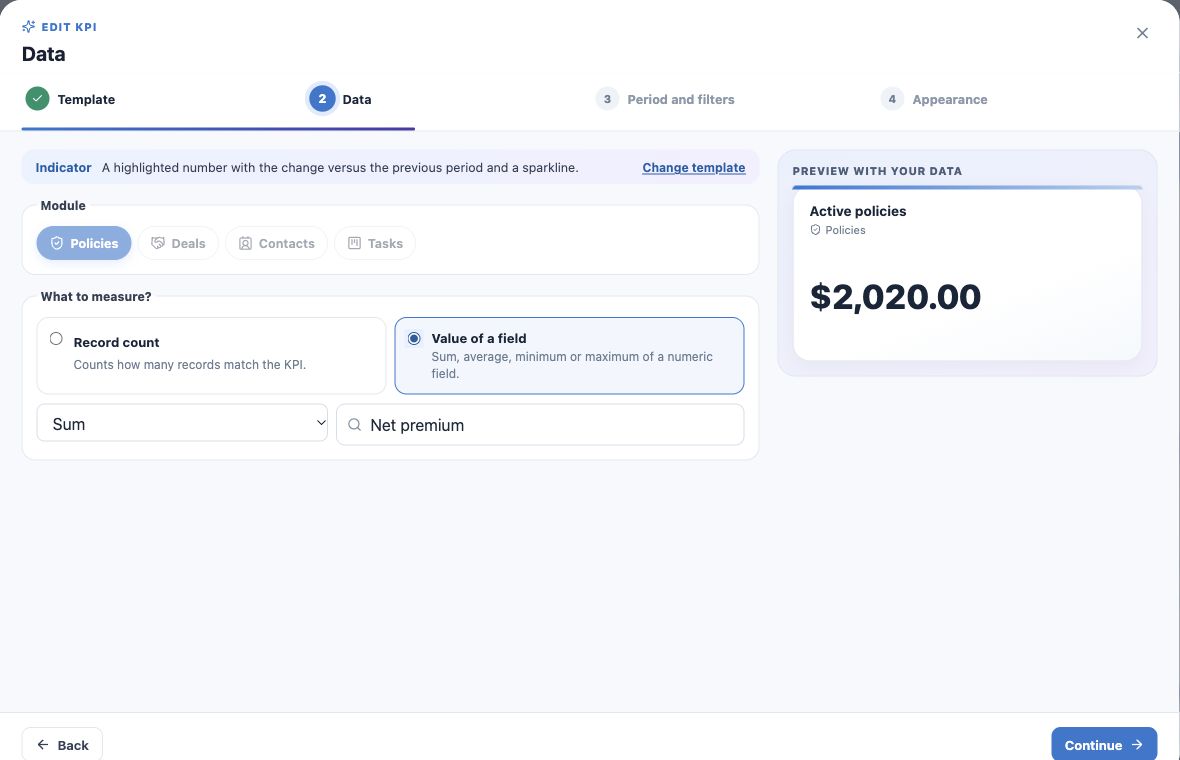
- Select Value of a field → Sum → Net premium.
- Choose no date restriction to measure the book rather than only recent applications.
- Apply Status equals Active.
- Name it Active-book net premium, verify currency and create.
The example totals $2,020.00 across 12 active policies. This is the recorded field, not confirmed commission or payment collection.
Use average, minimum and maximum appropriately
Average examines the value per record; Minimum and Maximum show extremes. Use a compatible numeric field and explicit filters.
Policy count differs from covered lives; premium sum differs from policy count. Rename and revalidate when changing the calculation.
Recipe 3: ten monthly applications
- Choose New KPI → Goal.
- Select Policies and Number of records.
- Choose Application date and This month.
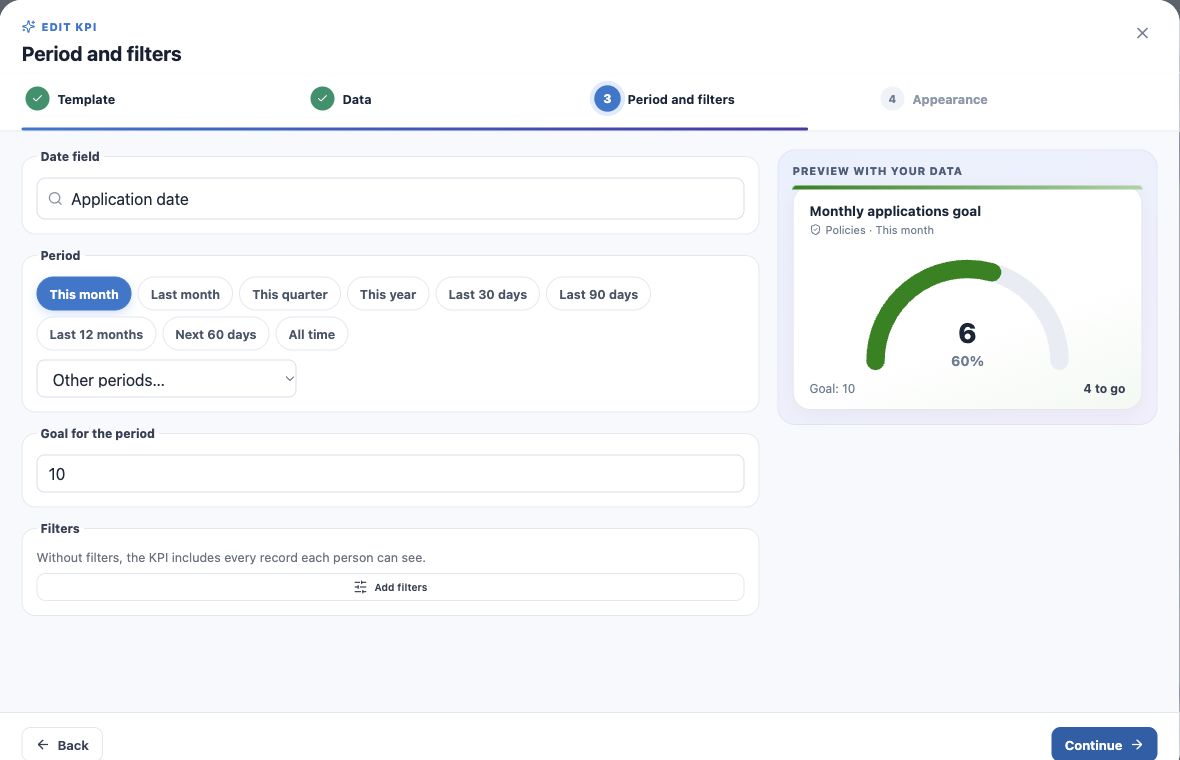
- Set Goal for the period to 10. For an individual goal, also filter its owner.
- Name it Monthly applications goal and create.
- Open the indicator to check the applications behind actual performance.
Six of ten is 60%, with four remaining. This KPI target does not automatically update administrative goals in Sales.
Keep target unit and period explicit
For a monetary goal, select a monetary sum and enter the target in the displayed currency unit. For quantity, use count. The target must exceed zero; ten is an instructional example, not a production recommendation.
If actual performance looks wrong, check filters, date, access and calculation before changing the target.
Keep learning
- Plan your KPIs and learn the Analytics wizard
- Create application and renewal trends
- Compare carriers and show product share
- Create funnels and rankings for team follow-up
- Build custom dashboards and use the insurance template
- Put KPIs on your home page
- Review, edit and validate indicators
- Organize activities and processes with Kanban
- Stay on top of your day
Updated October 25, 2026.