For Insurance agency Owners and administrators.
Understand the requested records
In DNS authentication, check Selected domain and the verified-record count. Expand a row for Type, Relative name, DNS value and Full hostname. Use values generated for your agency, not the demonstration images.
| Record | Practical role |
|---|---|
| DKIM signature — CNAME | Supports validation of signed domain messages. Publish each requested selector. |
| Message return path — MX | Defines technical return handling on the indicated subdomain. It does not replace the main domain’s incoming-mail MX. |
| SPF authorization — TXT | Declares sending authorization at the specified hostname. |
| DMARC policy — TXT | Defines authentication policy. Preserve an existing recognized policy. |
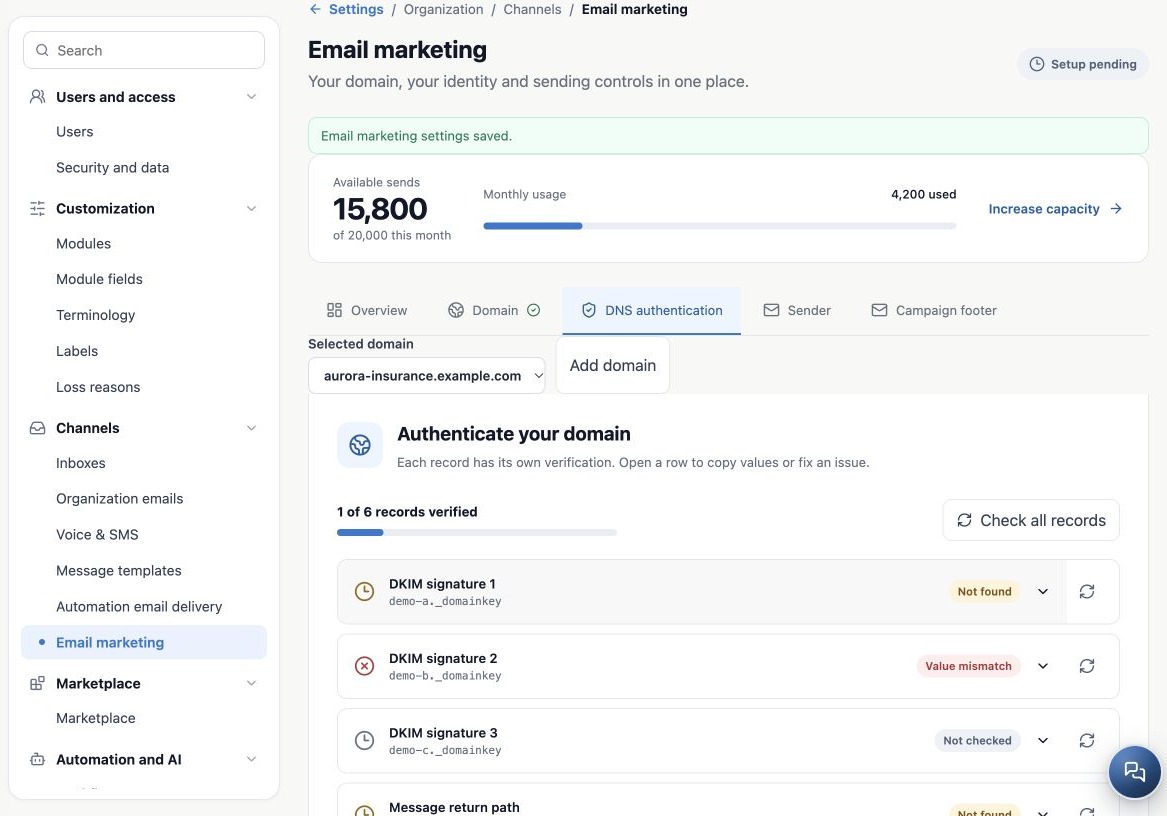
Copy and publish without duplicating the name
- Open the DNS manager responsible for the correct domain zone. If unavailable to you, send instructions to its administrator.
- Copy the type and values using CRMDAY’s corresponding buttons.
- If the provider appends the domain, use Relative name; if it requires the full name, use Full hostname. Avoid name.youragency.com.youragency.com.
- For CNAME, check name and destination. On Cloudflare, keep authentication records DNS only, without proxying.
- For MX, put priority in its separate field and omit that number from the destination. For TXT, paste without adding quotation marks.
- Expand DNS provider help, select the provider where applicable and download instructions when needed.
The DKIM image shows a fictitious difference between expected and observed values. Compare before editing. The workspace does not publish DNS automatically. See Cloudflare’s official record-field documentation.
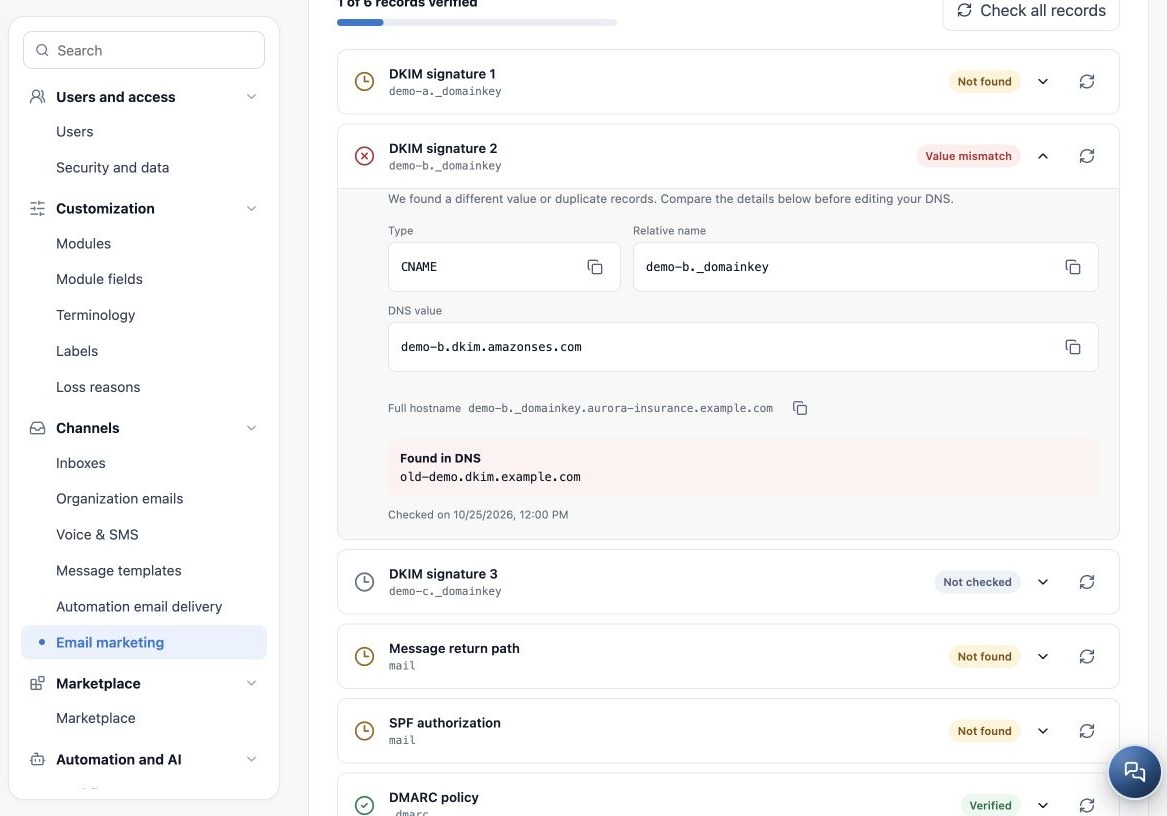
Preserve existing receiving and policy
The return-path MX belongs to the displayed hostname, usually a return subdomain. Do not remove MX records used by agency inboxes. Relative name mail and priority 10 in the image are examples; use your screen’s generated name and priority.
If DMARC is Verified, keep the recognized policy. Do not publish duplicate DMARC or replace a stronger policy with p=none merely to copy a suggestion. For conflicting SPF or other records at the same hostname, request technical review instead of adding duplicates. See the delivery service’s official MAIL FROM documentation.
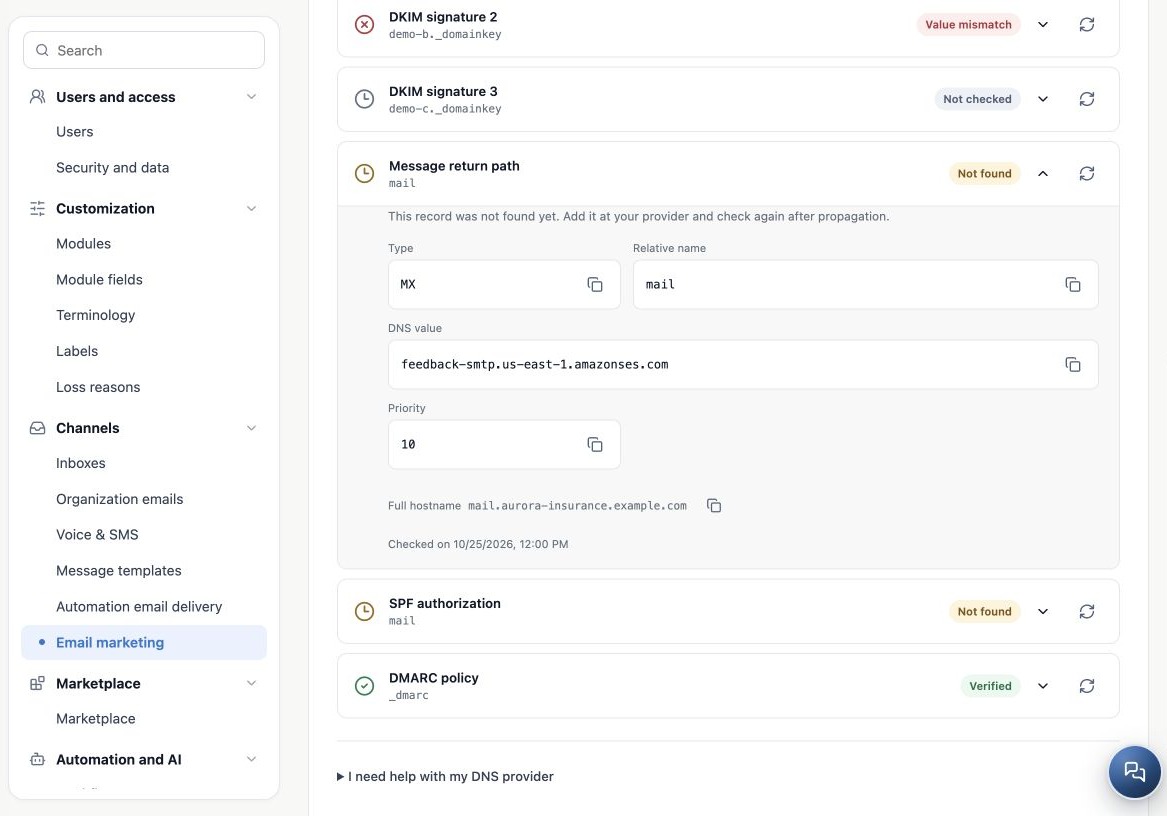
Verify and interpret results
- After publishing, return to the correct CRMDAY domain.
- Use the row verification button or Check all records.
- Review states and expand for observed values and check time.
- Correct indicated issues, allow propagation and verify again.
- Continue to Sender; it can be prepared while authentication finishes.
| State | Action |
|---|---|
| Not checked | A check is still needed. |
| Not found | Check publication, hostname, zone and propagation. |
| Value mismatch | Compare expected, observed and duplicate records. |
| Lookup unavailable | Retry later; lookup failure does not require DNS edits. |
| Verified | The record is recognized; preserve valid values. |
Help mentions propagation up to 72 hours as guidance, not a guaranteed deadline. If records are correct but the delivery service has not confirmed, wait and verify again. Valid DNS does not remove an account block, exhausted allowance or pause.
Related guides
- Prepare your agency’s email marketing
- Register and organize sending domains
- Configure senders and authorized users
- Configure the campaign footer and unsubscribe link
- Validate setup and monitor sending
- Administrator manual
Updated October 25, 2026.