For: CRMDAY One users with the Insurance profile.
Images show actual system screens in a local environment with fictitious data. Captures represent different moments in Nina Torres’s and Maria Costa’s examples.
Confirm the person and the information to change
Find the existing record and verify name, phone, email and context before editing. Maria has confirmed a new email: maria.costa.updated@example.com. She is the same person; no new contact is needed.
Identify whether the information belongs to the contact, the policy or another record. Correcting a contact email is different from changing a coverage date or plan.
1. Activate Edit data
- Open the contact record in the Insurance profile.
- Click Edit data in the header.
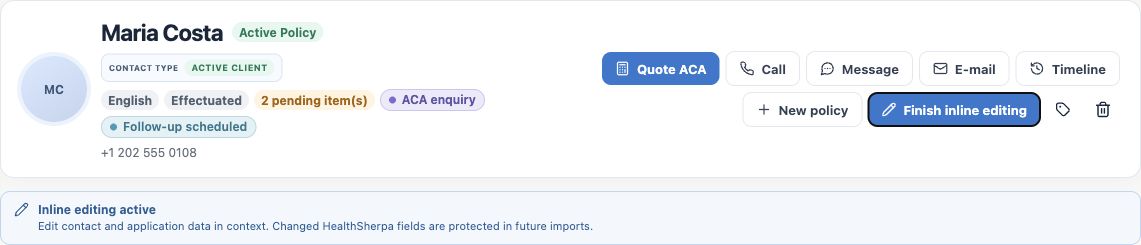
- Check the Inline editing active notice. Editable fields now offer an edit control.
- Find the right section. For email, use Contact and address.
2. Edit and save the correct field
- Click the edit pencil beside E-mail.
- Replace the old address with the confirmed new email.
- Check the value before using that field’s Save button. Use the field’s Cancel control to abandon this unsaved change.
- Wait for the result. If there is an error, review the value and message before continuing.
Each field has its own confirmation. Finishing inline editing closes the editing mode; it does not replace saving the field. Canceling one field does not undo other changes you already confirmed.
3. Reopen and verify the result
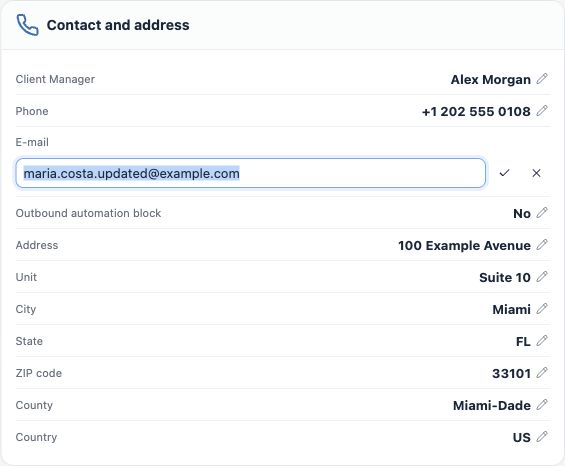
- Check the value displayed after saving.
- Finish inline editing when done.
- Reopen the same record or reload the page and verify the new email.
- If needed, return to the list and search for the new details to find the same contact.
The example’s updated email remains after reopening. Old emails in history still represent past messages, rather than a list of current contact details.
Other common changes
| Information | What to check |
|---|---|
| Phone | Check country, international code and digits. If another record conflicts, confirm identity and number use before proceeding. |
| Name and identity | Use confirmed information and review name parts and details in the correct context. |
| Address | Review available street, unit, city, state, ZIP and county fields. An automatic suggestion also needs checking. |
| Client Manager, Owner and labels | Follow your agency’s responsibility arrangements. The organization chapter shows where to review and adjust these links. |
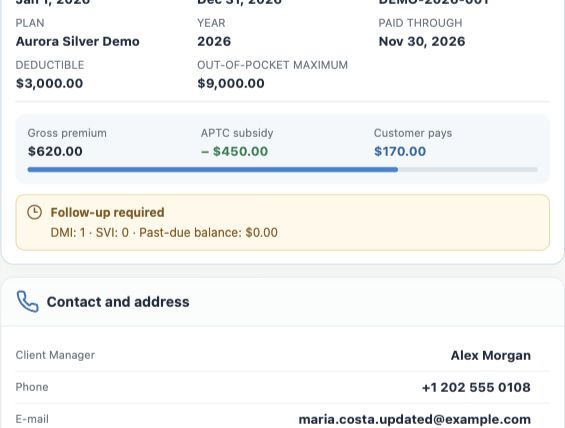
| Policy and application details | Check the selected policy, period and product before editing. The record may display information from more than one coverage. |
Some imported fields may be marked as protected after editing. Read interface notices and follow your agency’s review process. Do not assume a CRM edit automatically updates an external system.
When to ask for help
- The field is not editable or you lack access to required information.
- The saved value differs from what was entered, or records conflict.
- The change involves coverage, documents or another person’s details and you have not confirmed the context.
Avoid creating a new contact to work around the issue. You are done when the correct details remain in the same record after reopening and existing links are still available.
Keep learning
- Find a contact before creating a new one
- Create a new contact
- Understand the contact record and client 360 view
- Organize and filter your contact database
Updated October 24, 2026.