For: CRMDAY One users with the Insurance profile.
Check organization and location
Confirm the active organization and module. Another agency’s record does not automatically appear here. Check whether you opened a general list, related list or indicator-specific scope.
Avoid immediately recreating a client or policy: investigate first to prevent duplicates.
Review search and filters
- Clear the search and try a known name, policy number, phone or email.
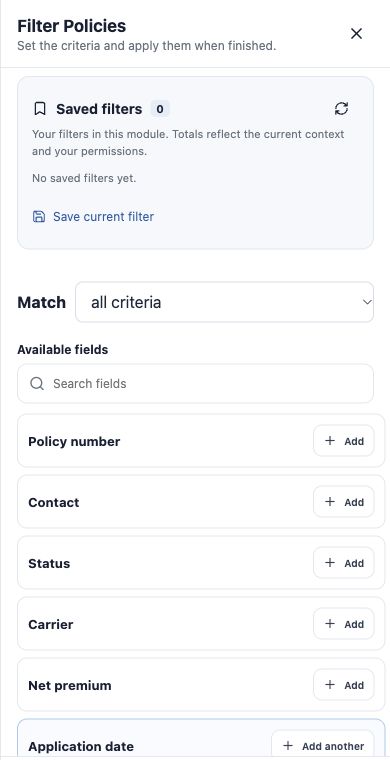
- Open Filters and check conditions and all/any matching.
- Review portfolio period, product, state, team and status; check Sales context separately.
- Use Clear filters to broaden the scope. Search text or other controls may need clearing separately.
- Check totals and pagination. In Kanban, check the board and collapsed columns.
Separate an empty result from a nonexistent record
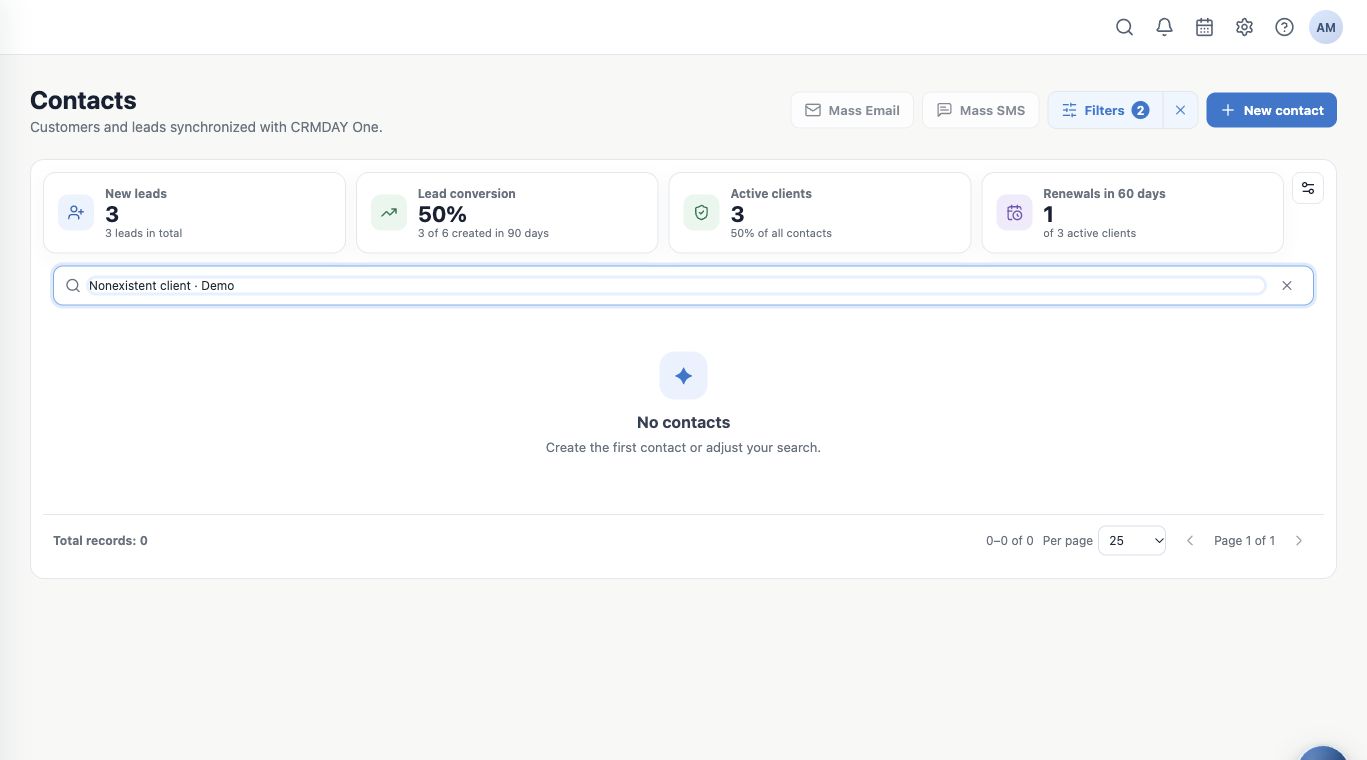
No contacts after a search means the current query returned no visible records. It does not prove that the person has never been registered. The example’s unmatched text returns zero despite existing clients.
Remove the text, review filters and search again. Try another known identifier if the name changed.
Check feature availability
Buttons can depend on licensed modules, organization setup and permission for that action. Viewing a record does not guarantee editing, deletion or automation configuration. Some actions are administrator-only.
For Analytics and Reports, also check private/shared visibility and access to referenced modules and fields. Ask the administrator to verify the needed access.
When information seems outdated
Refresh when available and check import or synchronization times. Reopen the record to confirm saving. Imports, message processing and query refreshes are different steps.
Zero, unavailable and loading error are different states. Record errors and refresh the query; do not repeat a sending or creation action simply to update the screen.
Ask for help with useful context
- Provide organization, module and navigation path.
- Identify the record appropriately and describe the expected result.
- Include period, filters, search, time and error message.
- Crop screenshots to the necessary area and avoid exposing unnecessary client data.
Use Help & Support or the agency’s support channel. Confirm the query after resolution and resume follow-up. Return to starting the day.
Keep learning
- Start your day with the Dashboard
- Use Book of business and Sales views
- Open clients and policies behind indicators
- Consult Analytics and Reports available to you
- Organize activities and processes with Kanban
- Serve your clients
Updated October 24, 2026.