For Insurance agency Owners and administrators.
Text and contact information
| Type | When to use it |
|---|---|
| Single line | Short text, such as an external code or preferred time. Suitable for identifiers that are not quantities. |
| Multiline | Additional instructions or observations over several lines. |
| An electronic address in email format. | |
| Phone | A contact number; use international format when applicable. |
| URL | A page or portal address. |
Codes with leading zeroes, document numbers and lengthy identifiers are often better as text than numbers. Do not put passwords or full SSNs in ordinary fields; use the system’s specific controls.
Lists and confirmation
| Type | Example |
|---|---|
| Picklist | One Task status: Pending, Received or Checked. |
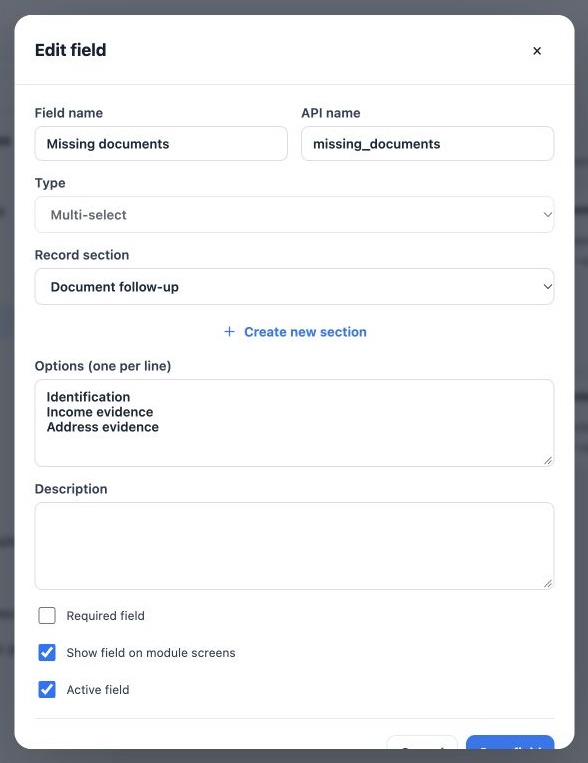
| Multi-select | Several missing documents in the same activity. |
| Checkbox | Yes/No for Documents checked. |
Picklist accepts one choice; Multi-select accepts several. Prefer short, consistent options instead of free text when you need comparisons and filtering. An unchecked box means No; it is not a substitute for evidence or a signature.
Dates and numeric values
| Type | Recommended use |
|---|---|
| Date | The follow-up day without a time. |
| Date/Time | An action requiring both day and time. |
| Number | A quantity such as contact attempts. |
| Currency | An additional monetary amount. |
| Decimal | A fractional value or measurement. |
| Percentage | An entered percentage, such as 25 to represent 25%. |
| Long integer | A whole-number quantity; avoid identifiers with leading zeroes or special precision requirements. |
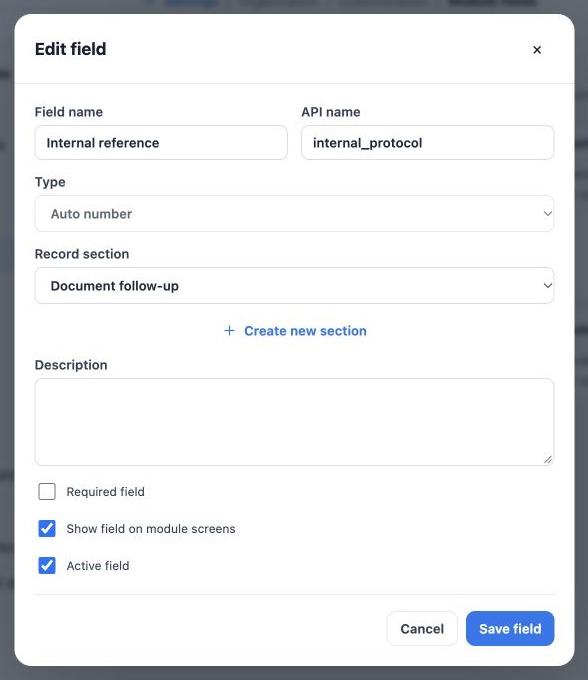
| Auto number | An internal sequence assigned when saving. |
Currency does not configure a payment or convert currencies. Percentage does not create a formula or commission calculation. This editor has no calculated-field, precision or conditional-rule setup. Check entry and display using the user’s language and time zone.
How automatic numbering works
The field receives a number when the record is saved and initially shows Generated when saved. The sequence belongs to the field definition, not to each Kanban separately. In the additional record modules, assigned values are preserved and users cannot renumber them.
This screen has no prefix, mask or starting-number configuration. Failed saves can leave gaps, so do not treat it as a gapless or fiscal numbering guarantee. The editor locks the API name and type after creation; plan before saving.
Related guides
- Plan your fields and choose the right module
- Create fields and configure select options
- Validate fields, languages and integrations
- Administrator manual
Updated October 25, 2026.