For: CRMDAY One users with the Insurance profile.
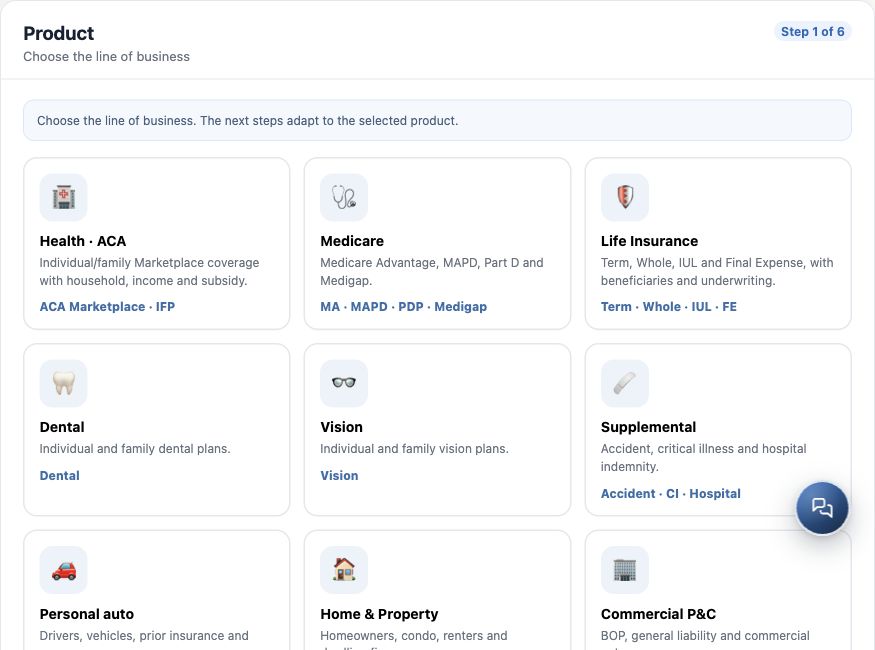
1. Choose the product and check the Producer
- Open New policy from the contact or Create Policy from the Deal. Check the name in the header.
- In Product, choose the line of business. For the quote example, select Health · ACA. Other lines adapt the steps: do not use ACA to record Medicare, life or another product.
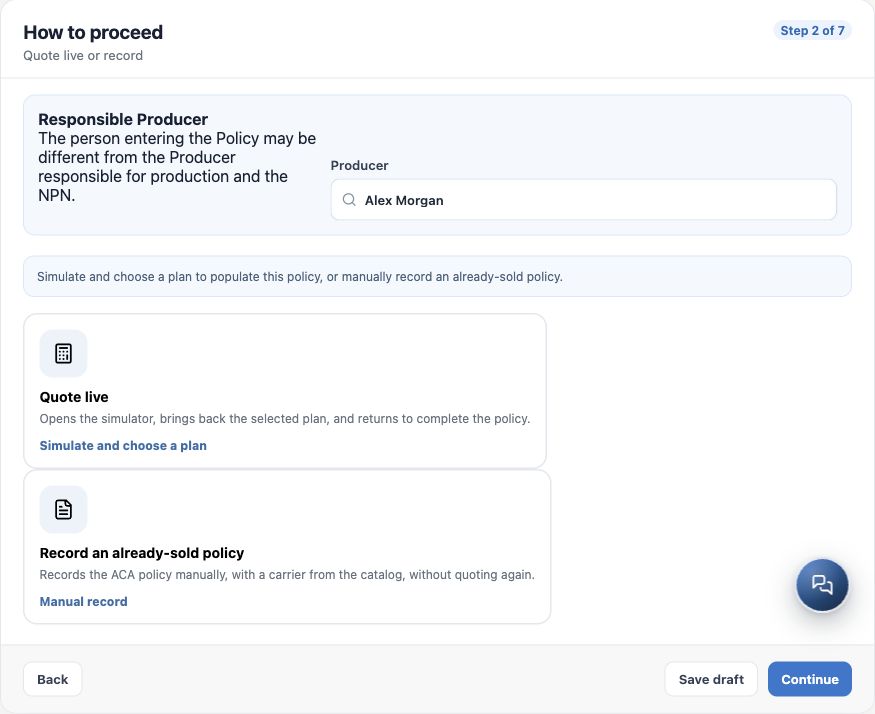
- Check the Producer selector. This is the person responsible for production and the NPN, who may differ from the person entering data. If no valid option is available, resolve the profile with your agency administrator before proceeding.
2. Choose the ACA path
| Path | When and how to use it |
|---|---|
| Quote live | Use when you need to select a plan in the simulator to populate the wizard. Continue to open the quote, check the year and details, select a plan and use the Update policy in Wizard action to return. Review the returned information and finish the record. |
| Record an already-sold policy | Use to manually record established business using confirmed application/policy details. You enter the carrier and plan without quoting again. Do not use this option to assume a purchase that has not been completed. |
The comparison sent to a client is not automatically converted to a Policy. Quote ACA opened directly from the contact is the simulation flow; to bring a selection into policy creation, start Quote live inside the wizard. Returning still requires review and final confirmation.
3. Review coverage setup
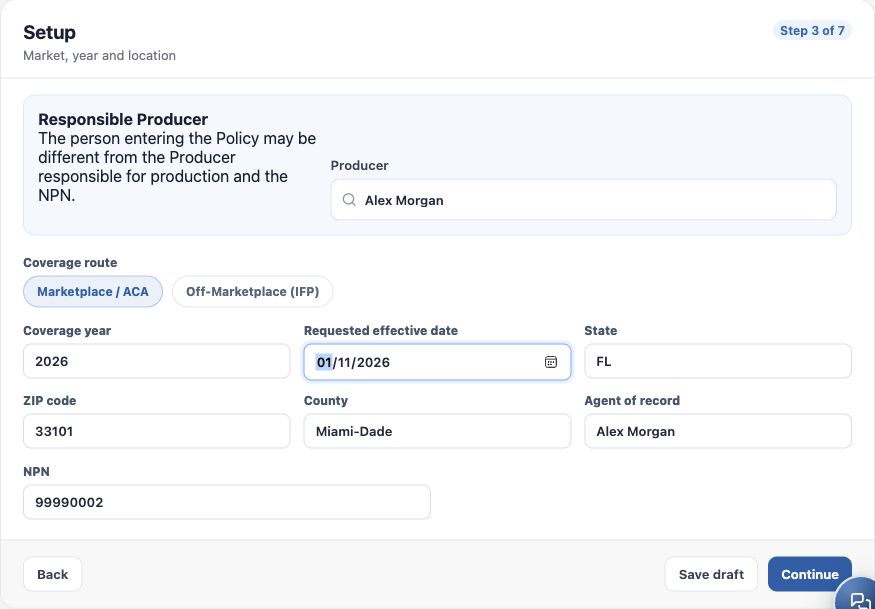
- On the manual path, click Continue to open Setup.
- Check Marketplace / ACA or Off-Marketplace (IFP), according to the actual business.
- Enter the Coverage year and Requested effective date. Check state, ZIP and county. A requested date does not prove effectuated coverage.
- Check agent of record and NPN. They follow the Producer selection; do not replace a correct person just to move forward.
4. Check the applicant and family
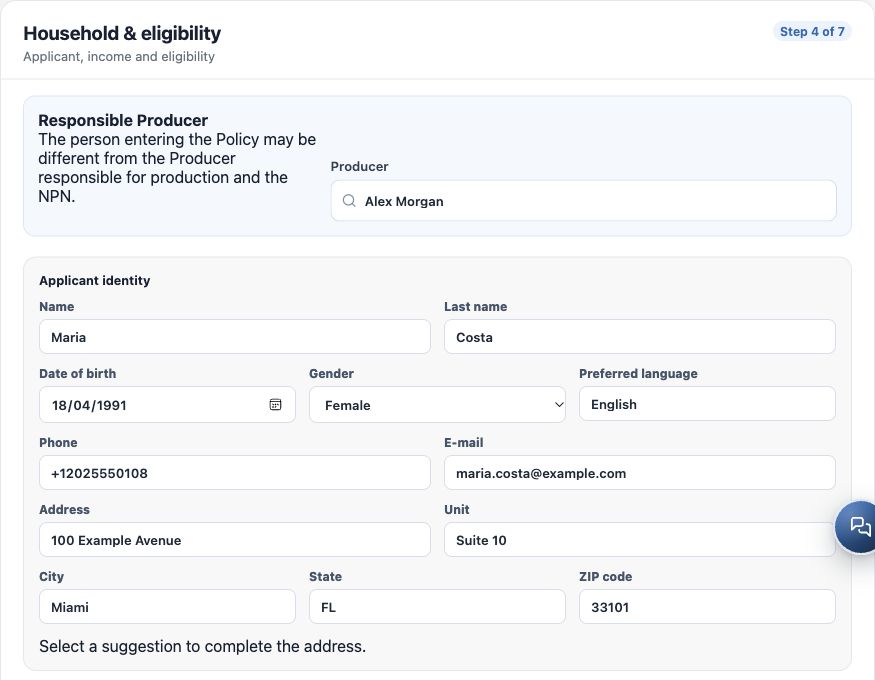
- In Household & eligibility, check the applicant’s identity, birth date, contact details, language and address. Information reused from the contact still needs review.
- Check estimated annual household income, household size and people applying. Do not confuse everyone in the household with the people requesting coverage.
- Complete other fields using information confirmed by the client and your agency’s process. This guide teaches record entry, not eligibility determination.
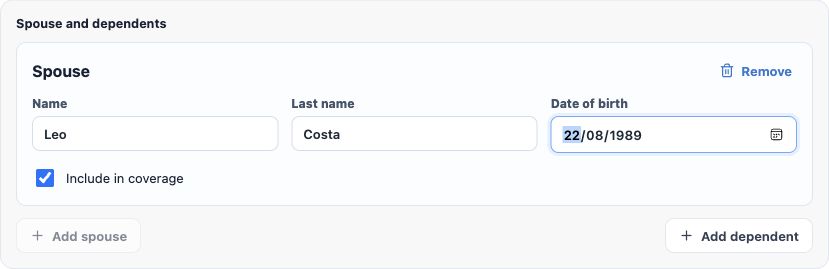
- Under spouse and dependents, use Add spouse or Add dependent. Check each person’s first name, last name, birth date and included-in-coverage option. The example shows Leo Costa, Maria’s spouse.
- Check for missing or duplicate people. Review the totals again before continuing.
5. Enter the carrier, plan and amounts
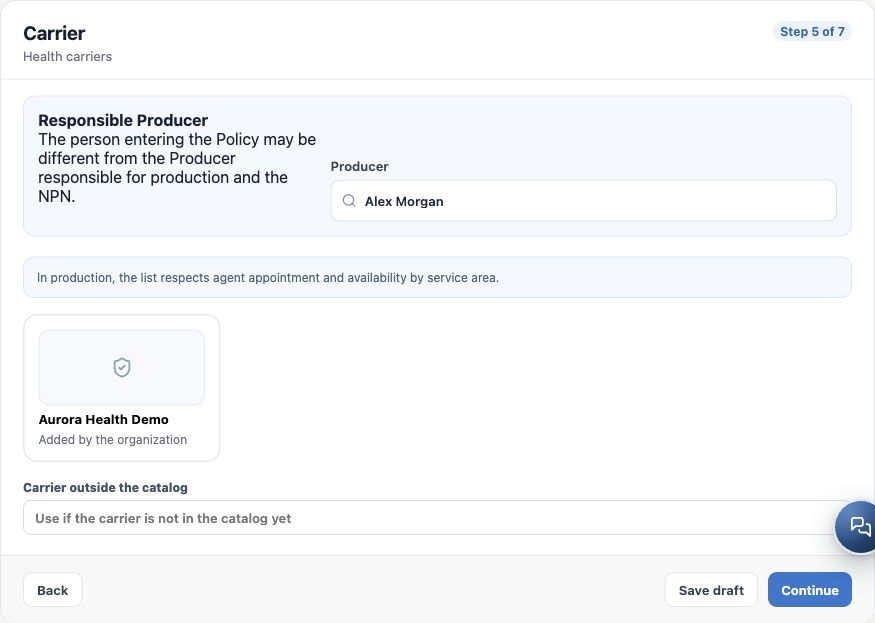
- In Carrier, select the correct catalog entry. Selection advances to the plan. If a carrier outside the catalog is needed, use its dedicated field only after confirming the identity with your agency.
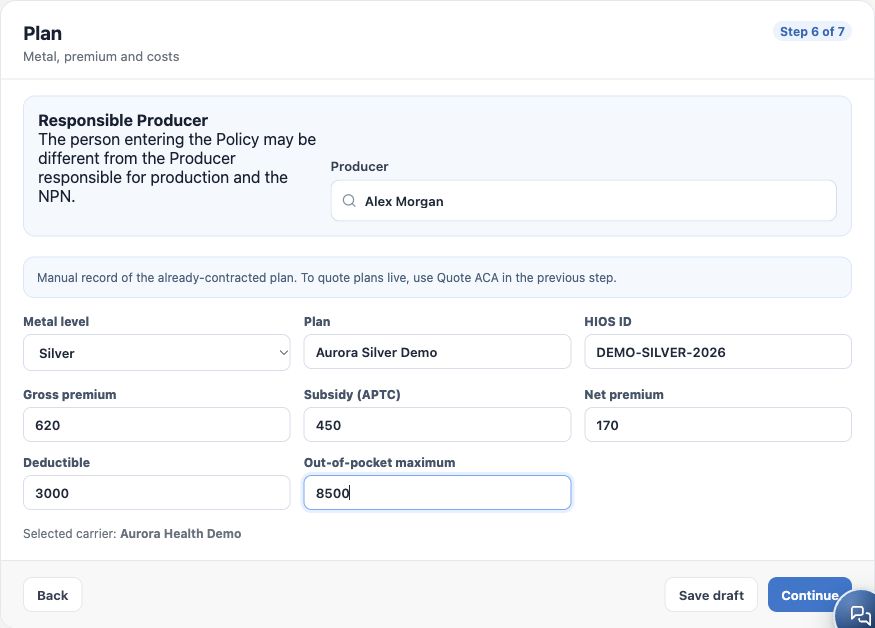
- On the manual path, enter metal level, plan name and HIOS ID when available. Copy identifiers from the correct document, never the fictitious codes in this guide.
- Check Gross premium, Subsidy (APTC) and Net premium. In the example, $620 minus $450 leaves $170 for the client. Also check deductible and out-of-pocket maximum.
- If returning from Quote live, review the selected information; the wizard may skip populated steps. Correct differences before final review.
6. Review and create the record
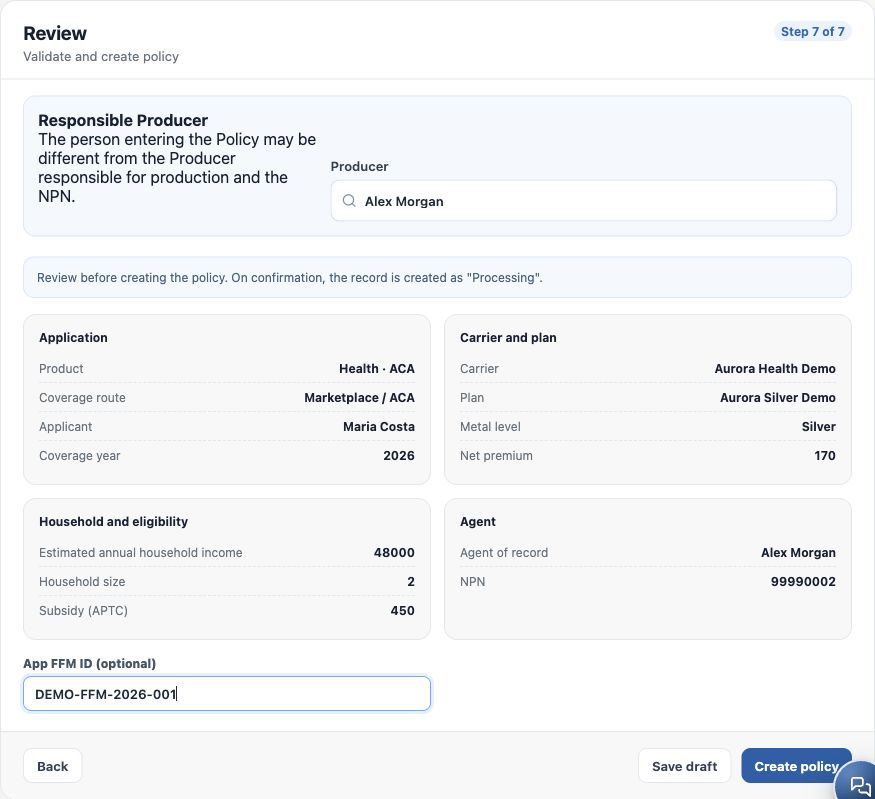
- In Review, check product, person, year, carrier, plan, amounts and Producer. Use Back for corrections.
- Enter the optional App FFM ID only when that identifier exists and is confirmed.
- To pause, use Save draft. This draft is stored in the browser; it is not a created policy or an application sent to the carrier. Do not rely on it to resume on another device.
- Click Create policy once and wait. An ACA policy starts as Processing.
- In the record opened after saving, check the plan, contact, details and Deal link when creation started there. If an error occurs or completion is uncertain, search before repeating to avoid duplicates.
Creation is complete when the record opens in detail and can be found again. Continue with Review and update the policy record.
Keep learning
- The client approved the quote: prepare the policy
- Review and update the policy record
- Track status, payment and pending items
- Organize documents and plan ID cards
- Organize after-sales service and the next interaction
- ACA quotes: save and share the simulation
- Manage opportunities and next steps
Updated October 24, 2026.