For: CRMDAY One users with the Insurance profile.
Images show actual system screens in a local demonstration environment with fictitious data. They represent different moments in the examples; stage names and fields may vary by agency.
Confirm the outcome before closing
Review the Deal, contact, conversations and pending tasks. Follow your agency’s criteria for a completed negotiation. A few days without a reply do not necessarily mean a confirmed loss.
Won and Lost are pipeline stage types. Your agency may use different names; confirm which columns represent each outcome. Do not delete a Deal simply to remove it from open opportunities.
Mark it as won and check the next steps
- Open Pipeline and locate the correct opportunity.
- Move its card to a Won stage using drag-and-drop or the keyboard movement described in the previous guide.
- Wait for confirmation and reopen the record. Check the Won indicator and business details.
- Record what was completed and review remaining open tasks. Prepare any policy issuance or after-sales actions required by your process.
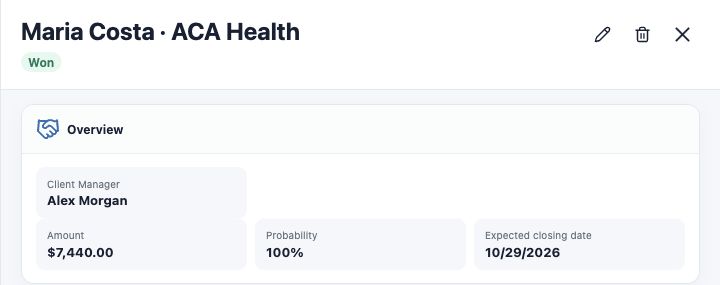
Maria’s ACA opportunity displays Won in the image. Probability follows the stage’s settings; 100% on a Deal expresses its commercial state, rather than independently confirming coverage.
A won Deal and a Policy are separate records
Moving to Won does not automatically create a Policy. In the Insurance record, Create Policy starts a separate workflow when a contact and product are selected and you have module access. Policies generated shows Policies actually linked to the Deal.
Before creating a Policy, check whether it already exists. Then review its status, effective dates and outstanding items in its own record. A quote, won Deal or newly created Policy does not, by itself, prove active coverage. Detailed Policy procedures belong in the corresponding module.
Mark it as lost and select a reason
- Move the card to a Lost stage.
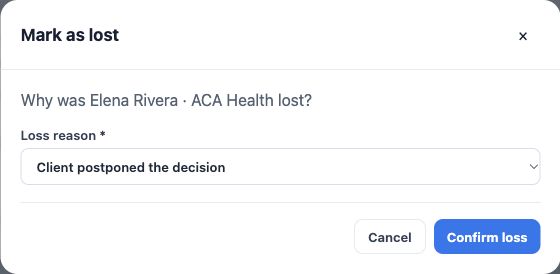
- Check the opportunity name in Mark as lost.
- Choose a Loss reason. Elena’s example uses Client postponed the decision. Select an existing option that matches what happened.
- Click Confirm loss. Cancel closes the dialog without completing this move.
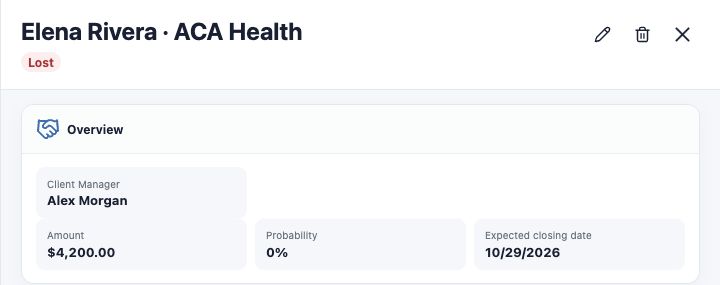
- Reopen the Deal and check Lost and its reason under Sales details.
A reason is required. If no option describes the case, agree on the catalog with your team; adding a reason may create an option the agency can reuse.
Finish without losing the relationship
Review open tasks and meetings and decide what to complete, reschedule or cancel. The contact remains in your database; a lost opportunity does not mean the person should be deleted or that all their other negotiations were lost.
If the same negotiation resumes, agree with the agency whether to return the Deal to an open stage. Record the context and check the movement’s result, including possible automations. A new need may justify a separate opportunity, preserving the old history.
You are done when the outcome, reason when applicable, and next actions are consistent. Return to Understand the pipeline and its stages to review your routine.
Keep learning
- Understand the pipeline and its stages
- Create a Deal linked to a contact
- Update and move your opportunities
- Record tasks and track the next step
- Find and organize your clients
Updated October 24, 2026.