For Insurance agency Owners and administrators.
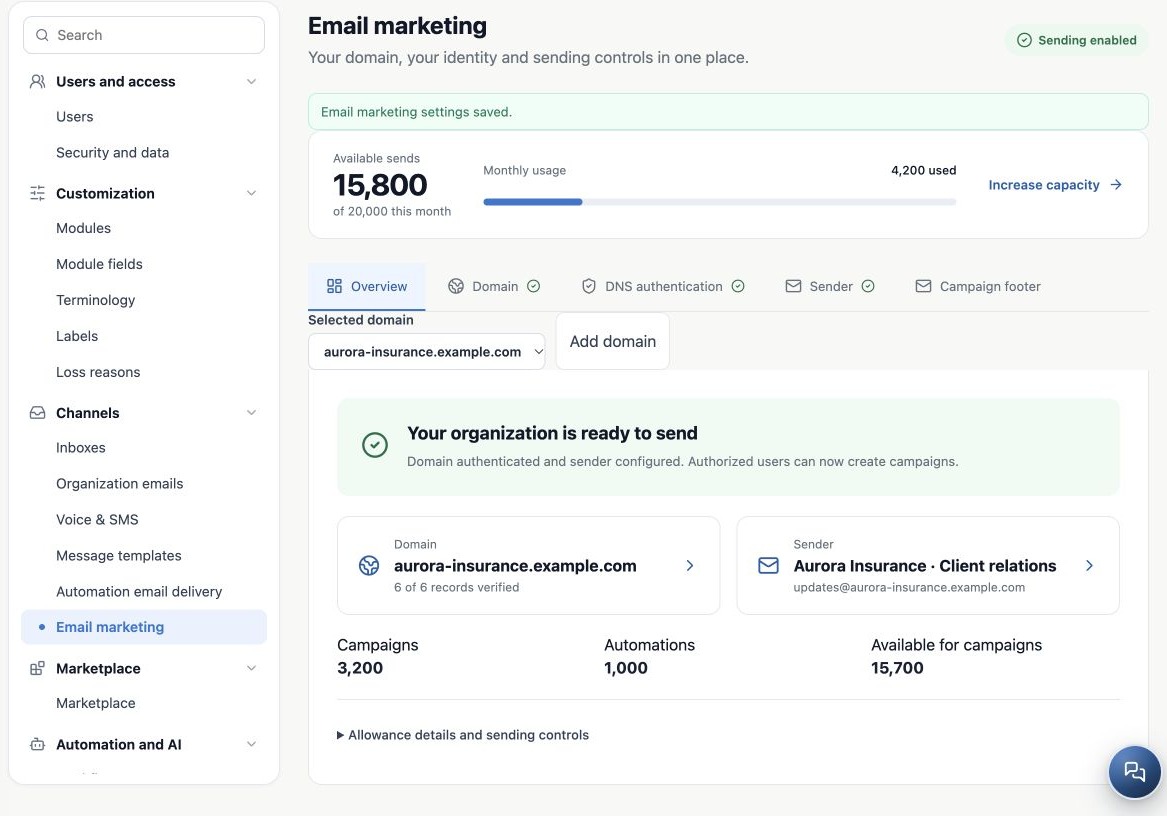
Check Overview before starting
- Open Overview and select the domain to use.
- Check verified records and its displayed sender.
- Review reply-to, authorized users and footer in their guides.
- Check Sending enabled and any setup, subscription, pause or blocking notices.
- Review remaining allowance and campaign availability before selecting recipients.
One ready domain does not enable a sender on another domain. Check configuration against the selected campaign address. Sending enabled indicates setup conditions; it does not approve content or contact selection, or guarantee delivery.
Understand allowance versus delivery
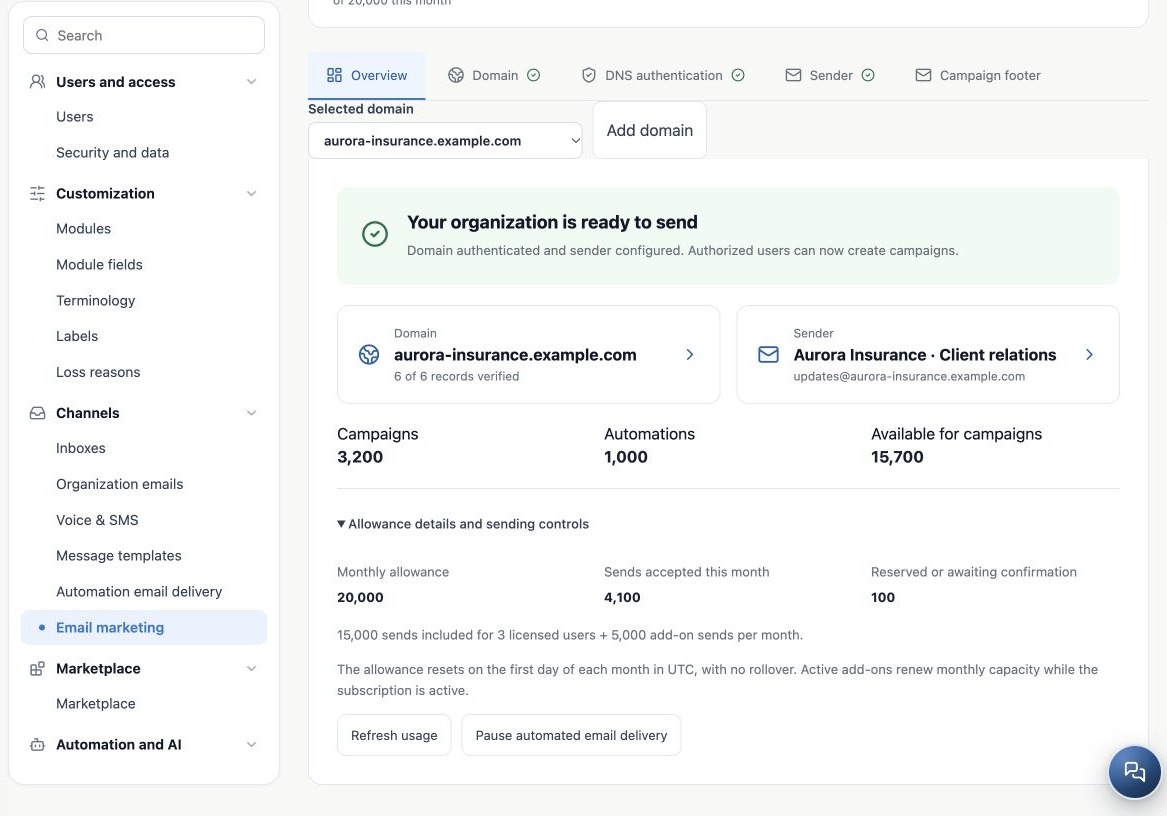
Expand Allowance details and sending controls. Capacity combines the licensed-user base and active add-ons. Use your actual account values; the images’ 20,000 sends and 4,200 used are fictitious examples, not an offer.
| Indicator | Interpretation |
|---|---|
| Accepted sends | Accepted by the delivery service; not proof all reached inboxes. |
| Reserved or awaiting confirmation | Capacity committed to pending or uncertain outcomes. |
| Campaigns and automations | Separate usage sharing the same capacity. |
| Available for campaigns | May be below total remaining due to the operational email reserve. |
Allowance renews on the first day of each month in UTC with no rollover, independently of billing anniversary. Refresh usage to reread values. Increase capacity opens commercial settings; purchase completion requires the account owner and confirmation, not merely opening that page.
Run a small test send
- Use fictitious contacts with authorized test addresses and minimal data.
- In bulk sending from Contacts or Kanban, choose Email marketing when a method selector exists.
- Choose an authorized sender and a template in the recipient’s language. Review subject, variables and links.
- Prepare a small batch and follow it in Delivery Center.
- Check received name, address, content, images, links and footer. Reply to validate the return mailbox.
- Test unsubscribe only with a fictitious contact, as in the previous guide.
Test sends also use allowance. Review the received result, not only preview. Opens and clicks are supporting signals affected by email-reader privacy protections. Check acceptance, delivery, failures, opt-outs and skipped messages in available reports.
Pause or resume without duplicating campaigns
Under allowance controls, Pause automated email delivery and Resume automated email delivery control the organization’s shared campaign and automation pause. They do not cancel a subscription or recall sent messages. Pause, administrative block and service restrictions are different conditions.
After fixing a failure, review recipients and use the existing queue’s appropriate resume or retry where available. Do not create another full campaign: some recipients may already have received it. For pending confirmation, wait for reconciliation or support. Another domain or sender bypasses neither pause nor allowance.
Use notices to find the next action
| Notice or symptom | Check |
|---|---|
| Setup pending | Exact domain, DNS, service confirmation and sender. |
| Missing sender | Sending method and authorized users. |
| Insufficient allowance | Usage, reservations, capacity and campaign availability. |
| Paused or blocked | Displayed reason; resume only controls within your access. |
| Many failures or complaints | Address quality, audience and results; request review before more sending. |
| Replies absent | Reply-To and existing mailbox connection. |
| Skipped contact | Automation block, opt-out or recorded reason; do not clear blocks to force a send. |
For support, provide agency, domain, sender, time and displayed message, without passwords, keys or client lists. A notice screenshot without personal data helps distinguish setup issues from a particular campaign failure.
Related guides
- Prepare your agency’s email marketing
- Register and organize sending domains
- Authenticate the domain with DNS records
- Configure senders and authorized users
- Configure the campaign footer and unsubscribe link
- Administrator manual
Updated October 25, 2026.