For: CRMDAY One users with the Insurance profile.
When to start from Contacts
Use Contacts when the campaign starts with people, such as active clients with a specific recorded attribute, label or assignee. For an ACA policy book with an exact source-policy reference, consider starting from Policies.
Contacts creates a linked Task for each person who does not already have a card in the selected Kanban. The contact remains in your database; sending to Kanban neither transfers nor deletes it. The destination check avoids another card for the same contact.
Filter by Immigration status and Contact Type
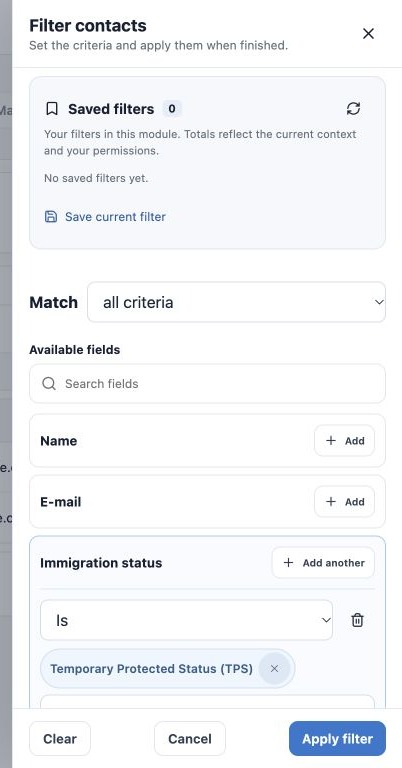
- Open Contacts → Filters. Check whether existing quick-search text and filters still belong in the intended selection.
- Find Immigration status in the field catalog. Use Search field if needed and click Add.
- Choose Is and Temporary Protected Status (TPS). Use the recorded contact value; you do not need a technical field code.
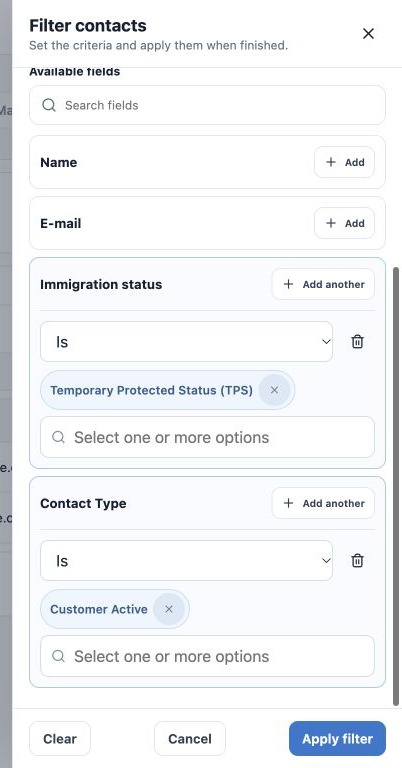
- Add Contact Type, choose Is and select Customer Active. This commercial classification differs from policy status.
- Under Match, keep all criteria. A person must have TPS and Customer Active. Any criterion would include people matching only one.
- Click Apply filter. Canceling or closing does not apply pending filter changes.
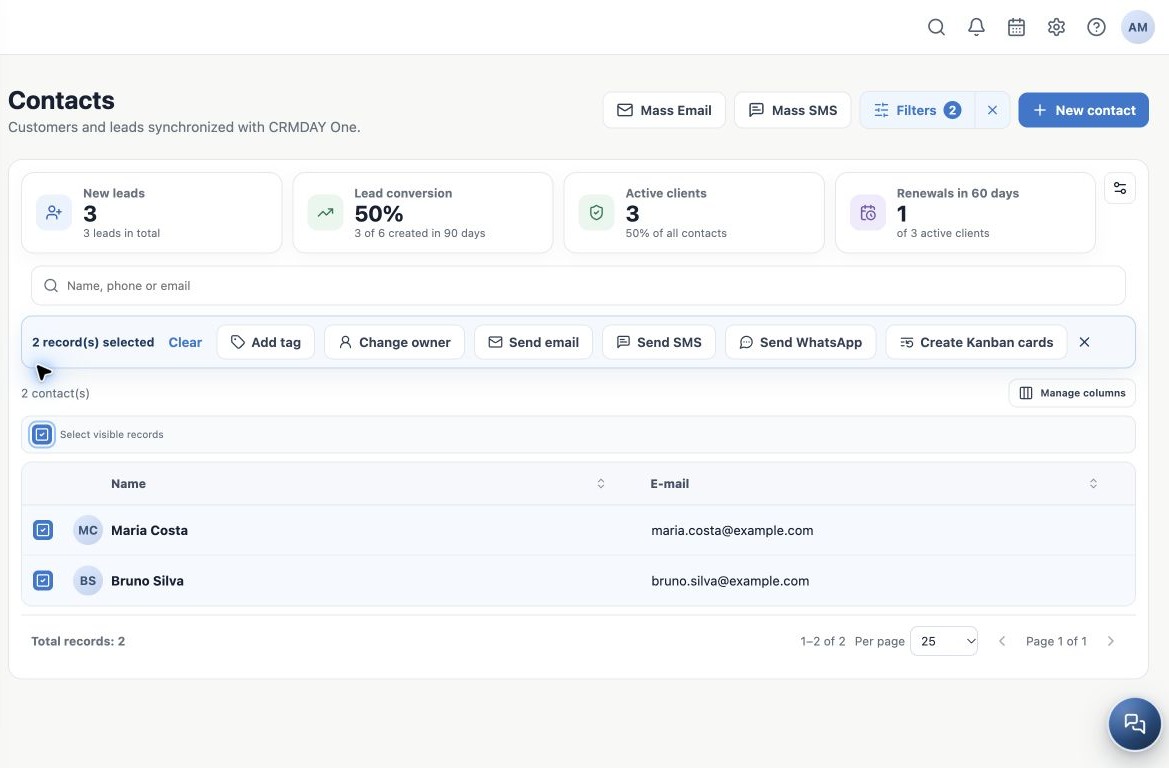
Maria Costa and Bruno Silva match both conditions. A Lead with TPS is excluded because it is not Customer Active. For leads, change type to Lead. For multiple immigration statuses, use Is any of and select the required options.
The agency can customize Contact Type options; their names remain as configured. If a field is missing, check enabled fields, your access and agency setup. Do not assume a missing value means TPS or another status.
Check the total and pagination. Quick search and filters combine; Manage columns changes visible columns, not matching records. Clear filters and search text as needed before building another selection.
Select contacts and set the destination
- Check filtered contacts’ names, phone numbers, email addresses and preferred languages.
- Select intended contacts. Select visible records selects the displayed page; if using select all results, check the full count including other pages.
- Click Create Kanban cards in the action bar. The limit is 500 contacts per creation; split larger groups.
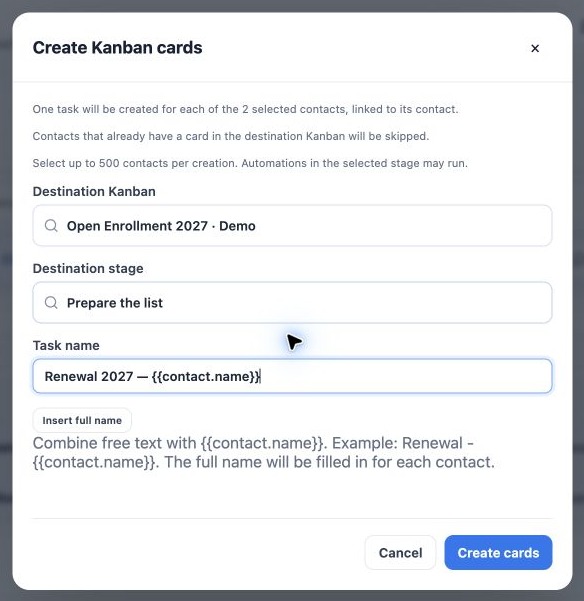
- Choose Destination Kanban, such as Open Enrollment 2027, and Destination stage, such as Prepare the list.
- Use Renewal 2027 — {{contact.name}} as Task name. Insert full name adds the field; each contact’s full name replaces it.
- Fill required additional fields, review selection and destination, then click Create cards.
Destination-stage automations may trigger. Use a preparation stage without automatic sending when reviewing the list first. Creating a card does not itself mean the form was sent.
Understand duplicate prevention and check results
Before creation, the system checks whether each contact already has a non-deleted card in the same destination Kanban. It checks all stages, other assignees and completed cards. It does not compare only titles or only the selected stage.
- No destination card: create a new linked Task in the selected stage.
- Existing destination card: skip the contact without creating another card, moving the original or changing its title/stage.
- Card only in another Kanban: creation in the current destination is still allowed.
- Card deleted into the recycle bin: it does not count as an existing card for this check.
Example: Maria Costa already has an Awaiting reply card in Open Enrollment 2027; Bruno Silva has none in that board. Selecting both for Prepare the list produces 1 card created and 1 contact skipped. Maria stays in her existing process; Bruno receives the new card.
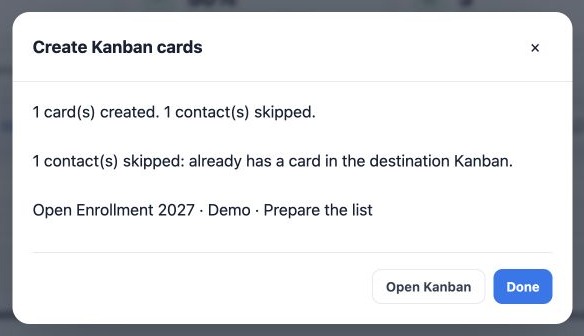
Confirmation shows created/skipped counts and the reason. Zero created with everyone skipped can be correct. Each contact counts once as skipped even if several linked cards exist. Existing duplicate cards are not deleted.
Use Open Kanban and find the contact’s card before choosing the next step. If an existing card is reported but invisible to you, check filters and access with the agency administrator; the check includes cards outside your view. Do not create a second contact record to bypass it.
Protection uses the link to the same contact record. Different records for the same person are not merged. Check previous requests and invitations before sending again.
Writing 2027 in a title does not configure the form year. Review year, policy context and channel in the sending workflow.
Check the context before issuing an update request
Open the cards and check the linked contact, delivery details and reference coverage. A generic card created from Contacts does not itself identify a specific policy. The form uses available contact data and, depending on context, the related or flow-selected ACA policy. Resolve multiple-coverages or source-policy uncertainty before issuing a link.
Review the record and client answers; a Task title does not guarantee that all details from the correct policy have already been selected.
Choose how to send
For rule-based invitations, move checked cards to Automatic request after configuring orchestration. To control each sending group, keep them in Prepare the list and follow bulk sending from Kanban. Do not use both paths for the same group without checking existing requests.
Keep learning
- Understand Open Enrollment and prepare the Kanban
- Start Open Enrollment from your policy portfolio
- Automate invitations and card return after signature
- Send Open Enrollment forms in bulk from Kanban
- Track responses, review details and complete renewal
- Request documents and signatures
- Serve your clients
Updated October 27, 2026.