For: CRMDAY One users with the Insurance profile.
Before choosing a channel
Send from the generation confirmation, link popup or pending request actions. The destination is the request’s contact. Check phone/email and document language before proceeding.
For forms, WhatsApp and SMS open a review window. This differs from direct sharing of an ACA simulation link. Do not assume icons in different modules have the same confirmation step.
Send via WhatsApp
- On the pending request, click Send via WhatsApp.
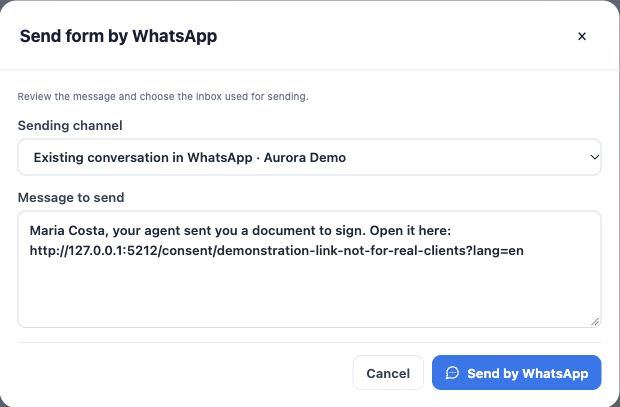
- In the window, check Delivery channel. Options identify the inbox and whether an existing or new conversation will be used.
- Choose the appropriate inbox. Its existing conversation is reused; a new one depends on inbox availability and the contact’s phone.
- Review the message text. Preserve the complete link and adapt the introduction. Example: “Hi Maria! Check your details in this form and, after reading, complete the requested information: [link]”.
- Click the final WhatsApp send button and wait for confirmation. Open the correct conversation and check the recorded message. Sending does not establish reading or signing.
Send by SMS
- Click Send by SMS on the pending request.
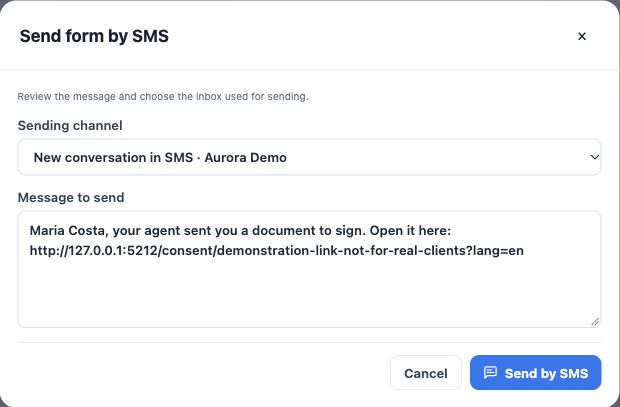
- Check the SMS inbox in the delivery selector. Only destinations classified for this channel appear.
- Review the message and keep the full address. Check the phone before sending.
- Use the final SMS send button and verify the result in the interaction. If no SMS inbox is available, use another configured channel or ask the agency about setup.
Send by email with review
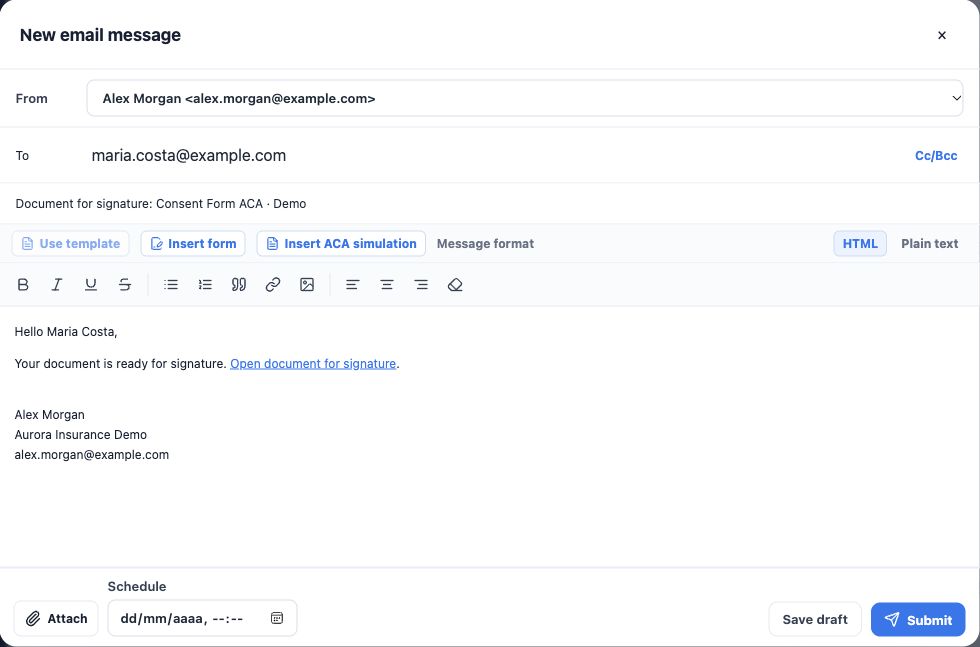
- Click Send by e-mail. The CRM opens New email message with subject and link prefilled. Opening does not send.
- Under From, check the personal or organization account available to your user and its signature.
- Under To, check the client’s address. Use Cc/Bcc only when copies are needed and recipients are correct.
- Review subject and body. Preserve the document-signing link, explain what is expected and use the client’s language.
- For immediate delivery, leave Schedule empty and use Submit, the English interface’s send action. Use Save draft to continue later or scheduling for future delivery.
- Check the email in the contact’s history and its status. Draft and Scheduled are not Sent. If it fails, read the error and check history before retrying.
This flow sends a link for the client to fill and sign. It is not delivery of an already-signed PDF. If an external email application opens, review and sending must be completed there.
Use the link in a personalized message
In View signature link, copy the current address. Open the contact’s conversation or email, write an introduction, paste the link and check the recipient before sending. Never reuse another person’s link or demonstration addresses from this manual.
If a channel is unavailable, check phone, email, inbox and sending account with the agency. Do not create many requests to solve a channel failure. You are done when the message is recorded at the correct destination; track signing separately through the request state.
Keep learning
- Choose the right form or document
- Prepare the request and generate its link
- Track requests and resolve link issues
- Check answers, documents and signature
- Organize outstanding items and next actions
- Create the policy with the wizard
- Save and share the ACA simulation
Updated October 24, 2026.