For Insurance agency Owners and administrators.
Prepare the number and device
Have authorization to operate the agency number and access to WhatsApp on the phone. CRMDAY’s WhatsApp QR Code card uses an unofficial integration; scanning does not turn it into Meta API. Session availability can change, and WhatsApp may restrict unauthorized use regardless of volume.
Read the official guidance on responsible WhatsApp use. Consider the official option for structured business campaigns. Do not use a QR connection to bypass another channel’s rules, restrictions or bans.
Create the inbox
- Open Channels → Inboxes → New inbox.
- Choose WhatsApp QR Code.
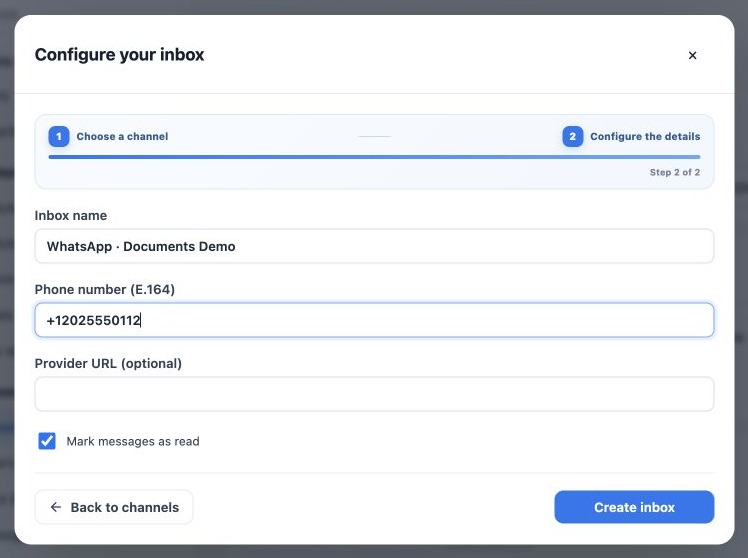
- Enter a clear name and the full E.164 number: +, country code and number. Fictitious example: +12025550112.
- Leave Provider URL blank when using the platform’s existing connection. Enter a URL and API key only if your technical administrator supplies a specific integration; do not invent values.
- Review Mark messages as read according to agency routines. It does not replace the team’s confirmation that a request was handled.
- Click Create inbox and verify that the new card has the correct number.
Creating the card and linking the phone are separate steps. The new inbox may show Disconnected until scanning is complete.
Scan the QR and verify the connection
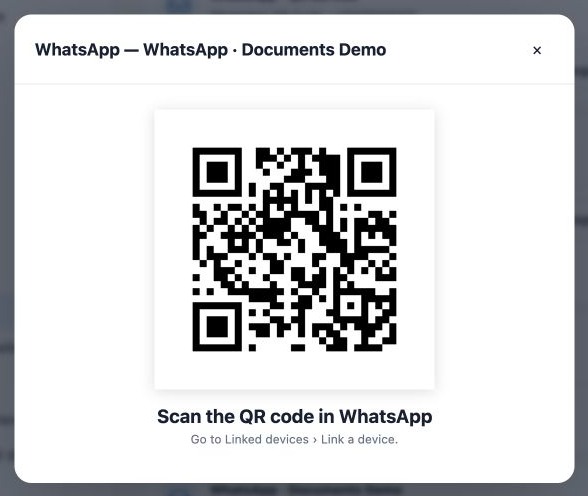
- On the card, click Connect and wait for the QR.
- On the correct phone’s WhatsApp, open Linked devices → Link a device and scan. Menu wording may vary by device.
- Wait for CRMDAY’s connection confirmation. If the QR expires, reopen the flow to get the current one.
- Send a test message from another authorized number and check that it arrives in the correct inbox.
- Reply to the test, verify receipt and review the team before daily use.
The image is an actual CRMDAY screen with a synthetic demonstration QR; it cannot connect a phone. In real operation, treat the session QR as access to the number: do not publish it or send it to third parties.
If the session disconnects
Check the card’s state and use Connect or Manage as offered. Verify whether the linked session was removed and whether the number remains available. Avoid creating another inbox for the same number after every failure; it can confuse operations without resolving the cause.
Send a new test after reconnecting. Do not assume every missed message will be recovered. If WhatsApp itself restricts the account, follow its official review process; reconnecting or slowing down does not guarantee reinstatement.
Related guides
- Understand inboxes and choose your channel
- Configure bulk-message limits and schedules
- Prepare the official WhatsApp Meta API connection
- Complete Meta signup: an illustrated walkthrough
- Verify Meta API and prepare templates
- Manage team, connection and authentication changes
- Administrator manual
Updated October 25, 2026.