For: CRMDAY One users with the Insurance profile.
Images show actual system screens in a local demonstration environment with fictitious data. They represent different moments in the examples; stage names and fields may vary by agency.
Separate the stage, task and note
A stage describes where the sale stands. A Task records what someone needs to do. A note preserves internal context. After talking with Maria, for example, keep the Deal in Proposal, schedule a follow-up task and note what she wants to compare.
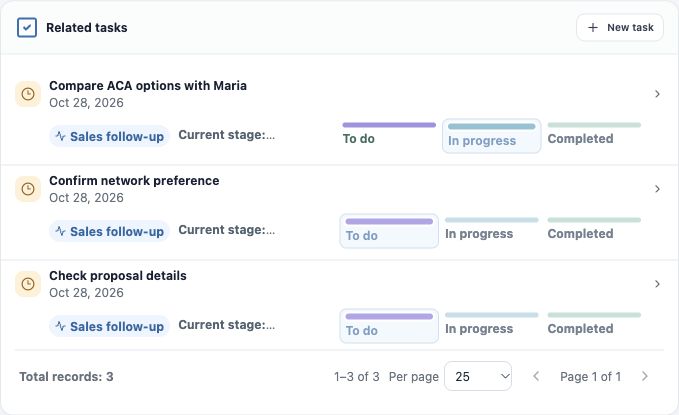
Check Related tasks in the Deal record. Tasks may show their Kanban, current stage and due date. Use the task’s controls to track its execution; this is separate from moving the Deal itself.
1. Create the task inside the Deal
- Open the opportunity and find Related tasks.
- Click New task. In the calendar form, check that Task is the selected type.
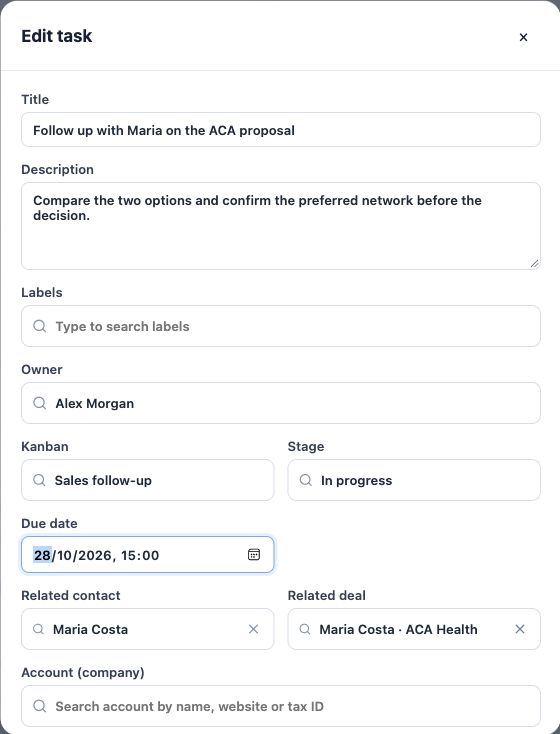
- Enter an action-based title, such as Follow up with Maria on the ACA proposal.
- Describe the goal: compare two options and confirm the preferred network before the decision.
- Check the Owner and select the person who will perform the action in the available assignee field, shown as Contact person in this interface. If you choose a Kanban, select a valid stage too.
The originating Deal should appear in its relationship field. Check the contact separately and select the correct person if it is empty. Avoid creating another Deal or contact within the selectors when those records already exist.
2. Set the due date, links and reminder
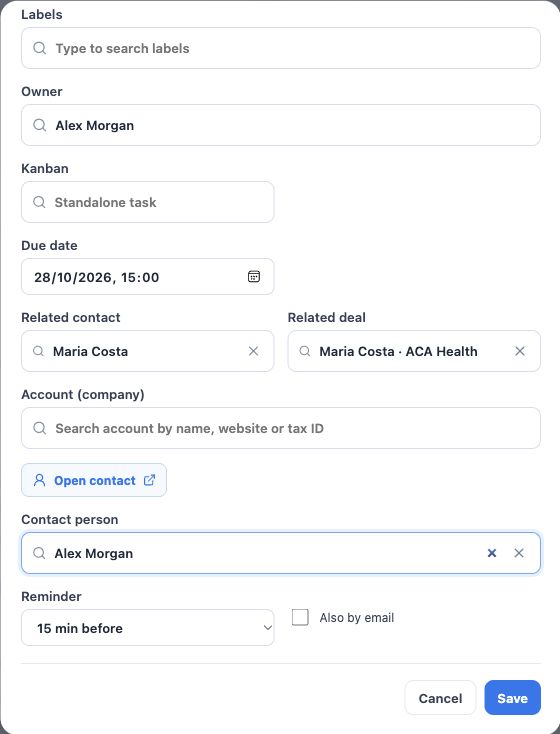
- Enter the agreed date and time under Due date. Check your profile’s time zone.
- Review Related contact and Related deal. The example links Maria and her ACA opportunity.
- Select the responsible person and an appropriate reminder. Email options and notification delivery depend on available settings.
- Click Save and check that the task appears in the opportunity’s follow-up list.
The image shows the part of the form used to check the due date, links, responsible person and reminder. A standalone task may have no Kanban; if you select a board, its stage must also be filled.
3. Reopen and maintain the task
Open the task’s name to view or edit it. Check the title, description, due date and relationships. If the client postpones the follow-up, update the task rather than leaving an old deadline without context. Save and reopen to verify the result.
When the action is complete, update its Kanban state or, for a standalone task, the available status control. Completing a task does not automatically close the Deal. Record another action if work remains.
Leave context for the team and finish your routine
Use Notes in the Deal record to record the conversation’s outcome and the client’s preferences. Write the note and confirm with Add note. Attach relevant opportunity materials when needed. An internal note does not send a message to the client.
Meetings represent appointments with a time and participants; they do not replace a follow-up task. Review existing activities before creating more. You are done when you can answer: what is the next action, who will do it and by when? Continue with Close an opportunity as won or lost.
Keep learning
- Understand the pipeline and its stages
- Create a Deal linked to a contact
- Update and move your opportunities
- Close an opportunity as won or lost
- Find and organize your clients
Updated October 24, 2026.