For Insurance agency Owners and administrators.
Choose who handles the inbox
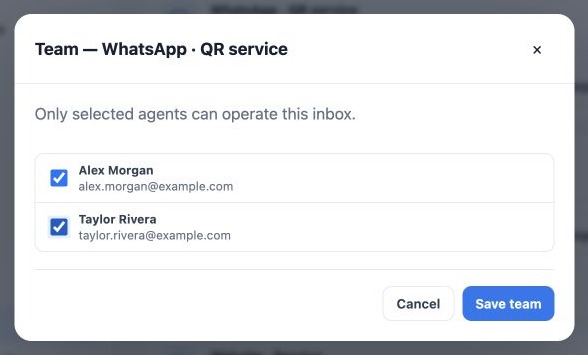
- In Channels → Inboxes, find the card and click Team.
- Select the agents who should operate it. Check name and email to avoid confusing people with the same name.
- Click Save team, reopen and verify.
- Validate access in Conversations with an authorized agent; also review profile, module availability and filters if the inbox is absent.
Team selection does not replace other organization access controls. Include the people actually handling the channel and review when roles change. A connected inbox without the appropriate team may be unavailable to its intended agents.
Keep the name recognizable
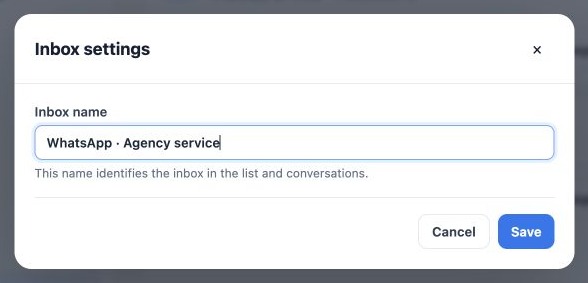
- Click Settings on the inbox card.
- Adjust Inbox name, up to 120 characters.
- Save and reopen to verify the name in the list and Conversations.
Renaming identifies the same inbox more clearly. It does not change phone, channel, authentication, team or history. Do not create another inbox just to change a name. To use another number, plan the appropriate new connection or migration rather than changing the label to look like another channel.
Plan the QR Code to Meta API change
- Confirm the current number can connect to Meta and that you have the required access. Plan an operational window: the QR session can be interrupted during the change.
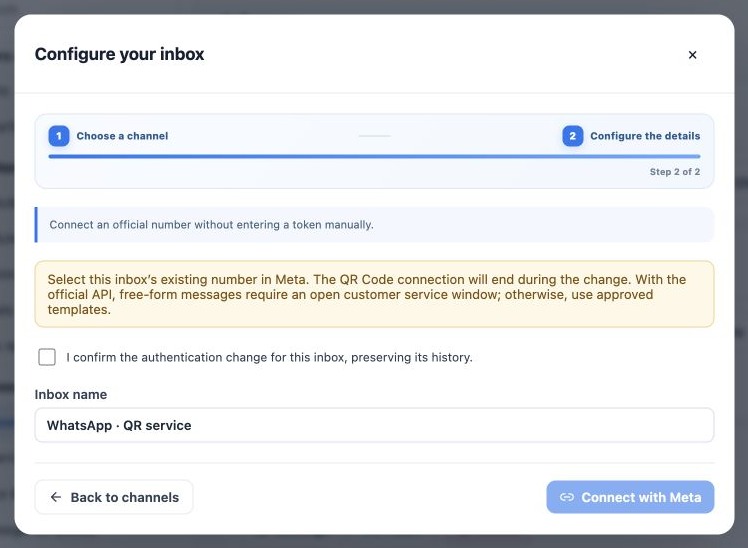
- On the existing card, click Change authentication → WhatsApp Meta API.
- Read the confirmation for changing the same inbox. If authorized, select it and click Connect with Meta.
- In signup, select the current inbox’s same number. A different number is not accepted for this change.
- Wait for completion, check Meta API type, team and history, then repeat inbound, reply and template tests.
The supported path is designed to retain inbox identity, team, conversations and messages. It is not automatic contact merging or migration between agencies. The current version keeps one Meta authorization per organization; if another inbox already uses it, request evaluation before migrating a second. The reverse Meta → QR path is not an automatic migration in this wizard.
Recover without duplicating or deleting the inbox
| Situation | Next check |
|---|---|
| Meta window did not open | Check popup blocking and start from the CRMDAY button. |
| Authorization canceled or session expired | Start a new attempt after checking agency and identity. |
| Unverified or mismatched number | Complete Meta verification and select the expected number. |
| Meta authorized but connection is pending | Use Activate existing Meta connection when offered; enter the name and resume on the inbox that started the operation. |
| Meta connected but free-form message blocked | Check service window and approved template; it is not necessarily a connection failure. |
| Agent cannot see the inbox | Review Team, module access and Conversations filters. |
If number registration is still pending, wait and use recovery; do not repeat signup unnecessarily. Deleting an inbox is not a reconnect procedure: it can remove the inbox and terminate authorization, requires confirmation and should not be used to troubleshoot. For support, provide inbox name, time, displayed message and test outcome, without tokens, passwords, a valid QR or verification codes.
Related guides
- Understand inboxes and choose your channel
- Connect WhatsApp using a QR code
- Configure bulk-message limits and schedules
- Prepare the official WhatsApp Meta API connection
- Complete Meta signup: an illustrated walkthrough
- Verify Meta API and prepare templates
- Administrator manual
Updated October 25, 2026.