For: CRMDAY One users with the Insurance profile.
Select the intended group
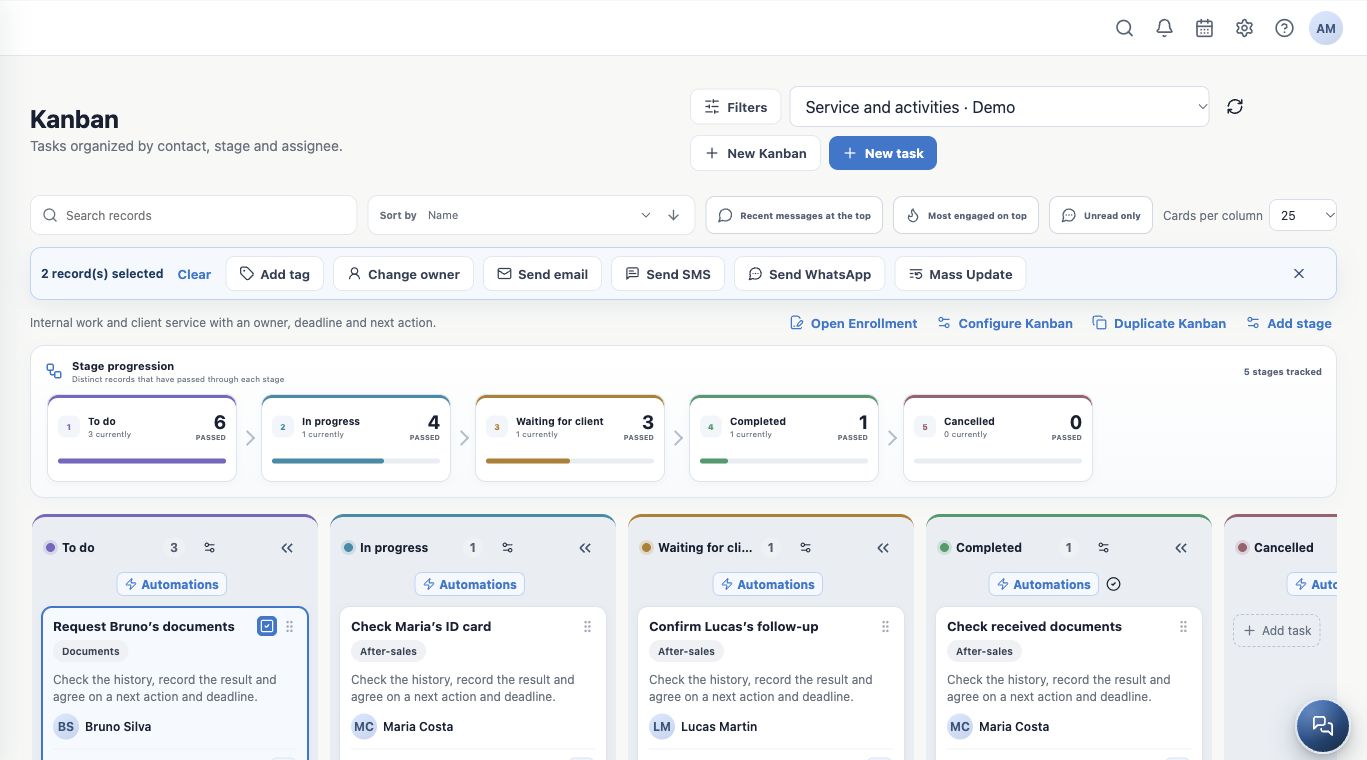
- Open the right board and apply search and filters.
- Check individual cards or the column’s visible-record selection.
- Read the count in the action bar. Visible records and the full filtered selection, when offered, have different scopes.
- Open Mass Update and review values and destinations before applying.
Change stage or board
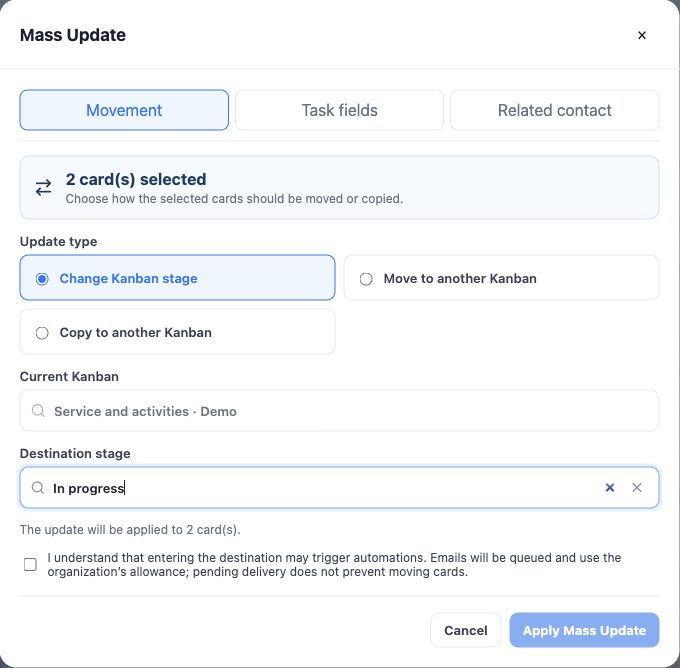
In Movement, choose changing the current Kanban stage or moving to another Kanban. Choose the board when necessary, then the destination stage.
Example: move two checked activities to In progress after the team takes responsibility. Read and acknowledge the automation warning before applying Mass Update. Destination entry can trigger messages; card movement and message processing have separate outcomes.
Copy when both activities should exist
Copy to another Kanban creates new Tasks and retains originals. For example, create back-office work while preserving the service team’s follow-up. Choose the other board and stage and review the warning.
The copy preserves compatible Task data and links, such as contact, assignees, labels and due date, but not notes, attachments, history or reminders. Open the new activity and add needed context. Copying creates additional work and may trigger destination automations.
Update Task fields
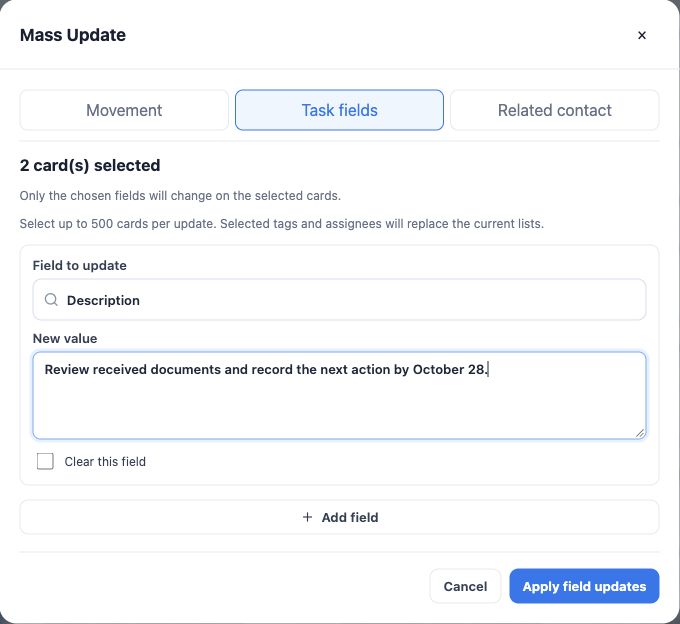
- Choose Task fields.
- Select Field to update and enter the New value.
- Use Add field for further changes within the displayed limit.
- To remove a permitted value, explicitly choose to clear that field. An unfilled editor is different.
- Review and apply field updates.
Only chosen fields change. This editor accepts up to 500 cards per application and 20 field changes. Selected tags/labels and assignees replace existing lists. Include existing items in the final list if you want to retain them.
Know when you are changing the client record
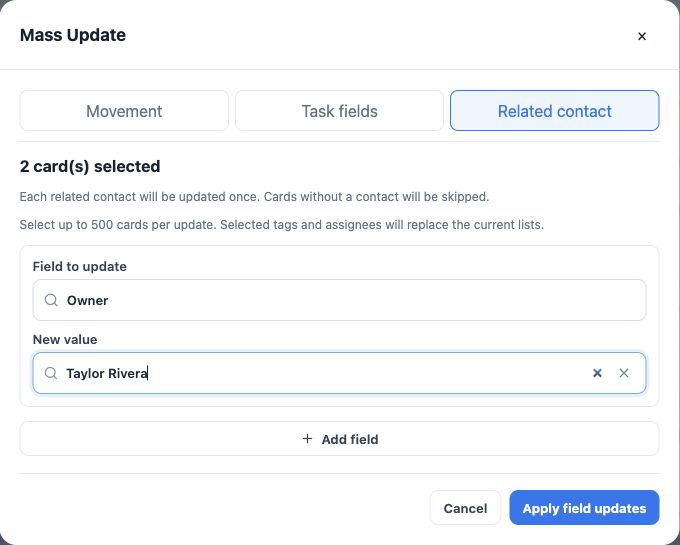
Related contact updates the client record, not just the Task. The example assigns each selected contact’s Owner to Taylor Rivera. That differs from changing the Task’s assignee.
Each linked contact is updated once per batch, even across several Tasks. Cards without contacts are skipped. Apply only values suitable for everyone selected; do not give different clients the same personal email address.
Verify results and handle individual failures
Read updated, skipped and failed counts. Open sample records and check values, assignees and destinations. A batch can partially succeed; identify successful items before repeating anything.
If unavailable, check permissions, selection, card limits, required fields and values. Ask the administrator to confirm missing boards or stages. After organizing records, use bulk sending when needed.
Keep learning
- Organize activities and processes with Kanban
- Create and edit Kanbans and stages
- Create and follow Tasks every day
- Automate SMS, email and WhatsApp through stages
- Send bulk messages and follow processing
- Manage Open Enrollment
- Serve your clients
Updated October 24, 2026.