For: CRMDAY One users with the Insurance profile.
When to use this path
Start in Policies when the renewal group comes from an existing ACA portfolio. This path preserves the source-policy context in the card and prevents generating the same work again for the same policy and year.
The Open Enrollment button depends on administration, Policies, Kanban and Task-creation permissions. It operates on the active organization’s portfolio. If viewing an external portfolio or if the button is unavailable, ask the administrator to prepare the batch.
Select the group inside Open Enrollment
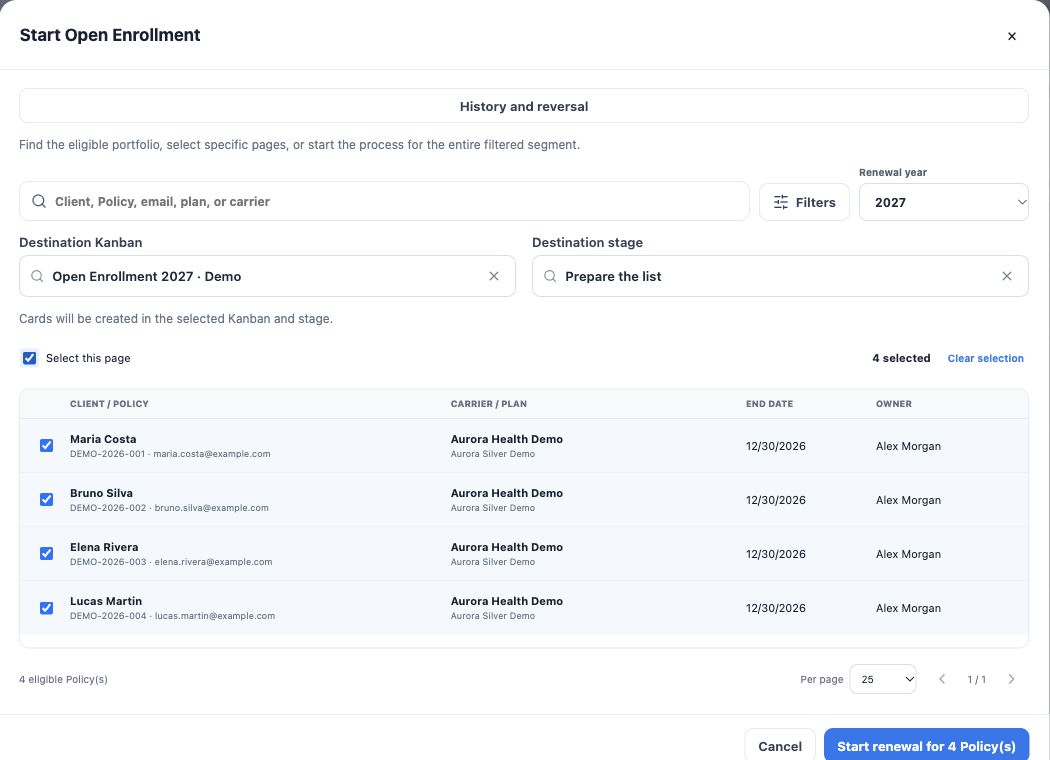
- Open Policies and click Open Enrollment. Select the batch inside this window.
- Check Renewal year; select 2027 for the example.
- Search by client, Policy number, email, plan or carrier and use Filters to define the eligible group.
- Check individual policies or use Select this page. Verify the selected count.
- If results span several pages, choose all policies in the filtered set only when you intend to include the entire set. Selecting one page differs from selecting all matching results.
- Review filters and selection after changing the year or search. Do not assume an earlier selection still applies.
Choose the Kanban and stage before confirming
- Under Destination Kanban, choose Open Enrollment 2027 or the agency’s prepared board.
- Under Destination stage, choose Prepare the list for checking before sending. Changing the board clears the stage, so select it again.
- Check year, policy count and destination. Creating cards in a stage with active automation may trigger the rule.
- Click Start renewal for … Policy(s) and monitor the batch.
This starts card generation. It does not create next year’s policy or, on its own, configure or confirm form delivery. Sending depends on stage automation or a campaign prepared afterward.
Follow the batch and check cards
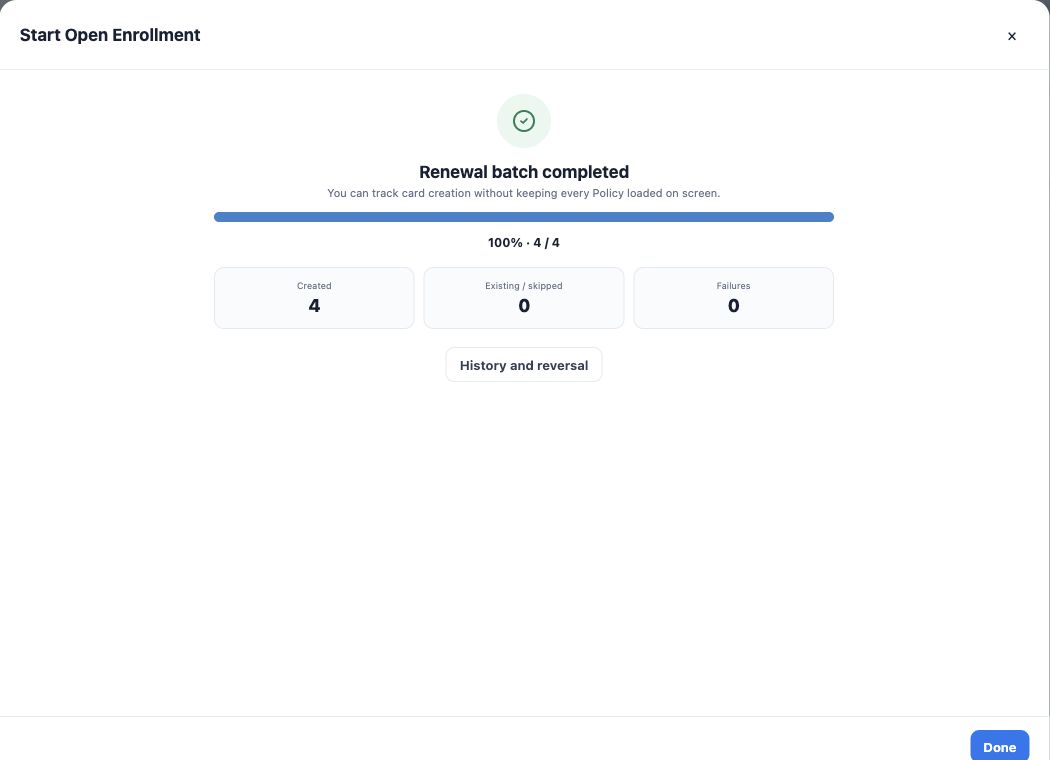
The window shows progress, created items, already-existing/skipped items and failures. Processing may continue in the background. Once complete, open the destination Kanban and check cards, contacts, source policy and assigned person.
A skipped count is not automatically a message failure; a card may already exist. For failures, review the outcome and use the retry-failures action when available. Do not restart the full selection just to recover a few failed items.
Avoid duplication and undoing active work
Do not also create cards through Contacts for the same people without checking existing work. This path’s policy/year protection does not make every generic Task creation duplicate-proof.
History and reversal lets administrators review batches and reverse eligible card generation after a preview and a reason. Cards with activity are protected. Use this after checking, not to erase service work already performed.
Next action
Cards are in the board’s preparation stage with relationships and year checked. Choose stage-entry automation or bulk sending with an associated form. Check the channel outcome before treating invitations as sent.
Keep learning
- Understand Open Enrollment and prepare the Kanban
- Select contacts and create cards in the renewal Kanban
- Automate invitations and card return after signature
- Send Open Enrollment forms in bulk from Kanban
- Track responses, review details and complete renewal
- Request documents and signatures
- Serve your clients
Updated October 24, 2026.