For Insurance agency Owners and administrators.
Guides in this chapter
- Create email templates with merge fields
- Create SMS and free-content WhatsApp models
- Prepare and associate official Meta templates
- Maintain versions, test and use templates
Open the template library
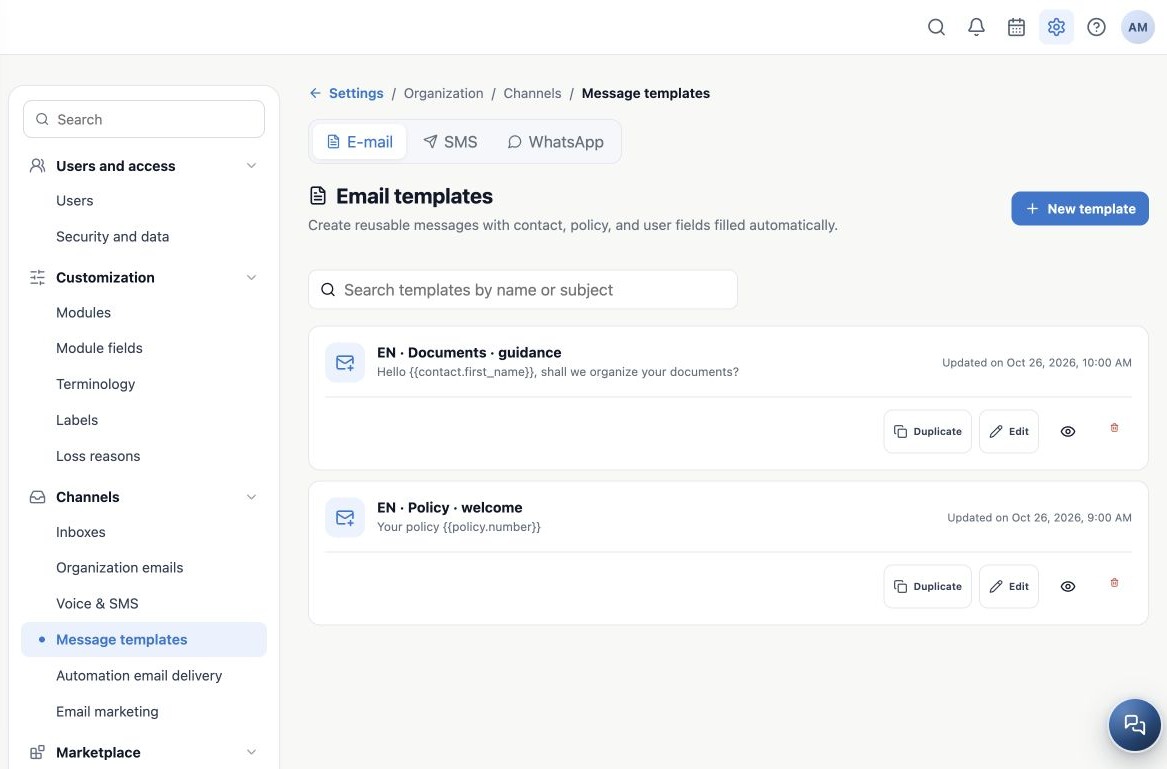
As an Owner or administrator, open Administration → Settings → Channels → Message templates at /settings/email-templates. Check the active agency. The page separates Email, SMS and WhatsApp tabs; SMS and WhatsApp depend on Conversations availability.
A template stores a reusable message for the team. It reduces repeated writing and helps keep communication consistent. For example, Aurora Insurance keeps policy welcome, document guidance and service follow-up models. Saving a template does not send a message or create an automation.
Distinguish the available models
| Type | What you prepare |
|---|---|
| Internal name, subject and formatted or HTML body; merge fields in subject and body. | |
| SMS | Plain text and SMS inboxes where the model is available. |
| Free-content WhatsApp | Plain text for a compatible inbox such as QR Code. This is not Meta approval. |
| Official WhatsApp | A local entry referencing the name, language and components of a Meta-approved template. |
Form templates are a separate feature: they define the document or form to complete and sign. Here you prepare a message that may accompany its link. Conversations canned replies are also separate; do not assume every library model appears as a canned reply.
Find and name templates clearly
- Select the channel tab.
- Search email by name or subject; search SMS and WhatsApp by name or content.
- Review the row before Edit or Duplicate. For messages, check Free content or Official template and inbox count.
- Use names such as PT · Documentos · orientação, EN · Documents · guidance and ES · Documentos · orientación.
The name identifies a model for your team; it does not replace the email subject sent to the client. Keep one purpose per model and one version per language. Changing profile language translates the interface but does not translate saved content. Review links and button text in each version too.
Prepare a concrete use case
Before creating, define the audience, channel, timing and client’s next action. For documents, write concise guidance and use the agency’s agreed secure channel. For welcome messages, identify the correct policy and how to get help.
After saving, choose the model in a sending workflow that offers it, a bulk send or the relevant automation. Outgoing account, inbox, audience, purpose and limits are configured in that workflow. Continue with this chapter’s creation and testing guides.
Related guides
- Create email templates with merge fields
- Create SMS and free-content WhatsApp models
- Prepare and associate official Meta templates
- Maintain versions, test and use templates
- Administrator manual
Reviewed October 26, 2026.