For Insurance agency Owners and administrators.
Choose the sender address domain
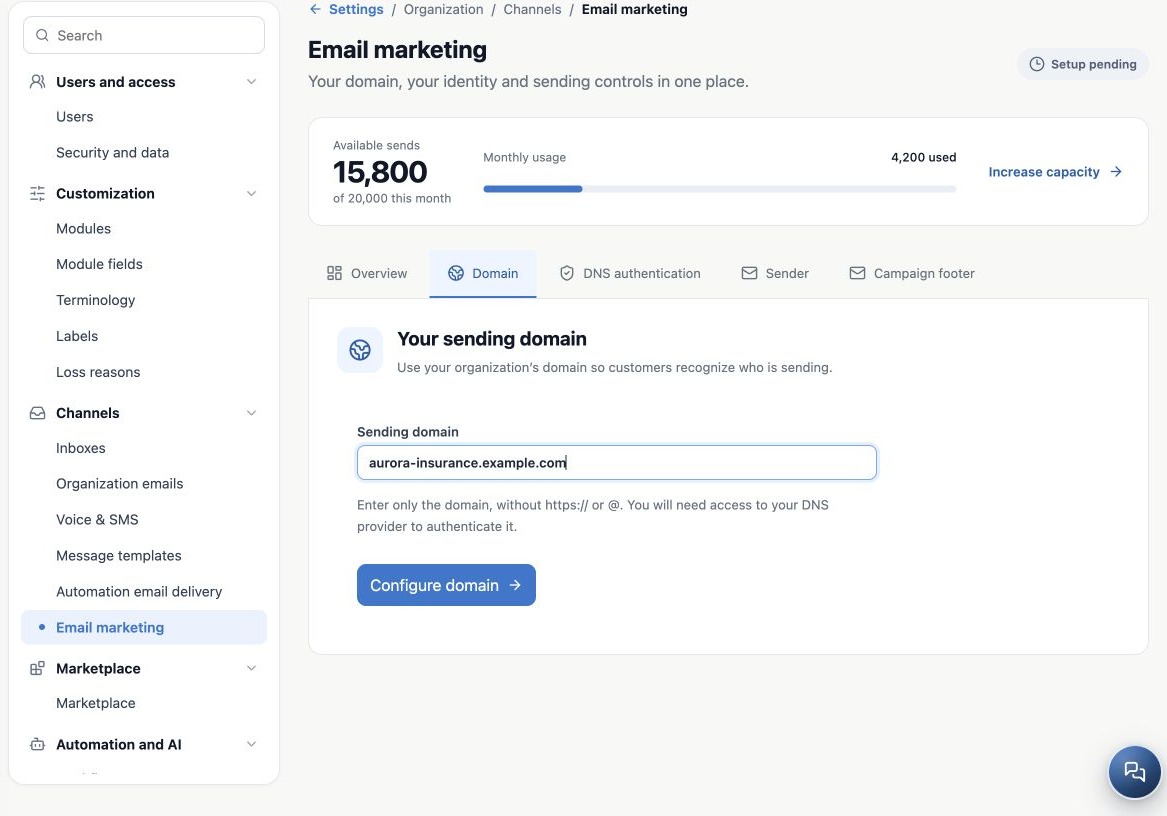
The domain is the part after @. For updates@aurora-insurance.example.com, register aurora-insurance.example.com. Do not enter a full email address, https://, page path or @. This example is fictitious; use the agency’s own controlled domain.
A subdomain is a separate registration. updates@news.youragency.com needs the corresponding news.youragency.com domain; do not assume youragency.com authorizes every address. Agree on the domain with your technical owner before generating records. Do not treat a third-party free email domain as agency-owned.
Register the first domain
- Open Email marketing and select Domain.
- Enter only the domain, check spelling and click Configure domain.
- Wait for save confirmation and DNS authentication.
- Verify Selected domain is exactly the intended registration.
- Give the generated records to the DNS administrator and continue with the next guide.
Registration does not publish DNS. The workspace prepares your organization’s values; you or your technical owner must still apply them at the domain provider. Do not copy this manual’s DKIM selectors, hostnames or values.
Add another domain without losing the first
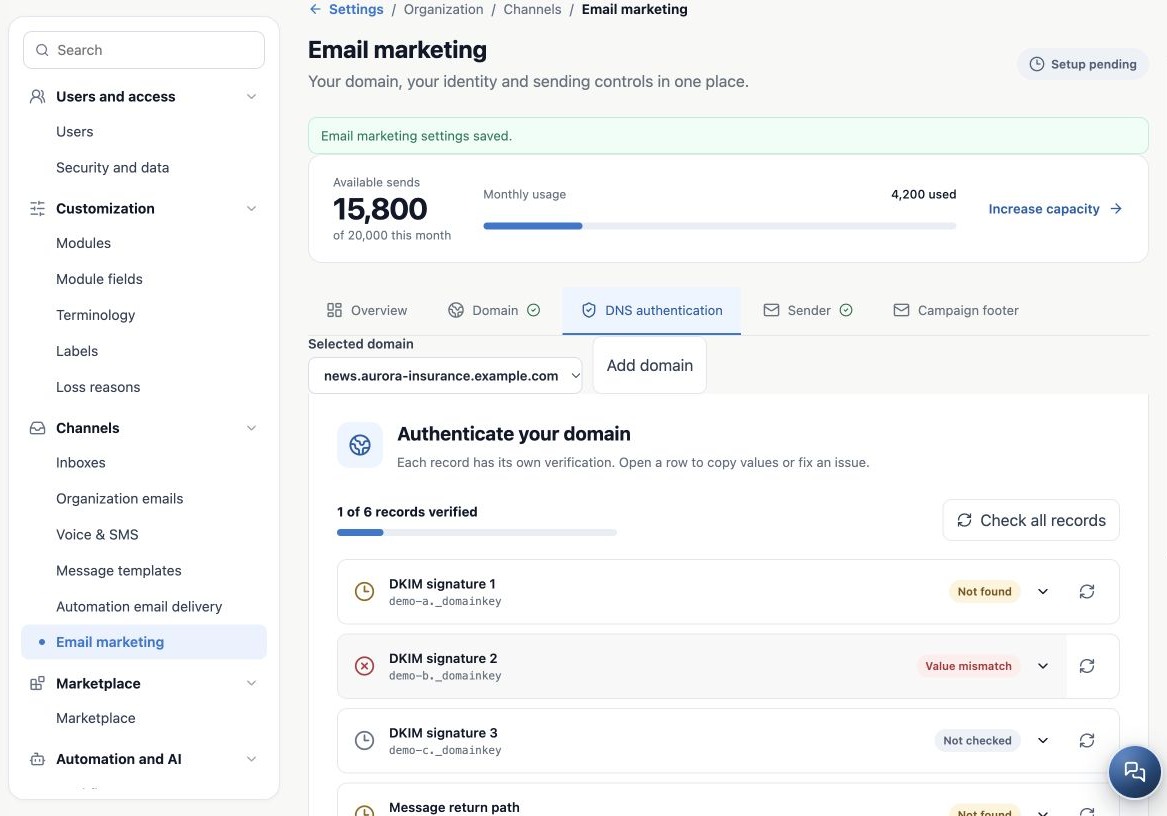
- Click Add domain.
- Enter and configure the new domain. It is added without replacing the previous one.
- Use Selected domain to switch diagnostics and records.
- Authenticate the new domain separately using its generated values.
- Set sender addresses from a registered domain; delivery requires authentication of the exact address domain.
One pending domain does not invalidate others already ready. They share organization allowance, pause and controls. Adding a domain does not increase capacity or remove suspension. After switching, confirm the domain before copying or verifying records.
Verify registration and resolve obstacles
| Situation | Next step |
|---|---|
| Domain absent | Refresh and check saving completed in the correct agency. |
| Domain belongs to another organization | Ask support to review; do not try to claim it through another registration. |
| Partial preparation failure | Review the error and resume the same domain with support, without invented variations. |
| Need a different domain | Add and authenticate it, then review senders and flows; renaming a sender does not migrate DNS. |
| Registration unavailable | Check enablement and administrator access. |
Reopen the page and verify the domain in the selector. That confirms registration, not authentication. Proceed to DNS and readiness before using clients as recipients.
Related guides
- Prepare your agency’s email marketing
- Authenticate the domain with DNS records
- Configure senders and authorized users
- Configure the campaign footer and unsubscribe link
- Validate setup and monitor sending
- Administrator manual
Updated October 25, 2026.