For Insurance agency Owners and administrators.
Understand where the footer is used
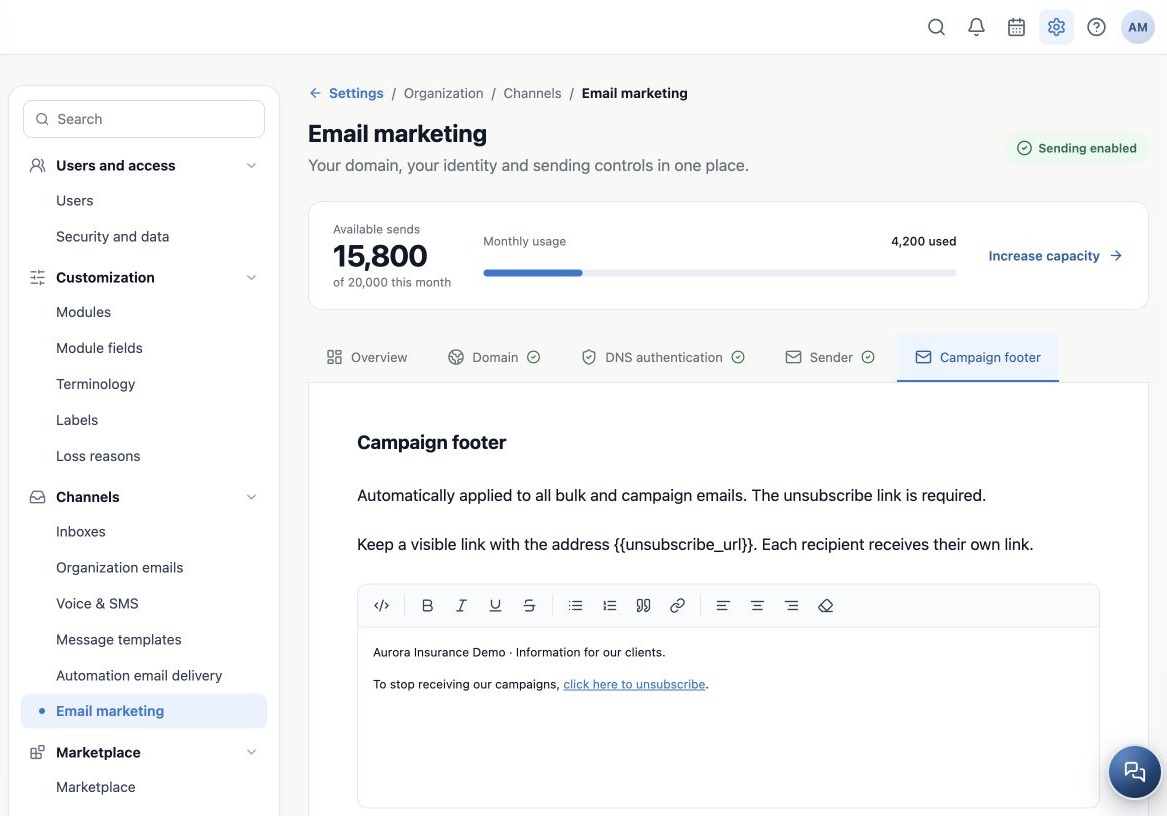
Open Email marketing → Campaign footer. The footer is shared by the organization and automatically added to campaigns using Email marketing. It is not a personal signature or a footer for every individual email.
Operational sends through Organization mailbox preserve template content without this automatic link. Verify the sending method before interpreting behavior. Campaign delivery uses the footer current at the delivery attempt; review before starting or resuming a queue because pending messages may use updated text.
Edit text without removing the link
- Review the current visual-editor content.
- Add clear agency identification and an understandable way to stop campaign messages.
- Keep a visible unsubscribe link whose address is exactly
{{unsubscribe_url}}. - Use Insert unsubscribe link to insert the model when needed, then remove repeated fragments.
- Click Save footer, wait for confirmation and reopen to verify.
You may change the visible link text; replacing its destination with your agency home page does not provide unsubscribe behavior. Do not hide the link, leave its text empty or append the marker to an external URL. Saving validates the link and removes unsupported content.
Check the marker in HTML mode
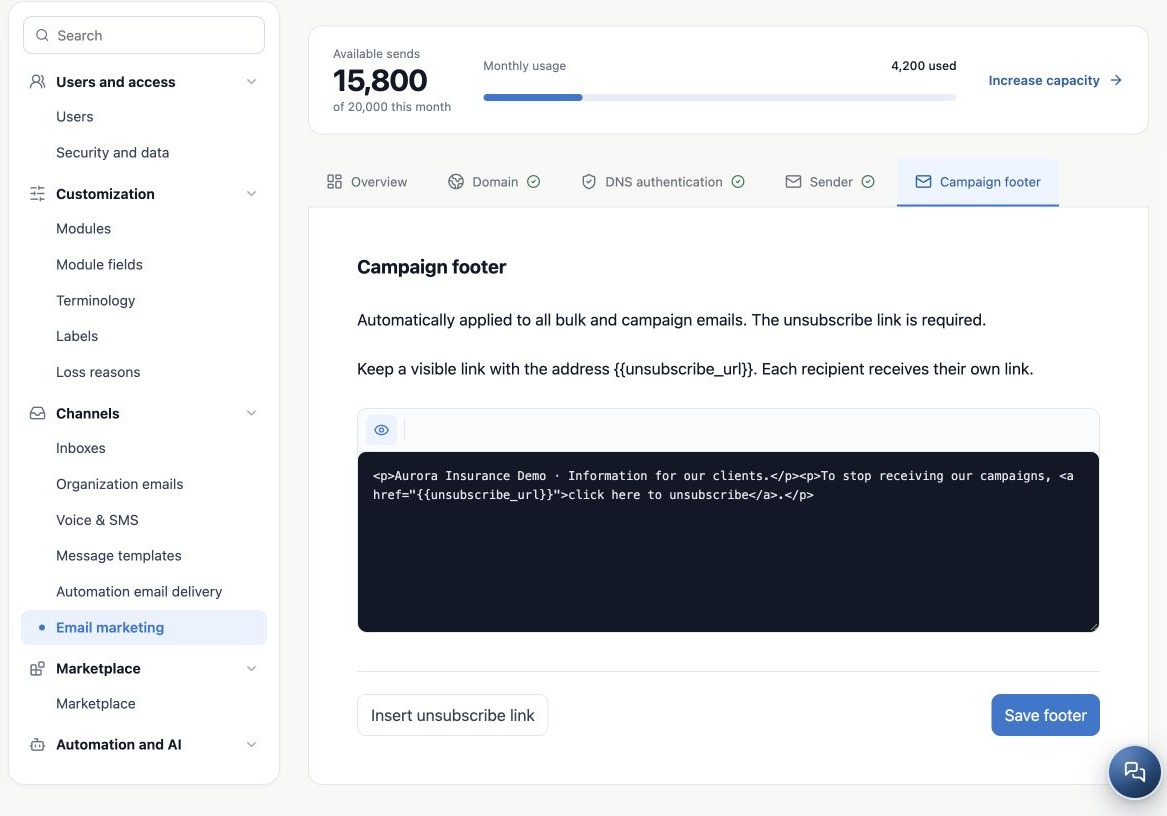
To inspect the exact destination, open Edit HTML in the toolbar. A minimal valid example is:
<p>To stop campaign emails, <a href="{{unsubscribe_url}}">unsubscribe here</a>.</p>The variable uses two braces on each side. Do not translate it or substitute a fictitious URL. Return to the visual editor and check legibility. After saving, reopen the tab; an editor preview is not a test of a recipient-specific link.
Plan footer languages
There is one shared footer per organization. Changing your profile language neither translates nor switches its text. This manual’s images use separate local examples in Portuguese, English and Spanish; they are not three simultaneous agency footers.
For a multilingual audience, prepare concise instructions they can understand, such as short trilingual text with a visible link. Translate campaign templates for recipients but keep the unsubscribe variable unchanged. Review an actually received message, including mobile.
Test unsubscribe with a fictitious contact
- Send a small Email marketing test campaign to a fictitious contact with an authorized test mailbox.
- Check the received footer and link.
- Open it. The public page requires confirmation; opening alone does not unsubscribe.
- Confirm only for that test contact and check CRM results.
- Review its outbound automation block and the Delivery Center opt-out record where your access allows.
Confirmation sets the contact’s automated-message block, which also covers other automated channels respecting that field. Do not use a real client for this test. Blocked contacts can be skipped in future campaigns or removed from pending delivery; a message already accepted cannot be recalled. Do not clear the block merely to resend a campaign.
Related guides
- Prepare your agency’s email marketing
- Register and organize sending domains
- Authenticate the domain with DNS records
- Configure senders and authorized users
- Validate setup and monitor sending
- Administrator manual
Updated October 25, 2026.