For Insurance agency Owners and administrators.
When Producer setup is needed
In the Insurance profile, a Producer is a licensed user responsible for production. Their NPN identifies that professional even when someone else enters the policy. The user must be active. A service operator does not need to become a Producer simply to request documents or help clients.
Prepare the correct NPN, states and product lines. Numbers in these screenshots are fictitious and must not be copied into your agency’s settings.
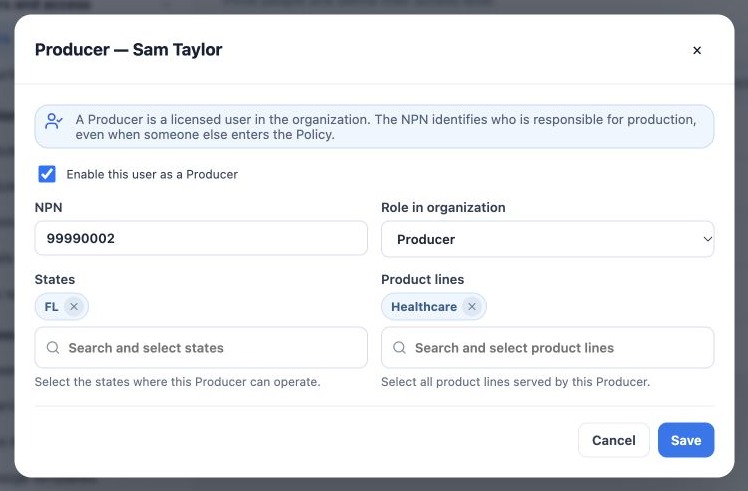
Enable or edit a Producer
- Open Settings → Users and identify the person by name and email.
- Click Configure Producer or Active Producer.
- Select Enable this user as a Producer.
- Enter the NPN and choose the organization affiliation role: Producer, Manager or Principal.
- Select States and Product lines.
- Click Save, reopen the configuration and check the NPN, role and selections.
Example: Sam Taylor, fictitious NPN 99990002, Producer, Florida and Health. Alex may be Principal, while Taylor coordinates service without acting as a Producer.
What this setup does not do
- The Producer Manager role does not make the user an organization Administrator.
- An NPN does not grant access to every book of business.
- Enabling a Producer does not automatically change operational Owners, AOR or the historical production of existing policies.
- This setup does not replace the agency’s professional qualification checks.
Disabling and common issues
To end the affiliation, open the Producer, clear the enable option and save. Policy, contract and commission history is preserved. When entering new business, check that the selected professional is available and appropriate for the operation.
- Inactive user: resolve status and license capacity in Users first.
- NPN already in use: check the number and associated professional; do not create another user to bypass the conflict.
- No active Producer: configure the agency’s responsible professional before continuing the quote or policy.
- Differences in another organization: professional identity and local affiliation are distinct. Confirm affiliations with support before changing an NPN already in use.
Related guides
- Plan users and access for your agency
- Manage user roles, status and offboarding
- Choose the access model and module defaults
- Validate rules and maintain everyday security
- Administrator manual
Updated October 25, 2026.