For: CRMDAY One users with the Insurance profile.
Images are actual system captures in a local environment, with fictitious details, plans, prices and benefits for educational purposes. Examples are not commercial offers. Screens are localized for this language; fields and availability may vary by agency and year.
1. Generate material from the comparison
- In Quote ACA opened from a contact, compare at least two plans.
- Review year, household details, Producer and plan names.
- In the comparison window, click Attach to contact and wait for generation and saving.
- The system returns to the record after completion. Check ACA simulations and the PDF in Attachments.
If attaching fails, read the notice and check what was saved before retrying. Generating the PDF and sending it are separate actions; an attachment does not mean a message was sent.
2. Check the saved simulation
In ACA simulations, check file, date, plan count and Producer. The example shows two options compared by Alex Morgan. Open the simulation before sharing and check that it matches the current discussion.
If the PDF exists in Attachments but the simulation item is missing, refresh and inspect the records before generating copies. Ask for support if its link is unavailable. PDF storage and link availability can have different outcomes during a partial failure.

3. Choose how to share
| Simulation action | What to do |
|---|---|
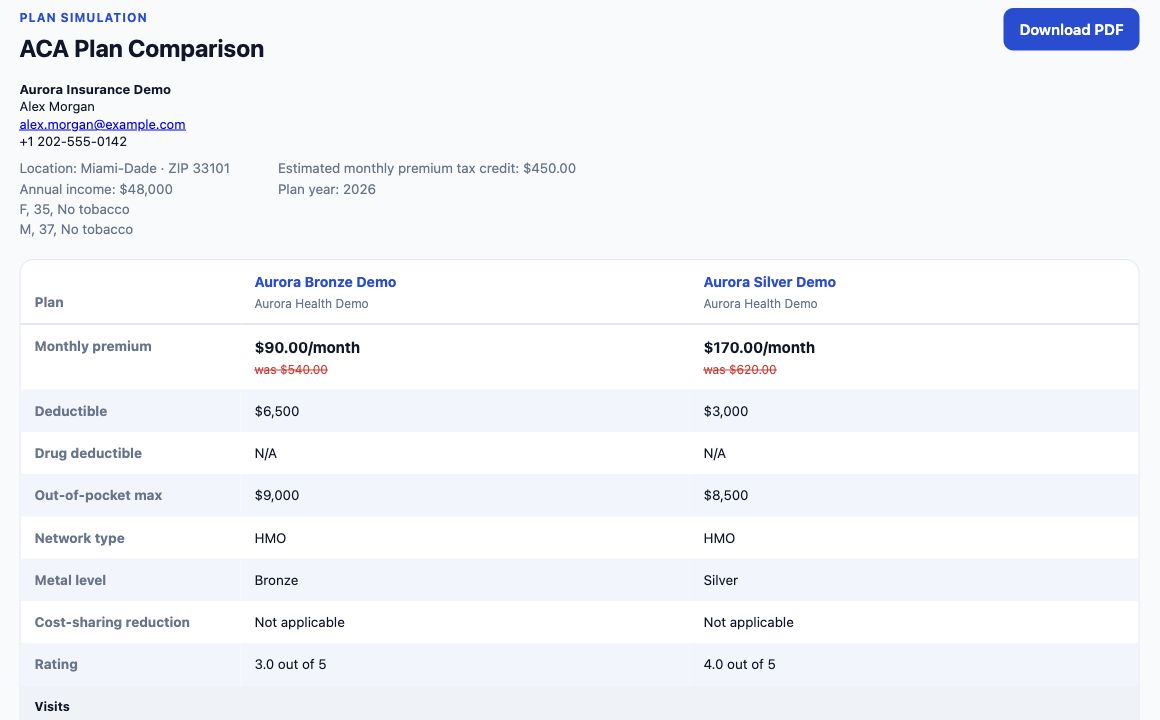
| Open simulation | Opens the comparison presentation for review; the page offers Download PDF. |
| Copy link | Copies the address for the appropriate channel. Copying does not send it to the client. |
| Send by email | Opens composition with the link or the available email application. Check recipient, sender and text, then complete sending. Opening composition is not sending. |
| Send by WhatsApp | First check the conversation selected in the panel. This button sends the link to that conversation; it is not just a preview. Use the correct destination and check confirmation/history. |
Actions depend on available conversations, accounts and permissions. If a suitable channel is missing, check contact details and agency settings. Do not use a different recipient or group merely to test delivery.
3.1. Send the link through the client’s conversation
- In Contacts, open the client’s record and locate ACA simulations. Check the file name, date, number of plans and Producer. If there is more than one version, use Open simulation (the open-in-new-window icon) to check the comparison before sharing.
- If multiple conversations are linked, choose the right one in the Conversation selector at the top of the panel. Maria has WhatsApp · Sales and WhatsApp · Client service in this example. Your choice determines which conversation receives the link; do not rely only on its position in the list.
- Check the client, phone number and inbox in the conversation. Then, on the correct simulation row, click the message icon Send via WhatsApp. This button immediately sends a standard message with the link; it does not open an editor or confirmation window.
- Wait for the simulation-sent confirmation. Open the linked conversation and check that the message and link appear in the correct history. The system confirmation does not prove the client opened or read the quote.
The standard message says: “Hello Maria Costa, here is your ACA plan simulation: [link]”. To personalize your introduction, use the procedure below before sending.

3.2. Personalize the message using Copy link
- On the simulation row, click Copy link and wait for the copied confirmation. Copying the address does not send anything to the client.
- Open the contact’s conversation in Conversations or through the record’s Chat action. Check the client’s name, phone number and inbox.
- Write your introduction in the message field and paste the copied address. Example: “Hi Maria! I selected two options for us to discuss. See the comparison: [link]. Can we review the differences tomorrow at 3 PM?” Use the language agreed with the client.
- Read the text, check that the entire link is present and send through the conversation’s send control. Then check the message in the history. Do not also use the simulation’s direct-send button, as that could send a second message.
If no conversation is linked or sending is unavailable, check the contact association and inbox. You can also use email. If a send error appears, resolve the stated cause before retrying and check the history to avoid duplicates.
3.3. Send by email, with a review before sending
- Check that the contact has the correct email address and that a sending account is available to you. Personal and organization email setup is covered in section 01.
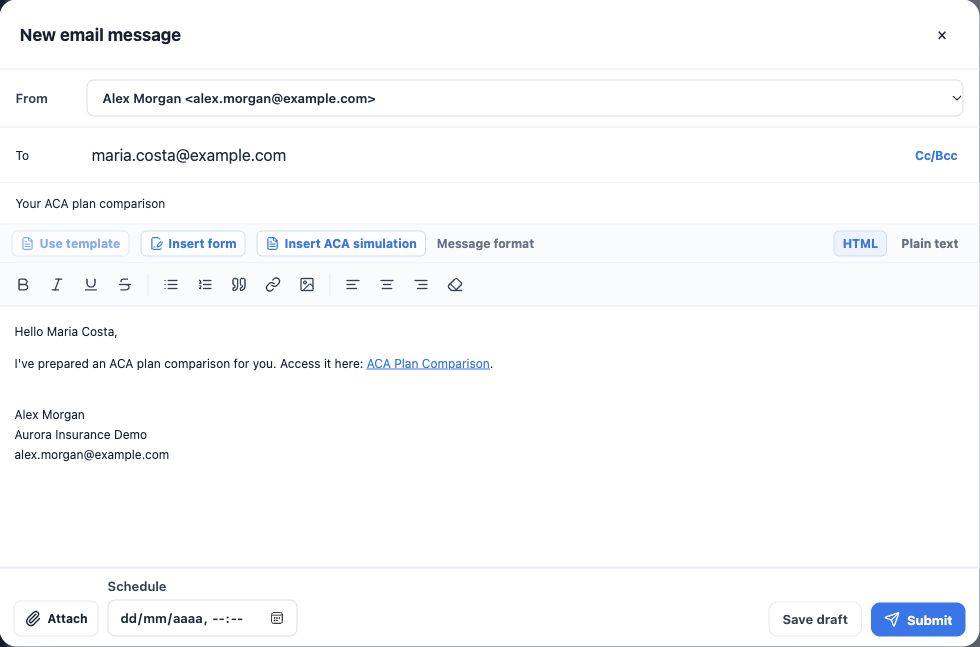
- In ACA simulations, click the envelope icon Send by e-mail on the desired comparison. The system opens New email message with a subject and link prefilled. Opening this window does not send the quote.
- In From, choose the personal or organization account that should represent this interaction. In the image, Alex Morgan uses alex.morgan@example.com; the agency also has service@example.com. Only senders available to your user are listed. Check the signature after selecting the account.
- In To, review the address taken from the contact record, such as maria.costa@example.com. If a copy is needed, open Cc/Bcc and enter the appropriate recipients. Check every address before sending.
- Review the Subject, initially your ACA simulation subject, and adapt the body to the client’s language. Preserve the ACA Plan Comparison link. You can add the purpose of the comparison, a question and your next-contact date without claiming coverage is already active.
- To send now, leave Schedule empty and click Submit, the send action shown in the English interface. To continue later, use Save draft; this does not send. For future delivery, enter the date and time in Schedule and use the schedule-send action.
The default email includes a link in its body. The PDF stored on the contact is not automatically attached by this button. If your agency also needs a file, have the correct PDF available and use Attach; check the attachment name before sending. Your interface language and the client’s preferred language can differ: review the message text and the shared document’s language separately.
3.4. Insert a quote into an email you are composing
- In the contact’s Emails section, choose the compose-email action, or continue the email where you want to insert the link.
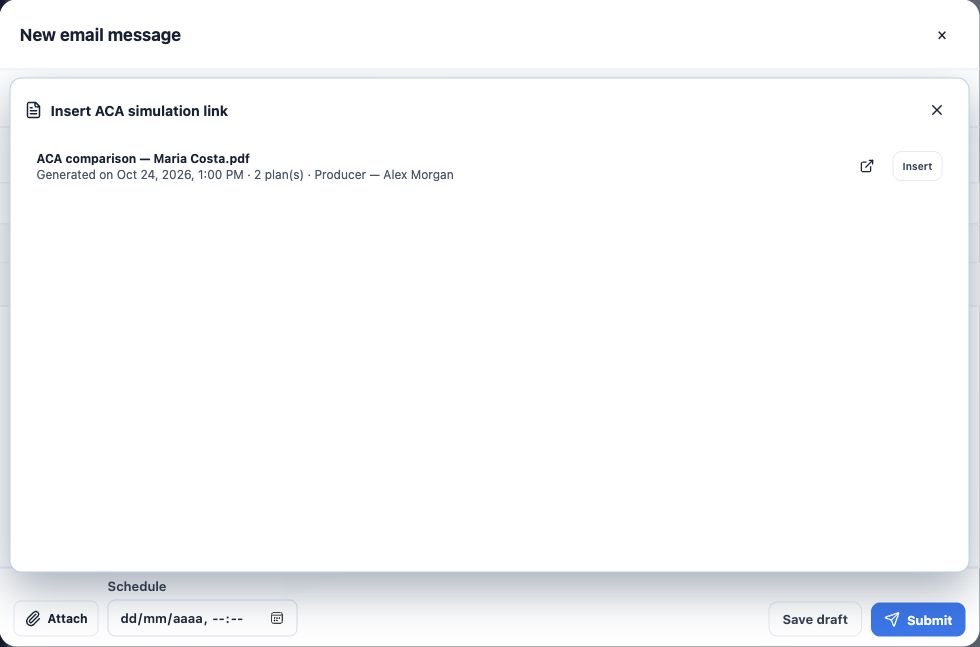
- On the message toolbar, click Insert ACA simulation. Check the file name, date, plan count and Producer in the list. Use the preview action to inspect the document if needed.
- Click Insert beside the desired comparison. Its address is inserted in the message body. Check the link’s position and remove duplicates if it was already present.
- Recheck sender, recipient, subject and text. Send or save a draft as described above.
This option inserts a link to a simulation already saved for this contact. It does not calculate new prices or generate another quote.
3.5. Check the result and resolve common problems
- Sending: the message is processing; this is not yet Sent.
- Sent: check the email in the contact history. This status does not guarantee reading or opening the link.
- Draft: find it in Drafts to continue editing; it has not been sent.
- Scheduled: check the date and time in Scheduled; the message is waiting for that time.
- Failed: open the message, read the error and fix the cause. Use the retry-send action when available, checking for a previous send to avoid duplicates.
- No address or sender: check the contact record and the sending account’s configuration and permissions.
- Wrong link or document language: return to the correct simulation, check its document and prepare a new message with the appropriate address.
4. Check what the client will receive
The shared page contains compared plans, amounts, year, simulation context and agency/Producer identification. Check its language before sending. If another language is needed, generate and review the material in that language.
The comparison may include income and household information. Share it with the correct person using an authorized channel. Images use fictitious details and addresses; do not use demonstration links for real clients.
5. Record the follow-up and continue service
- After sending, check the conversation message or email result.
- Record what was presented and the pending decision in the opportunity.
- Create a Task with a due date and responsible person for the agreed follow-up.
- If the client chooses an option, follow the agency’s process and Policy creation flow. Do not mark coverage active merely because they received a quote.
You are done when the correct simulation is saved, recipient and language are checked and a next action is defined. Review Deal tasks and next steps to maintain follow-up.
Keep learning
- Open an ACA quote from the contact
- Check household details and retrieve plans
- Review and filter available plans
- Compare two or three options side by side
- Find and organize your clients
Updated October 24, 2026.