For Insurance agency Owners and administrators.
Prepare for activation
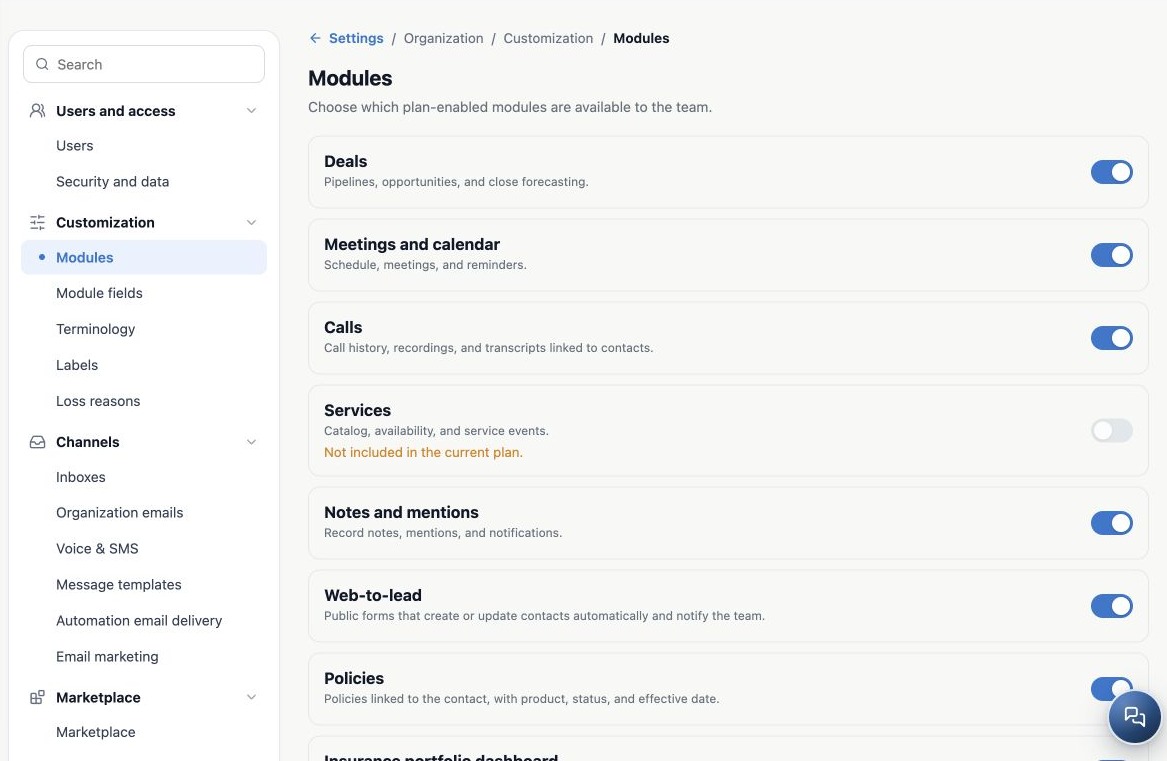
In Settings → Customization → Modules, locate the item and read its description. Confirm it is available in the plan and switched off. If already on, check the person’s access instead; there is no need to toggle it for each user.
At fictitious Aurora Insurance Demo, the sales team wants to use Deals for new clients. The administrator checks the subscription, prepares users and tells the team when the workflow will begin.
Enable and confirm the saved state
- Confirm the selected organization.
- Click the switch for the module, for example Deals.
- Wait for the operation to finish before changing the same item again.
- Reload or leave and return to Modules.
- Confirm the switch remains on and check access to the resource.
There is no final Save button on this screen: each switch sends its change immediately. A change still processing does not prove it was saved. If the switch returns to its previous state or an operation fails, check again before continuing.
Check where the module appears
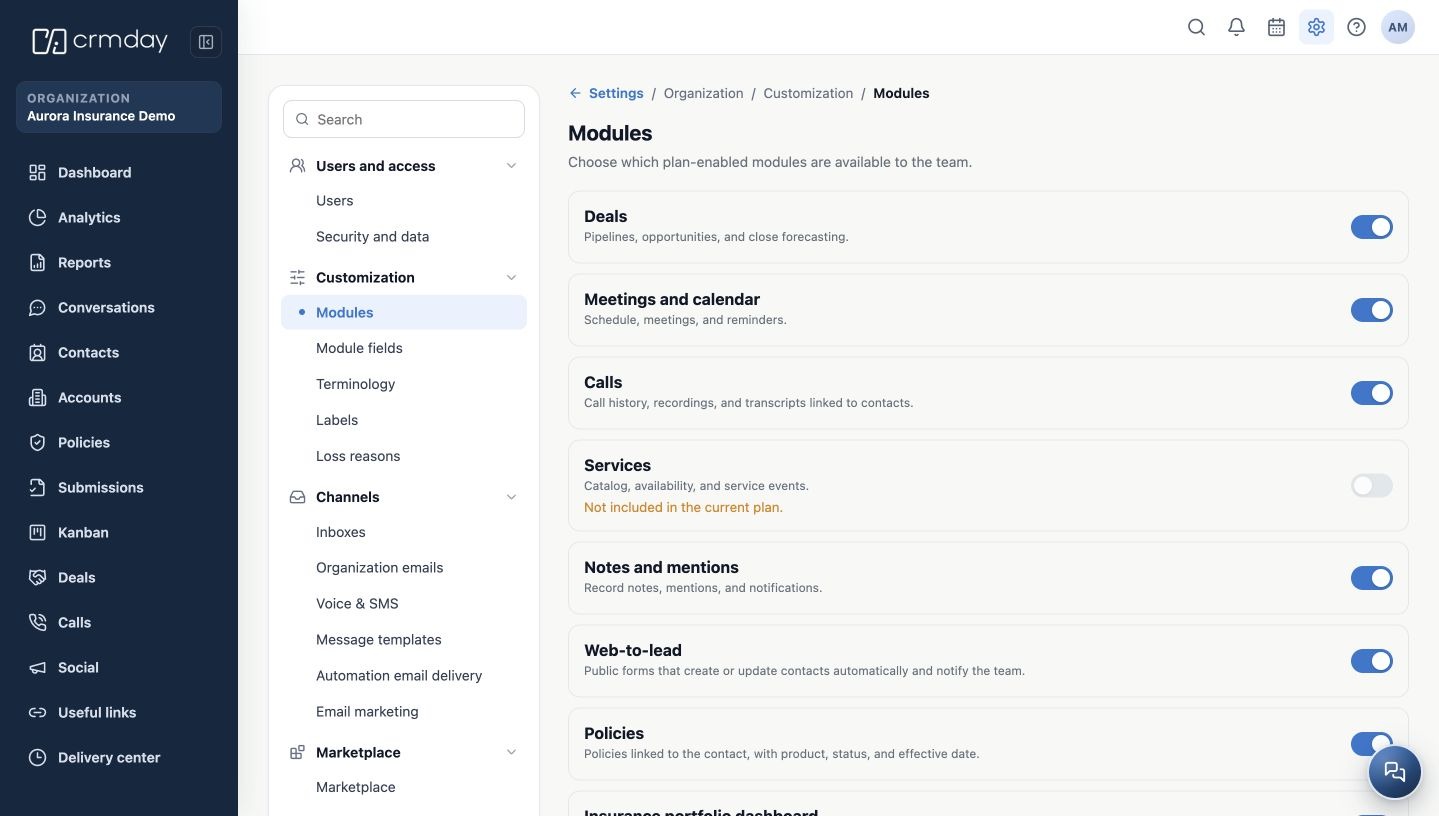
When the module has a navigation entry, it becomes available in the appropriate context. For Deals, check the menu entry and open it. Other resources appear inside contact records, actions or the calendar rather than as a separate menu item.
- Open the module or record where it is used.
- Confirm the test user has the required actions and scope.
- Try a small workflow with fictitious records in a test environment.
- Reopen the record or configuration to confirm the result.
Enabling Meetings does not connect an external calendar. Enabling Calls does not configure a provider. Enabling Web-to-lead does not automatically publish a form. Complete each resource’s own setup.
Prepare the team’s workflow
Review who will create, edit, view and manage the resource. Configure profiles under Security and data, fields in their own area and the service workflow as needed. Module availability and operational readiness are separate parts of setup.
If the resource is missing after enabling it, confirm the same organization and refresh. If only some people cannot see it, investigate permissions and context. If not included, discuss entitlement with the subscription manager: the switch is not a checkout and cannot add rights to the plan.
Related guides
- Understand Modules and plan your customization
- Disable and re-enable modules without losing continuity
- Troubleshoot unavailable modules and validate changes
- Administrator manual
Updated October 25, 2026.