For: CRMDAY One users with the Insurance profile.
1. Open the record and check details
- In Contacts, open the person receiving the form. Check name, email and phone.
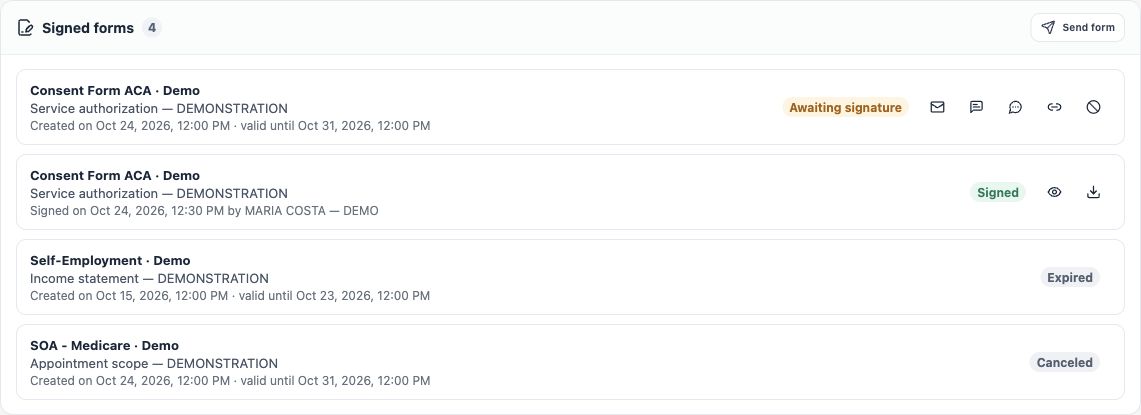
- Find Signed forms and review existing requests. Reuse a suitable pending request’s link rather than creating another.
- Click Send form to prepare a new request. This does not yet send a message to the client.
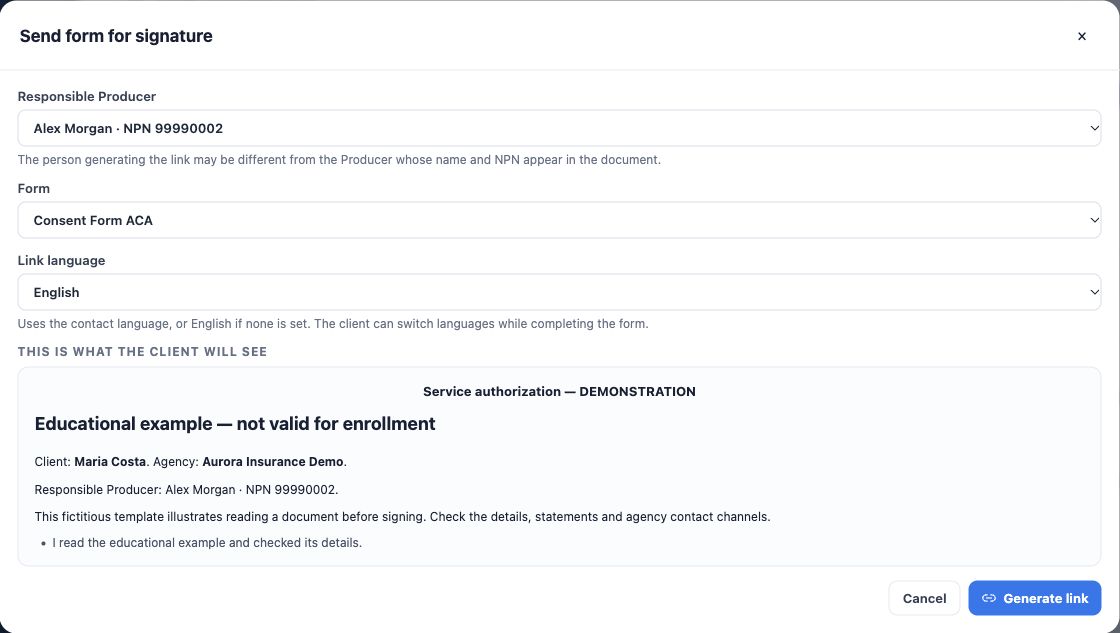
2. Choose Producer, template and language
- Under Responsible Producer, choose the person whose name and NPN should appear in the document. The person generating the link may be someone else.
- Under Form, select the template defined for this interaction. Check the organization’s correct version.
- Under Link language, keep the contact’s language or explicitly choose Portuguese, English or Spanish. If the contact has no language recorded, the default is English.
- Read This is what the client will see. Check client, agency, Producer identity, title, text and statements. Also verify the actual content language.
- If the preview reports blank fields or incorrect agency information, request correction before generating. Do not rely on the client to fix institutional information when signing.
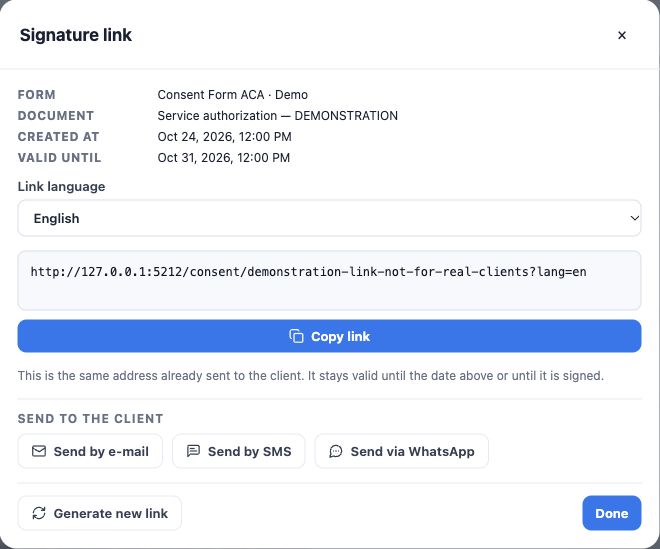
3. Generate and check the link
- After review, click Generate link and wait for confirmation.
- Check the address and expiration shown. This is an individual request for the correct person.
- Use Copy link when pasting into a reviewed message. Copying does not send.
- Choose a channel to prepare delivery, or finish the window and find the request in the list.
- Check the request in the record. It stays Awaiting signature until returned; this does not prove a message was sent or read.
The document is prepared with the details and content of that issuance. Later template changes do not rewrite sent or signed documents. If essential information is wrong, check how to correct the request before asking for a signature.
Reopen a pending request without creating another
- On its row, click View signature link.
- Check form, title, creation date and validity. The displayed address is the request’s current link.
- Review Link language, copy the address or use a delivery channel.
- Do not use Generate new link merely to view it: that action replaces the previous address. See Track requests and resolve link issues.
Verify preparation
The correct request appears in the record with a matching template, contact, expiration and state. The link is ready for its recipient, but delivery still needs completion. If no Producer or template is available, check setup and permissions with the agency. Continue with Send by message or email.
Keep learning
- Choose the right form or document
- Send by message or email
- Track requests and resolve link issues
- Check answers, documents and signature
- Organize outstanding items and next actions
- Create the policy with the wizard
- Save and share the ACA simulation
Updated October 24, 2026.