For: CRMDAY One users with the Insurance profile.
Check for an existing conversation first
To continue the same topic and channel, open the existing conversation in Conversations. Read the history before asking again for information already supplied. From the client record, use Message and check the selected inbox and conversation.
Start from the client record
- In Contacts, open the person and check their identity and phone including country code.
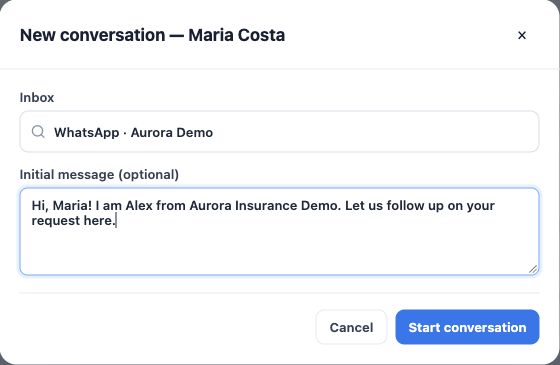
- Click Message, then New conversation in the interactions workspace.
- Select the appropriate Inbox. The list depends on accessible channels that allow starting conversations.
- To send an introduction during opening, fill in Initial message (optional). Review text and recipient before continuing.
- Click Start conversation. This creates the conversation and requests sending of the initial message if supplied. Check the history for the result. Do not use this button merely to preview.
Reply with context
- Check the header: correct person, inbox and conversation. If resolved, change its status to Open before replying.
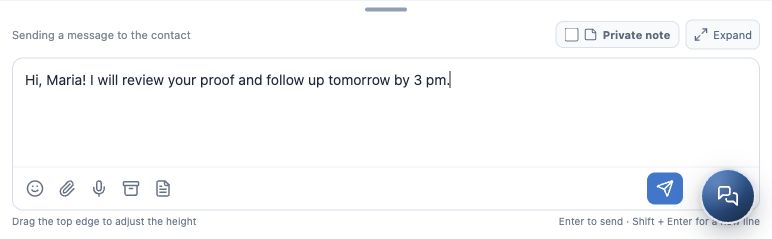
- To speak to the client, leave Private note unchecked. Confirm Sending a message to the contact.
- Write a clear reply in the client’s language, explaining what you understood and the next action. To address a specific message, use Reply on it and check the quote above the editor.
- Review and click Send message. Enter sends; use Shift + Enter for a new line without sending.
- Check that the new message appears in the history with its delivery indicator. Text still in the editor has not been sent.
Track delivery and restrictions
Indicators depend on the channel: sent, delivered and read are different stages when those confirmations are available. No read confirmation does not prove the client ignored a message. On Sending failed, check the warning and connection; fix the issue before using the retry action. Avoid sending the same text repeatedly while the outcome is uncertain.
On official WhatsApp, a closed customer service window blocks free-form messages and directs you to an approved template. A canned response cannot bypass that restriction. See canned responses and message templates.
Agree on the follow-up
Example: “Maria, I received your proof. I will review it and follow up tomorrow by 3 pm.” If review is still required, keep an assigned person and next action defined; use a Task with a due date for promised follow-ups. See Track and close a service conversation.
This step is complete when the message is in the history without an outstanding error and the next action is clear. If the channel does not allow opening a conversation or sending free-form text, request a configuration review or follow the channel’s supported flow.
Keep learning
- Get to know Conversations
- Send files, images and audio messages
- Use canned responses and message templates
- Record private notes and involve a colleague
- Track and close a service conversation
- Request documents and signatures
- Create and track policies
Updated October 24, 2026.