For Insurance agency Owners and administrators.
Configure Conditions
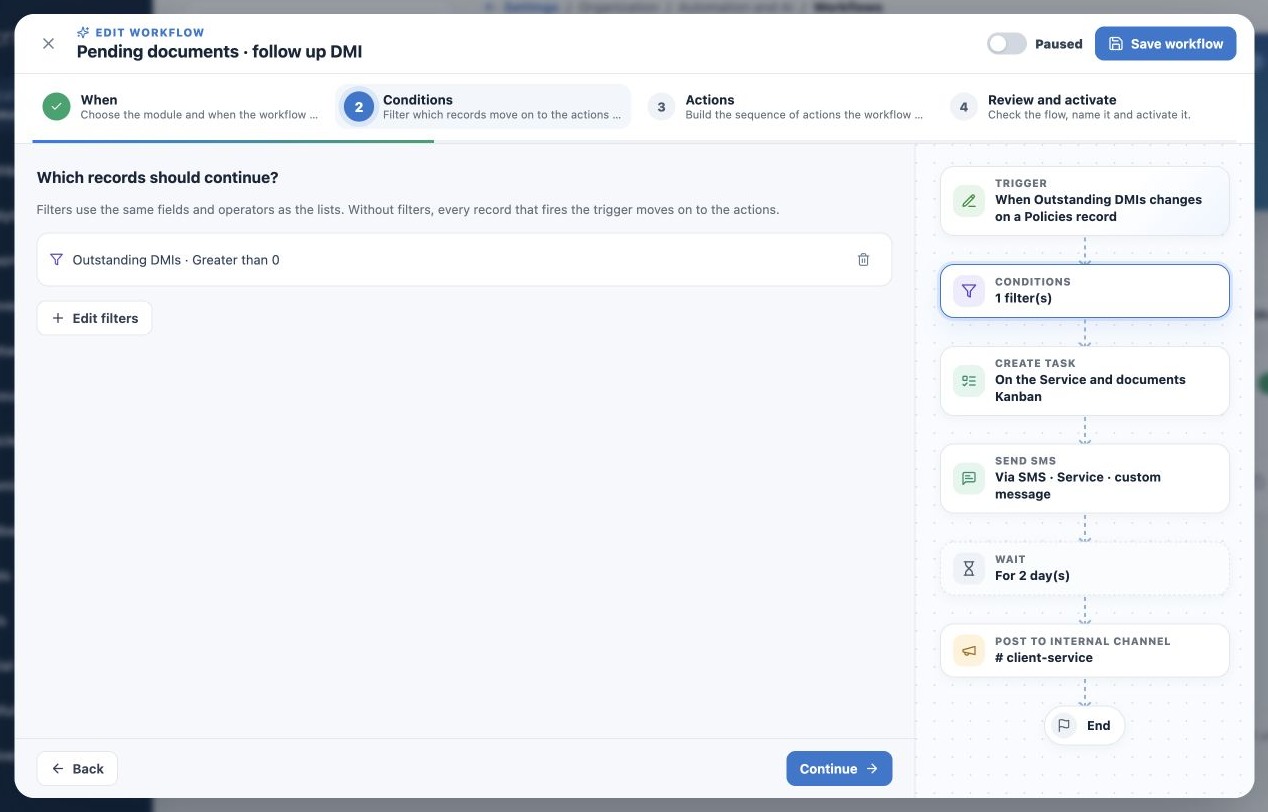
- Open Conditions. Without filters, every triggering record can continue.
- Click Add filters or Edit filters. Select field, operator and value as in record lists.
- Apply and review the builder summary. Canceling does not apply changes.
- With multiple conditions, choose Match all or Match any.
- Check the Conditions node and review before saving.
For documents, use outstanding DMI count greater than zero. For renewal, add Status = Active. Every condition should serve a purpose rather than merely being available.
Compare all versus any
| Configuration | Result |
|---|---|
| All: Status = Active and DMI > 0 | Only active policies with outstanding documents. |
| Any: Status = Active or DMI > 0 | All active policies, even without outstanding documents, plus others with DMI. |
The second choice may greatly expand the audience. Compare record values with an equivalent filtered list before activating. Filters are not a frozen client selection; each event is evaluated against workflow conditions.
Use Wait for a follow-up sequence
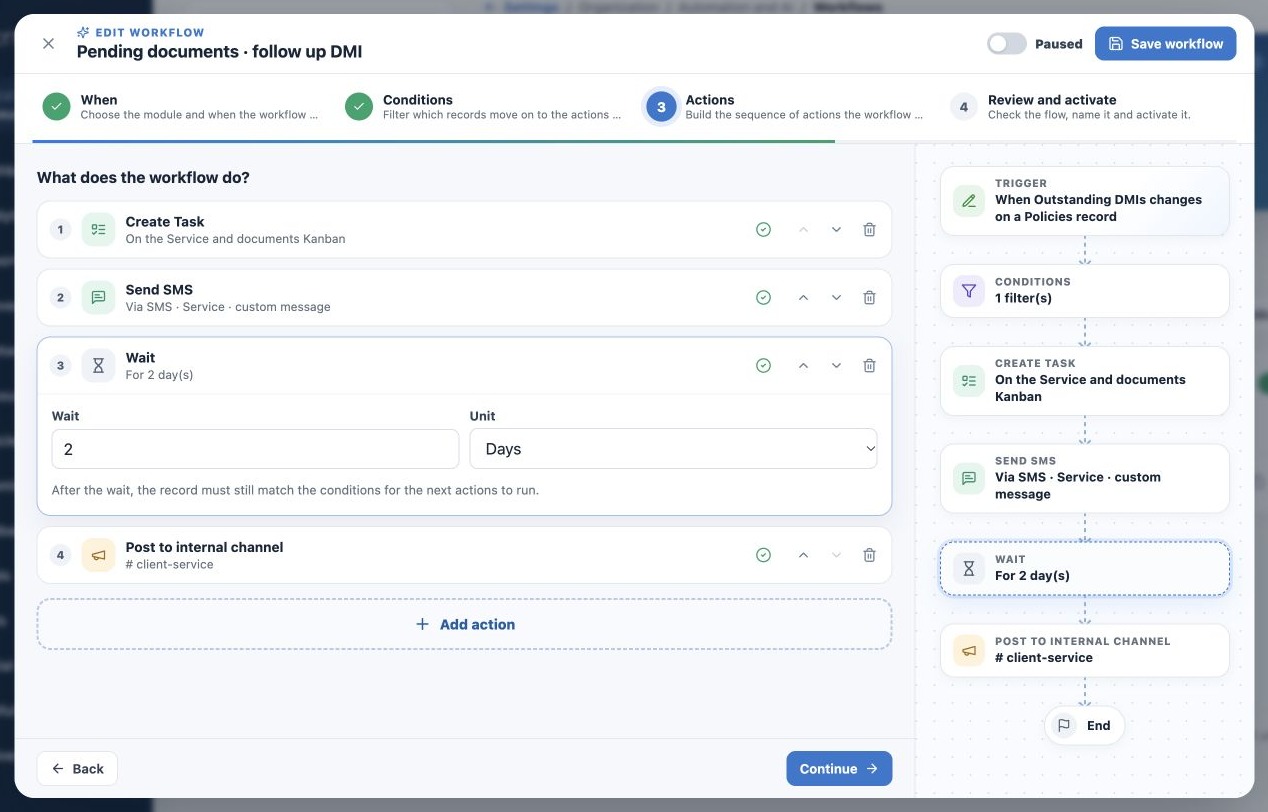
Add Wait between actions and choose minutes, hours or days. Example: create Task and send guidance, wait two days, then notify the service channel. The run stays Waiting without requiring the page to remain open.
At resumption, the record must still match the filters. If DMI becomes zero, subsequent steps are skipped. Waiting does not prove reading, a reply or Task completion; filters must represent the outcome that matters.
New changes can start other runs while one waits if frequency permits. Use tracked fields and conditions to reduce unnecessary triggers; Wait is not a global client lock.
Define a useful outcome
For document follow-up, the Task should tell its assignee to check the record and record the outcome. An internal notice should include client name and record link without unnecessary data. If the agency does not update outstanding fields, the flow cannot know documents arrived.
Use history to distinguish unmet conditions from delivery failure. A step skipped because the issue was resolved may be correct. Removing filters merely to continue one run changes the rule for all records.
Related guides
- Understand when to use agency Workflows
- Configure triggers, dates and frequency
- Build workflow actions and channels
- Review, test and activate with control
- Monitor runs and resolve failures
- Administrator manual
Reviewed October 26, 2026.