For: CRMDAY One users with the Insurance profile.
What clients receive and complete
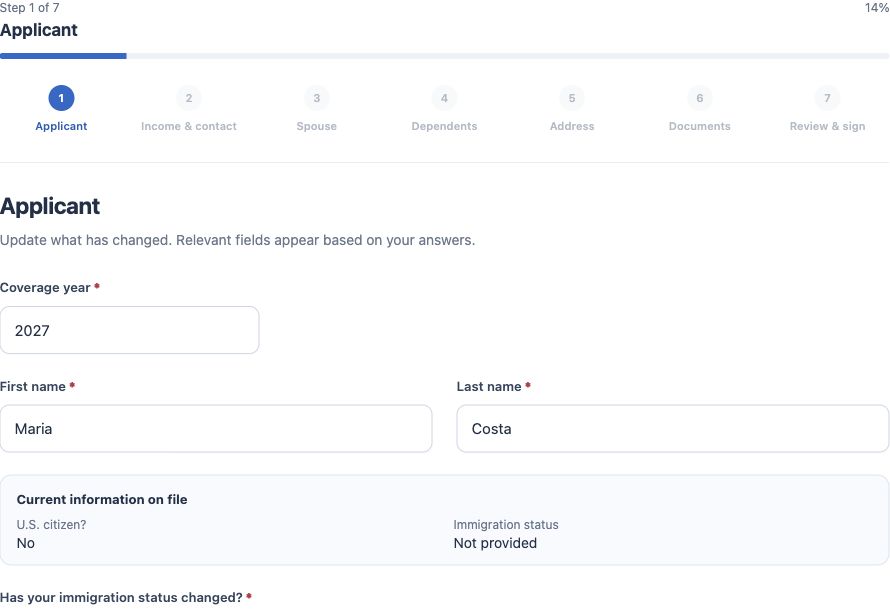
The invitation opens an individual Open Enrollment link with facts frozen at issuance. Clients can choose Portuguese, English or Spanish, review the displayed details and report changes. Switching language preserves answers and position; acknowledgements may need confirming again in the displayed text.
Depending on the template, completion covers applicant, income/contact, spouse, dependents, address, documents and review/signature. Questions reveal needed fields. Answering no change confirms the displayed facts, so clients should read them before answering.
The documents step accepts up to 10 supported files, up to 15 MB each and subject to agency storage limits. Each needs a document type and person. It can be skipped without attachments. Before signing, clients review answers, documents and acknowledgements, including any additional consent. The signed Open Enrollment PDF is saved in English.
Confirm signature and return
- Track the card in the stage expected for its sending strategy.
- After signature, check Response received and configured labels when applicable. Movement is processed in the background.
- Open Submissions → Signed forms, find Open Enrollment and choose View answers and actions. Cards and related areas can also open this review.
- Check client, year, signature date and any newer version. Consult available PDFs and documents.
- If the card has not advanced, check actual signature, request relationships and configured return, and whether someone already moved it. A manually preserved position does not mean the answer was lost.
Review changes that can update the contact
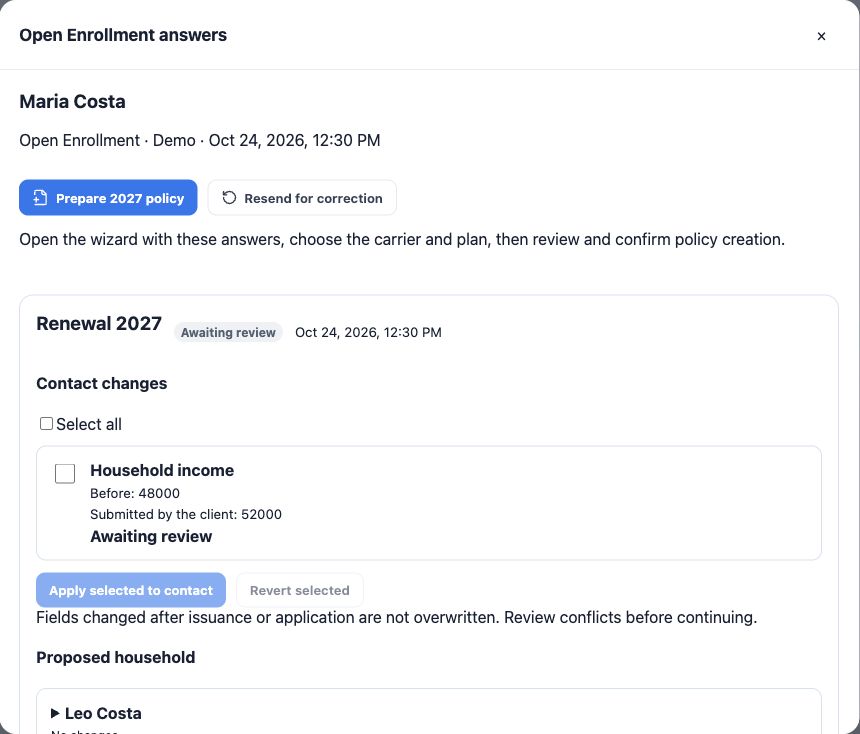
Compare Before and Reported by client in the response panel. Maria’s example reports expected annual income of 52,000, compared with 48,000 previously. Check proposed family members and documents while keeping renewal proposals separate from current coverage.
- Read changes and resolve questions with the client.
- When authorized and after checking, select appropriate fields and apply them to the contact.
- Verify the contact result. If a later edit caused a conflict, review before proceeding.
- Use Revert selected only after checking history and which changes remain eligible for reversal.
The form’s default treatment is review. If the administrator configured automatic treatment, only authorized, valid fields may apply; conflicts still require checking. Applying contact details does not rewrite the current policy or its household.
Request correction without losing signed evidence
If the client needs to correct an answer, choose Resend for correction. A new request is prepared with compatible previous answers, requiring new acknowledgements and signature. Choose and review the channel for the new link. Preparing a correction does not prove it was sent.
Earlier versions and documents remain preserved. Use the latest version; correction is not authorization to automatically change an already-created policy.
Prepare next year’s policy
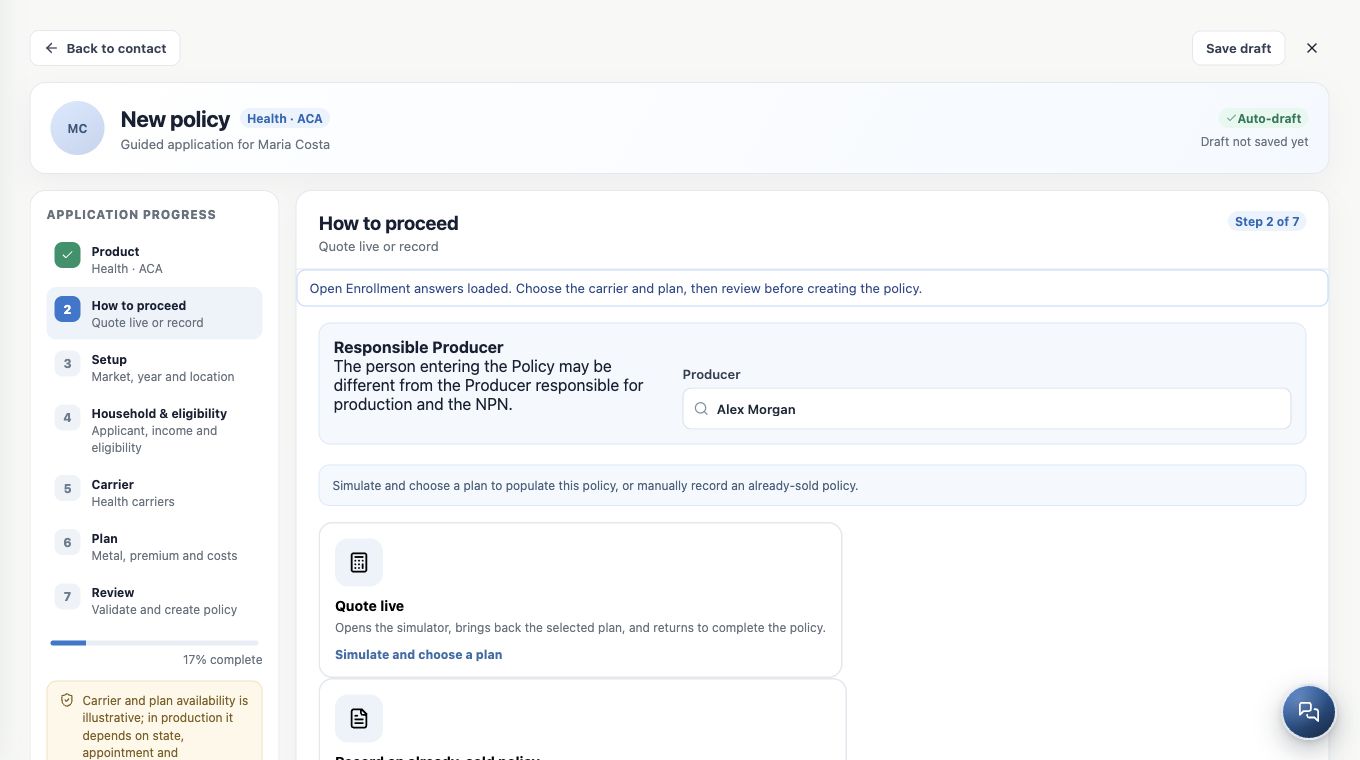
- With current answers signed and reviewed, click Prepare 2027 policy; the year follows the request.
- In the existing wizard, choose the live-quote path or recording an already-sold policy as appropriate.
- Check year, applicant, income, address and household. For a quote, compare and select a plan in the normal flow; the old carrier and price are not approval for new coverage.
- Review carrier, plan, amounts, dates and other required fields.
- Confirm creation only after review. If a policy already exists for the submission, open it rather than creating another.
Signing a form, applying contact fields or moving a card does not create or effectuate the new policy. Quoting and human confirmation remain part of the process. See the policy creation wizard.
Close based on outcome, not just the form
- Use Review and quote while checking, documents, plan selection or enrollment remain outstanding. Set a person and deadline.
- Once the process and real outcome are confirmed, move to Renewal completed. If renewal will not proceed, record the reason and use Not renewed.
- Confirm the administrator mapped these stages to the correct outcomes. Closure preserves responses, documents and history.
- Tell the client the outcome or next service action and check policy status in the appropriate module.
At the end, you should be able to explain each client’s path: card source, how the link was sent, which response was signed, what was reviewed and the outcome. For client messaging, see Serve your clients.
Keep learning
- Understand Open Enrollment and prepare the Kanban
- Start Open Enrollment from your policy portfolio
- Select contacts and create cards in the renewal Kanban
- Automate invitations and card return after signature
- Send Open Enrollment forms in bulk from Kanban
- Request documents and signatures
- Serve your clients
Updated October 24, 2026.