For Insurance agency Owners and administrators.
Arrange the selection order
- Open Customization → Loss reasons.
- Use the row’s Move up and Move down arrows.
- Wait for Order updated before the next adjustment.
- Reopen settings and the loss selector to verify the order.
Place the clearest, most frequent reasons first. Arrows change position, not the cause of already lost Deals. Dragging is unnecessary. If an outdated-order message appears, reload before retrying: someone else may have changed the catalog.
Rename to clarify, not to replace the cause
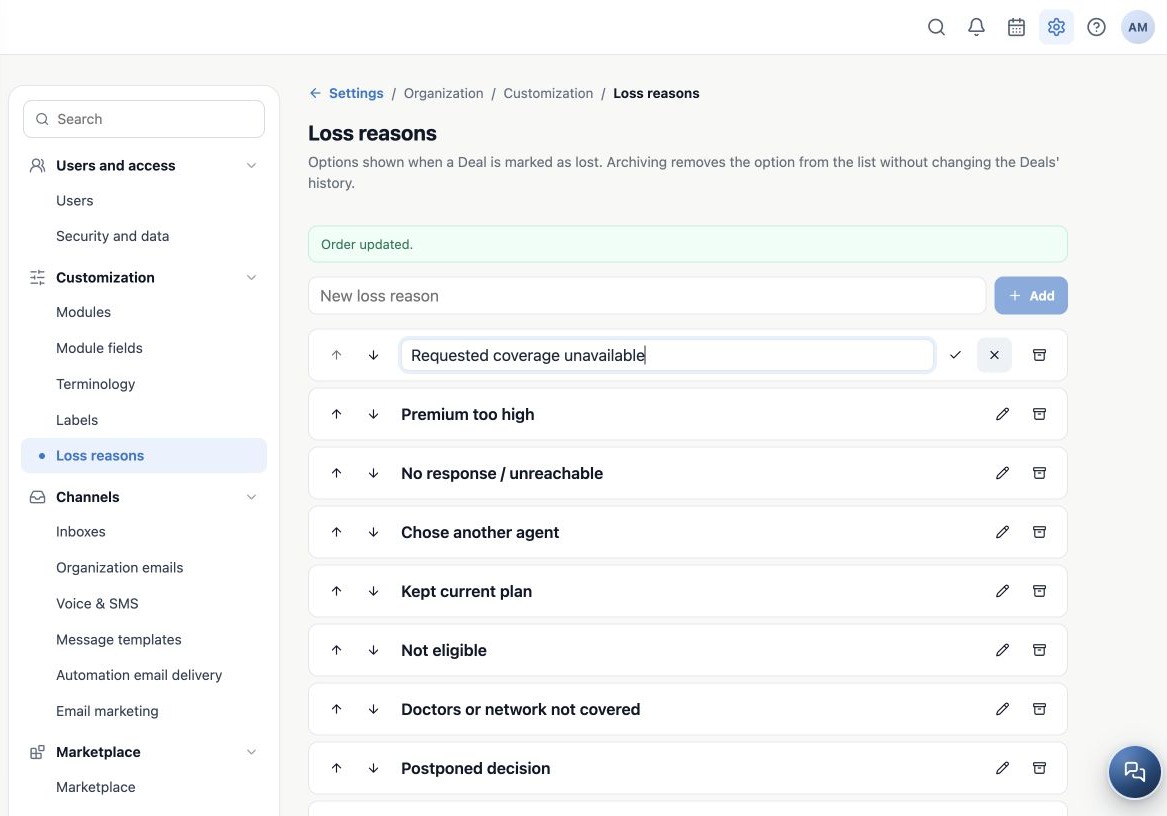
- Click the reason’s Rename pencil.
- Edit the Reason name input.
- Click the Save checkmark. The cancel icon discards the edit.
- Reopen and check the name and sample Deals using that option.
For example, changing “Desired coverage unavailable” to “Requested coverage unavailable” preserves the meaning. Changing “Premium too high” to “No response” mixes different causes. Create another option and archive the old one if appropriate. Renaming follows the catalog option and can update its presentation on associated records; it does not preserve two distinct classifications.
Archive and reactivate while retaining history
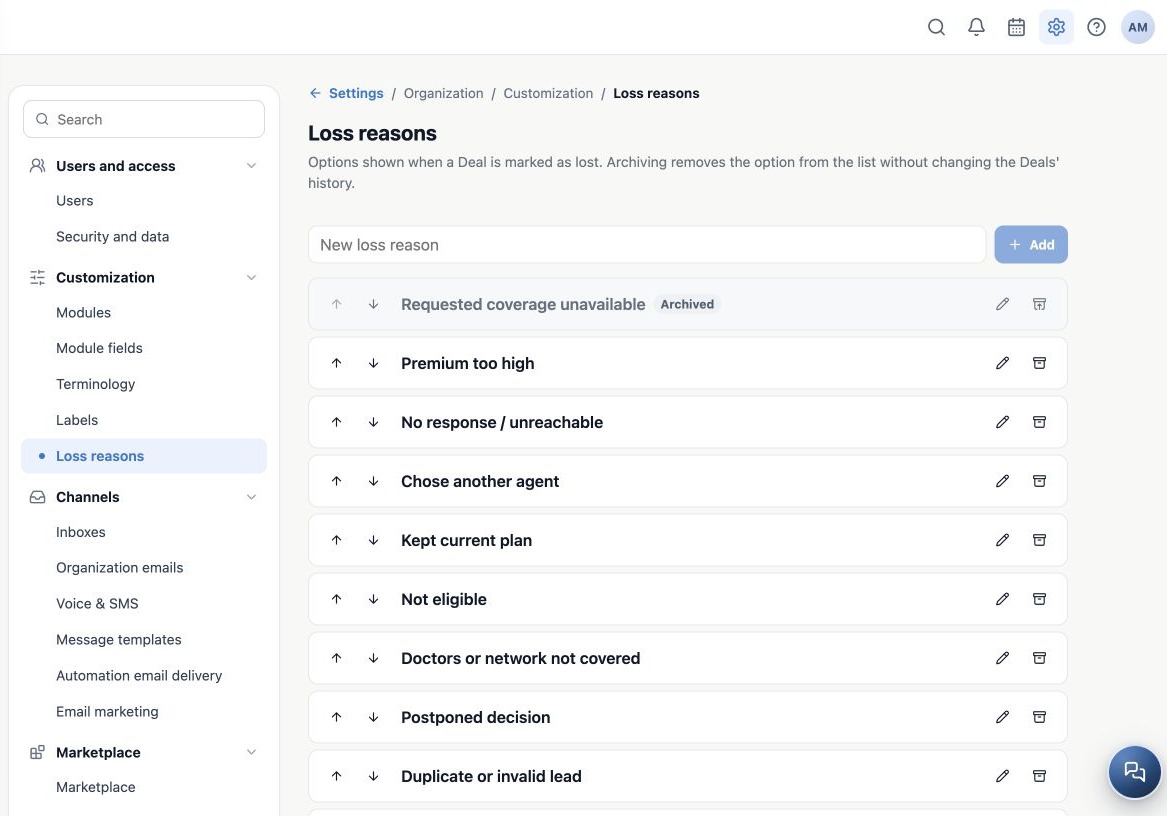
- Click Archive on an option that should no longer be used for new losses.
- Check the Archived marker. It remains in administration but leaves the active selector.
- Open a test Deal and confirm that the archived option is unavailable for a new loss.
- To use it again, click Reactivate. Reopen the selector before choosing it.
Archiving does not delete or reclassify Deals already using the reason. It is appropriate when a cause should no longer be offered. This screen does not require permanent deletion. Coordinate retirement with the team and review automations or integrations that might still try to select it.
Maintain language and consistency
Recognized standard reasons are displayed in the user’s language. Custom reasons stay exactly as entered: this screen has no per-language translation inputs. Giving a standard reason a custom name can stop it from being recognized as a translatable default. Keep useful defaults and add specific options only when needed.
Agree on names a multilingual team understands. Do not create three equivalent options solely as translations: they split results into different categories. Custom examples in the images are independent scenarios for each language.
Related guides
- Plan and create loss reasons
- Record a Deal loss and review the results
- Terminology
- Labels
- Administrator manual
Updated October 25, 2026.