For Insurance agency Owners and administrators.
Confirm the created inbox
- After signup, wait for CRMDAY to return to Inboxes.
- Verify the name, number and WhatsApp Meta API identification.
- If confirmation is pending, follow the screen guidance before creating any other inbox.
- Review Team and Sending rules. Connecting the number does not choose which agents should handle it.
- Test inbound messages and replies before announcing the channel to clients.
CRMDAY prepares the connection and official catalog on the server. Agency administrators do not need to copy tokens or edit webhooks. An inbox card alone is not a substitute for a complete test using a new message.
Test the conversation and service window
- Use another authorized number to send a new message to the agency’s official number.
- Open Conversations and find it in the correct inbox. Check contact and phone.
- Reply with a test message and confirm receipt on the source phone.
- Test an attachment or another needed feature with fictitious files and no personal data.
- Record the result and tell the team which inbox to use.
CRMDAY checks the Meta API free-form window for 24 hours from the last public incoming client message. An agency message or internal note does not restart it. Outside the window, use an approved official template; a client reply can open a new window. Connecting the number does not open a window for all contacts.
Check the official catalog
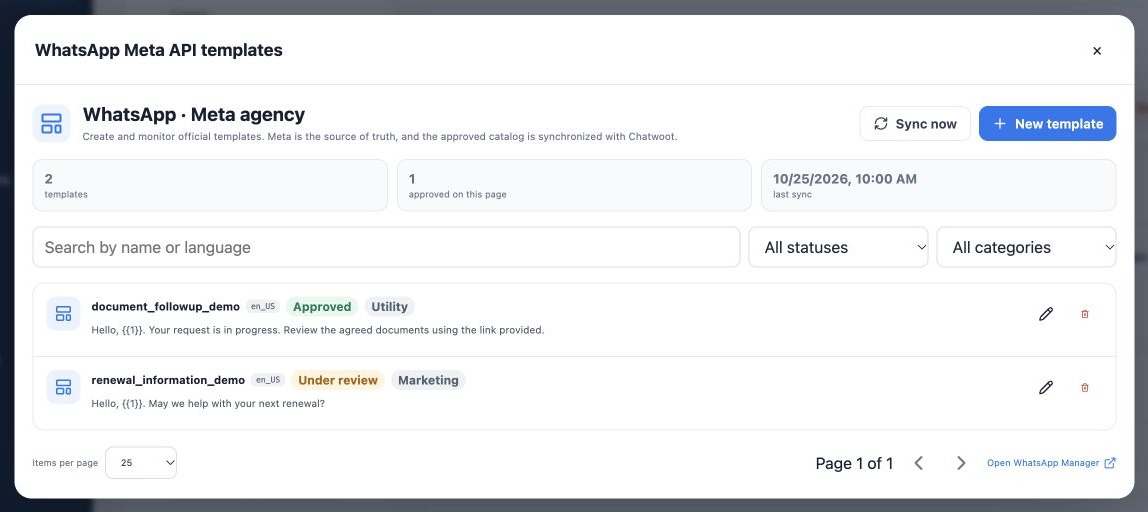
On the signup-connected inbox, click Manage templates. Review name, language, category and status. Use search and filters; click Sync now when a catalog refresh is needed and wait. Image examples, including approval states, are fictitious.
| Status | Operational meaning |
|---|---|
| Approved | Can become available after synchronization and other channel checks. |
| Pending | Cannot yet be used as approved. |
| Rejected | Review the supplied reason and adjust according to Meta rules. |
| Paused or Disabled | Do not use for new sends; investigate before resuming. |
For editor-supported formats, New template prepares content and fictitious examples for review. Meta decides approval. Advanced formats may be read-only and require WhatsApp Manager editing. An existing template’s name and language cannot be edited like ordinary free text.
Choose the recipient’s language
The administrator interface language does not translate a template. For Portuguese, English and Spanish service, prepare and obtain approval for the appropriate version of each template. Before sending, check recipient number, inbox, template name, language and variable values. A translation you type in place of approved text is not another approved template.
Reusable saved CRM text and a Meta-approved official template are different resources. In campaigns or automations, verify that the flow selects the correct official model. Test with an authorized recipient and check the actual received content before contacting your audience.
Related guides
- Understand inboxes and choose your channel
- Connect WhatsApp using a QR code
- Configure bulk-message limits and schedules
- Prepare the official WhatsApp Meta API connection
- Complete Meta signup: an illustrated walkthrough
- Manage team, connection and authentication changes
- Administrator manual
Updated October 25, 2026.