For: CRMDAY One users with the Insurance profile.
Images are actual system captures in a local environment, with fictitious details, plans, prices and benefits for educational purposes. Examples are not commercial offers. Screens are localized for this language; fields and availability may vary by agency and year.
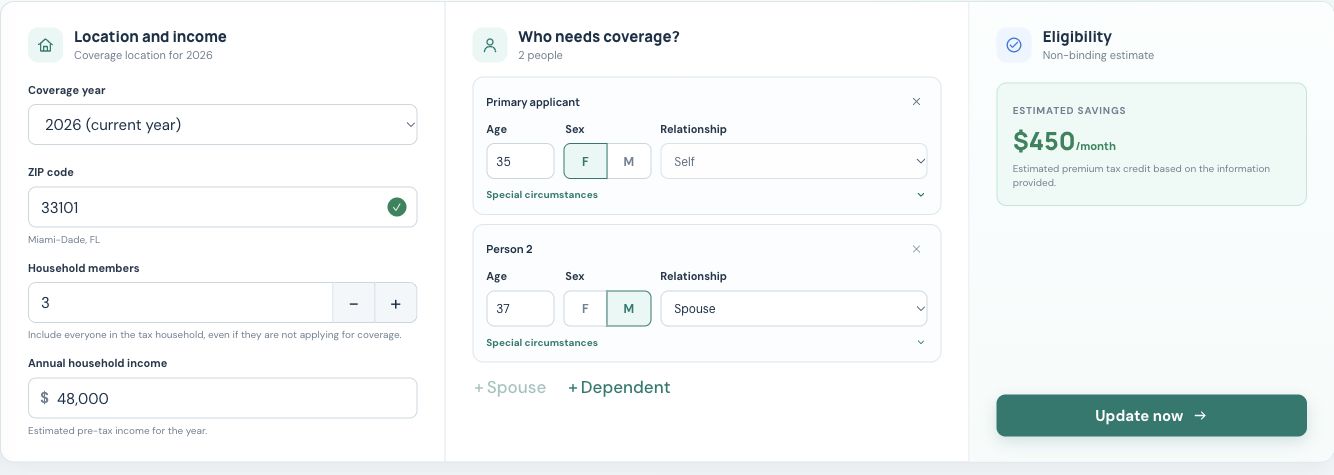
1. Choose the year, ZIP and county
- Check Coverage year. Do not silently substitute the current year for next year’s renewal.
- Enter the five-digit ZIP code for the coverage address and wait for location lookup.
- Check the county and state. If the ZIP has multiple counties, select the correct one.
- Follow the screen’s message if plans are unavailable for the year. Finding a ZIP does not guarantee that year’s plan catalog is available.
Changing the year clears results and comparison selections. Recheck the information shown for the chosen year; do not treat an old comparison as a new-year quote.
2. Distinguish tax household members from applicants
Under Household members, enter the total tax household, including people not applying for coverage. Under Who needs coverage?, keep only applicants for this quote. These counts can differ.
The example has 3 household members and 2 applicants: Maria, age 35, and her spouse, age 37. A third person is included in the tax household count but is not being quoted. Do not add an applicant simply to make the counts match.
- Check each applicant’s age, sex and relationship.
- Use + Spouse or + Dependent when someone actually needs to be added.
- Remove a person when they are not applying in this simulation. Review tax household size separately after changes.
- Complete missing fields with confirmed information; never invent an age to unlock the search.
3. Review income and special circumstances
Enter the confirmed estimated annual pre-tax household income for the coverage year in Annual household income. The fictitious example uses $48,000 per year; this is not a recommendation for obtaining a subsidy.
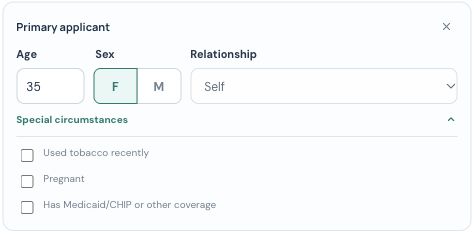
Open each person’s Special circumstances and review applicable options such as tobacco use, pregnancy and existing coverage. A Medicaid/CHIP denied-or-ending option may appear depending on the person and details. Select only confirmed circumstances; do not change an answer to produce a desired price.
4. Wait for recalculation and review results
- With required details complete, wait for automatic recalculation. Use Update now when offered.
- Read eligibility notices and results. These are estimates, not final approval.
- Check location, income, people and year in the summary.
- After changing a relevant detail, wait for a new query before comparing or generating a PDF.
Edits in this simulation do not automatically update the contact, Policy or signed form. Correct persistent information in the appropriate source record.
If the quote cannot proceed
- Missing age or field: complete the indicated person and check the values.
- Location failure: check the ZIP and use Retry location lookup when offered. A service error does not necessarily mean an invalid address.
- Unavailable year: confirm the required year and retry when data becomes available. Do not present another year’s prices as equivalent.
- State marketplace: follow the screen’s direction to the state portal when given; do not invent prices.
You are done when the summary matches confirmed details and plans or the appropriate next-step message appear. Continue with Review and filter available plans.
Keep learning
- Open an ACA quote from the contact
- Review and filter available plans
- Compare two or three options side by side
- Save and share the simulation with the client
- Find and organize your clients
Updated October 24, 2026.