For: CRMDAY One users with the Insurance profile.
Start with the history
Conversations brings together messages from channels connected to your agency. An inbox is a channel’s service mailbox, such as the agency’s WhatsApp number. You see the inboxes and conversations you can access.
In this example, Maria Costa contacts Aurora Insurance Demo about her ID card and documents. Alex Morgan handles the request and can hand over to Taylor Rivera. All people, records and messages in the images are fictitious.
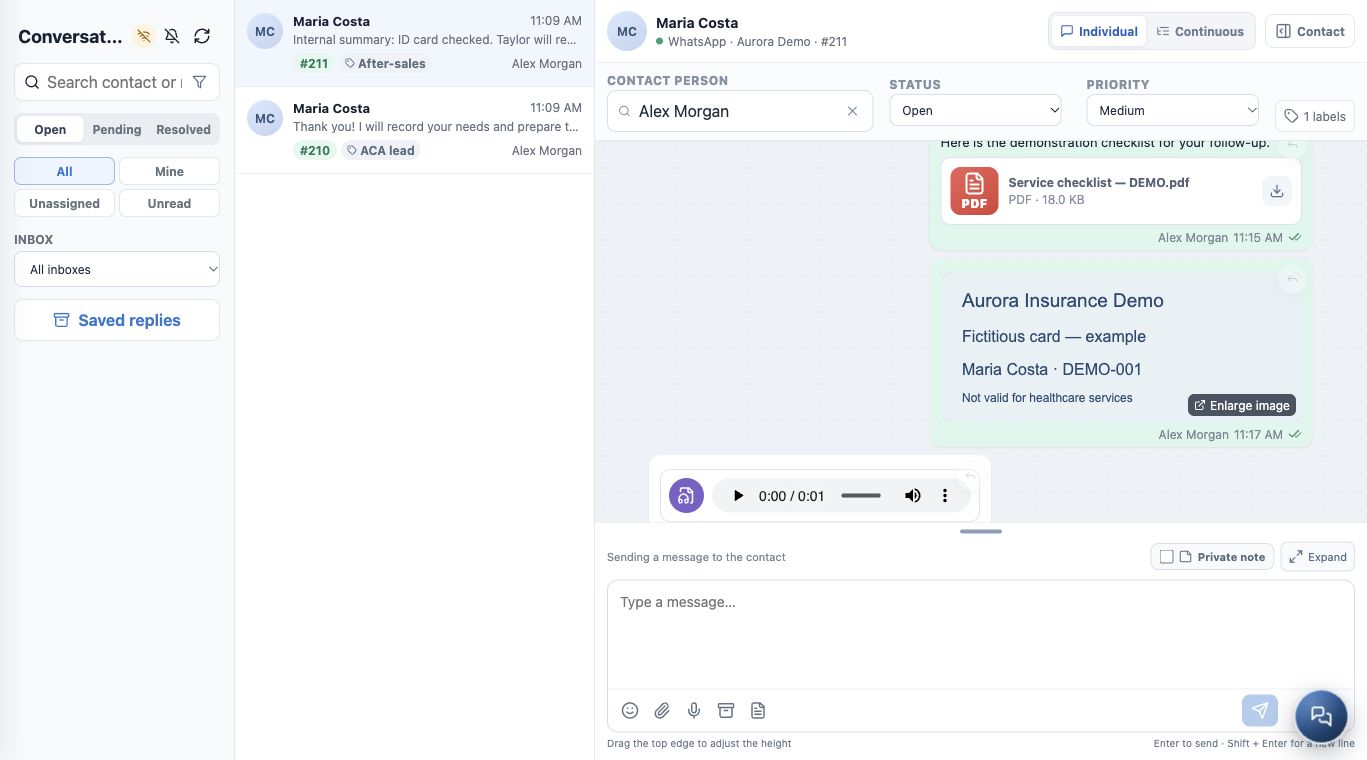
Understand the screen
| Area | How to use it |
|---|---|
| Filters on the left | Choose status, assignment and inbox; search by contact or message. |
| Conversation list | Check client, latest activity, conversation number and assigned person. |
| Conversation header | Check client and inbox; update assigned person, status, priority and labels. |
| History | Read messages, attachments, times and private notes before replying. |
| Writing area | Compose messages, attach files, record audio or choose reusable replies and templates. |
| Contact | Show or collapse the person’s details and consult available related records. |
Collapse the main menu and the Contact panel for more room. Use Expand or drag the writing area’s top edge to review a long message.
Find the right conversation
- Open Conversations from the menu.
- Choose Open, Pending or Resolved for the situation you need.
- Use All, Mine, Unassigned or Unread. Combine with the inbox and, if needed, Advanced filters.
- Search by contact or message. If a conversation is missing, check active filters first.
- Open the result and check name, channel and conversation number. For people with the same name, also check phone or email.
Individual and Continuous
Individual focuses on the selected conversation. Continuous displays the contact’s interactions in sequence, with dividers identifying each conversation. Before writing, confirm which conversation you are replying in: viewing combined history does not change the recipient or make channels interchangeable.
In the client record, Message opens interactions and lets you choose the service channel. Messages there and in Conversations belong to the same history.
Check before continuing
- Client, conversation number and inbox match the request.
- You have read the latest question and internal guidance.
- You know who is responsible and what comes next.
If no inbox is available or the area is empty, check access and connection with the agency administrator. Continue with Start, reply to and follow a conversation.
Keep learning
- Start, reply to and follow a conversation
- Send files, images and audio messages
- Use canned responses and message templates
- Record private notes and involve a colleague
- Track and close a service conversation
- Request documents and signatures
- Create and track policies
Updated October 24, 2026.