For: CRMDAY One users with the Insurance profile.
Choose table columns
- Create a Policies report and select Table.
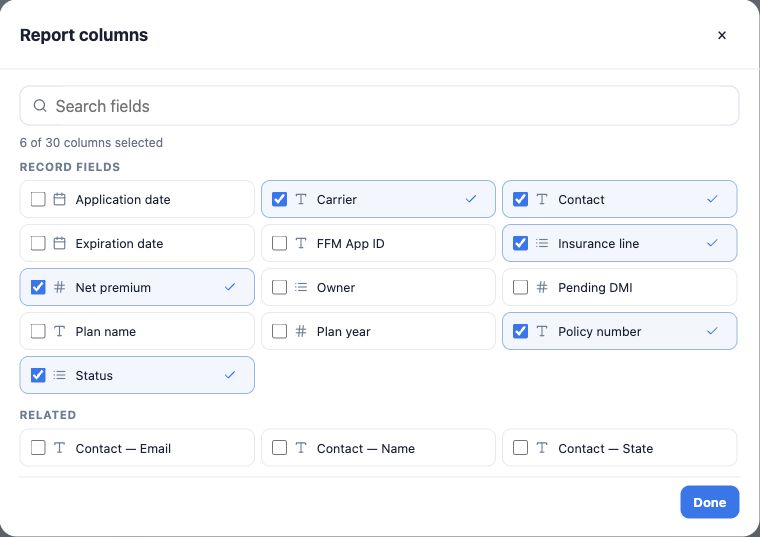
- Click Add or remove columns; search and select fields.
- For pending documents, choose Policy number, Contact, Status, Carrier and Pending DMI. Add dates or Owner if useful.
- Finish selection, then use arrows to reorder columns or remove unwanted ones.
Select up to 30 columns, subject to field access. In Summary and Matrix, Record columns controls the drill-down detail.
Filter pending documents
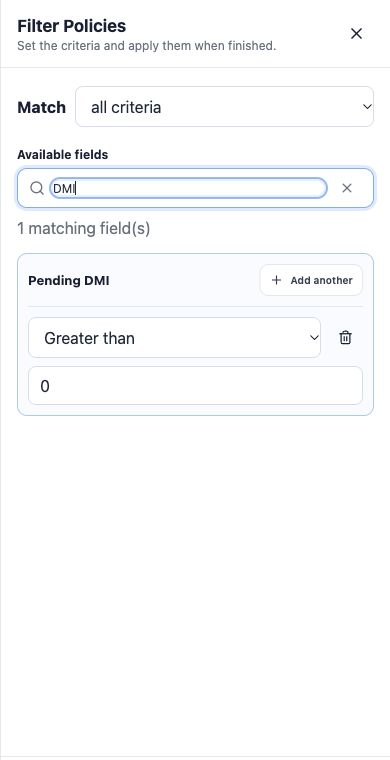
- Open Add filters.
- Find Pending DMI and add Greater than 0.
- To restrict to the active book, add Status = Active with all criteria.
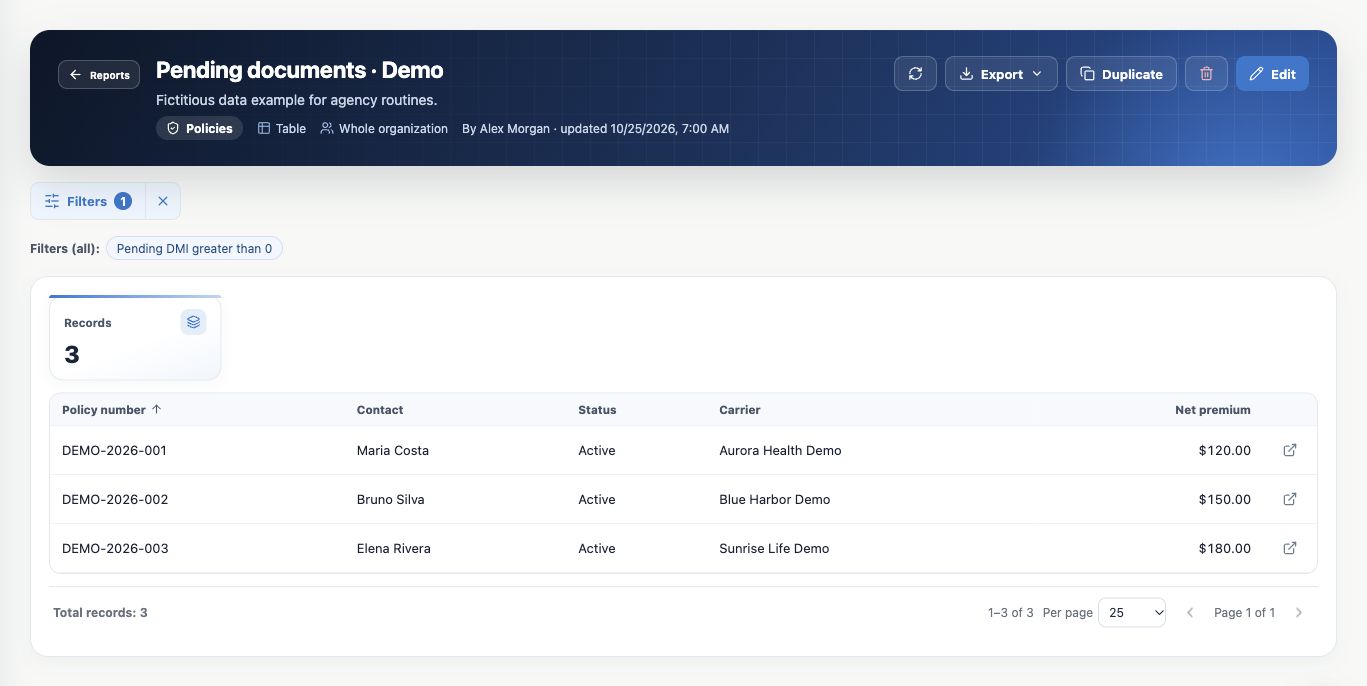
- Apply filter; verify conditions and total.
The illustrated example uses Pending DMI greater than zero and finds three fictitious policies. This is a policy count for that condition, not every kind of pending document or a count of documents.
Combine dates and conditions deliberately
All criteria means Active AND Health must both match. Any criterion means Active OR Health and also includes other active lines and Health policies in other statuses.
For October applications, filter Application date between October 1 and 31, 2026. For renewals, use Expiration date and the desired range. Effective date and creation are different events. Grouping by month does not itself restrict the date range.
Where supported, select multiple options with Any of. Plan year supports comma-separated years with that operator. Review the condition summary before applying.
Sort, paginate and open records
- Choose Sort records by and ascending or descending in the builder.
- Click sortable table headers to change direction.
- Check total and range; choose 10, 25, 50 or 100 per page.
- Use Open record to inspect the policy before following up.
Pagination does not change the filtered universe. A Table can have one optional chart grouping while retaining individual rows; the chart covers the whole filtered set.
Separate temporary filters from saved settings
Filters in a saved report changes that consultation. Applied conditions affect table, totals, chart, drill-down and export and return to page 1. Cancel discards uncommitted filter changes.
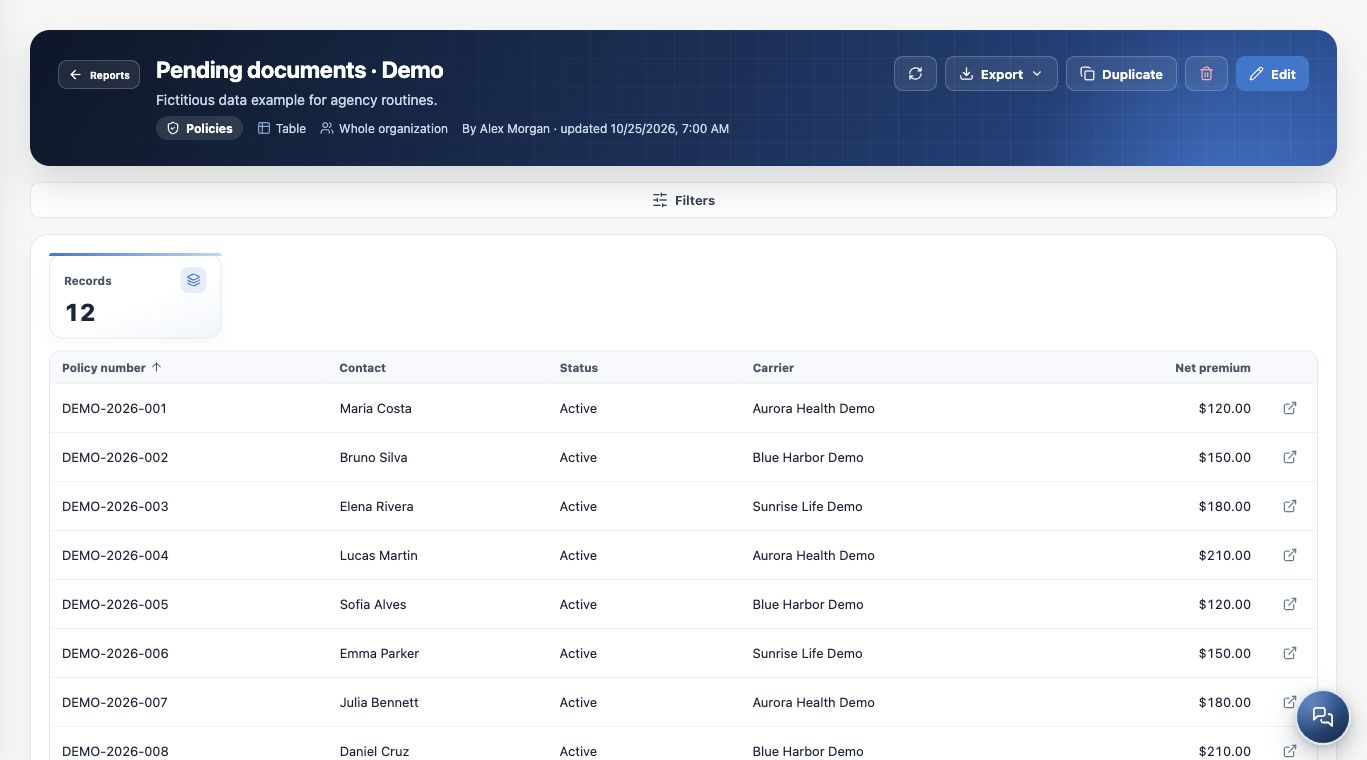
Clearing temporary filters shows all 12 fictitious policies in the image. Reopening restores the saved definition and three pending records. To persist a change, use Edit, adjust the builder and save. Clearing filters does not delete records.
Keep learning
- Find reports and choose how to analyze your agency
- Create summaries with totals, averages and monthly trends
- Cross dimensions in matrices and explore charts
- Use related contacts and analyze policy members
- Save, share and maintain reports
- Export reports and resolve unexpected results
- Build KPIs and dashboards in Analytics
- Stay on top of your day
Updated October 25, 2026.