For: CRMDAY One users with the Insurance profile.
Prepare recipients and avoid duplicate sending
Select the desired cards and check the count. Messages target linked contacts, with recipient deduplication within the campaign. An internal Task without a contact does not define a recipient. Deduplication does not merge separate campaigns or independent automation messages.
Check contact details, preferred language, authorized channels and stage rules. Choose a campaign or automation for the same purpose instead of sending through both.
Send bulk email
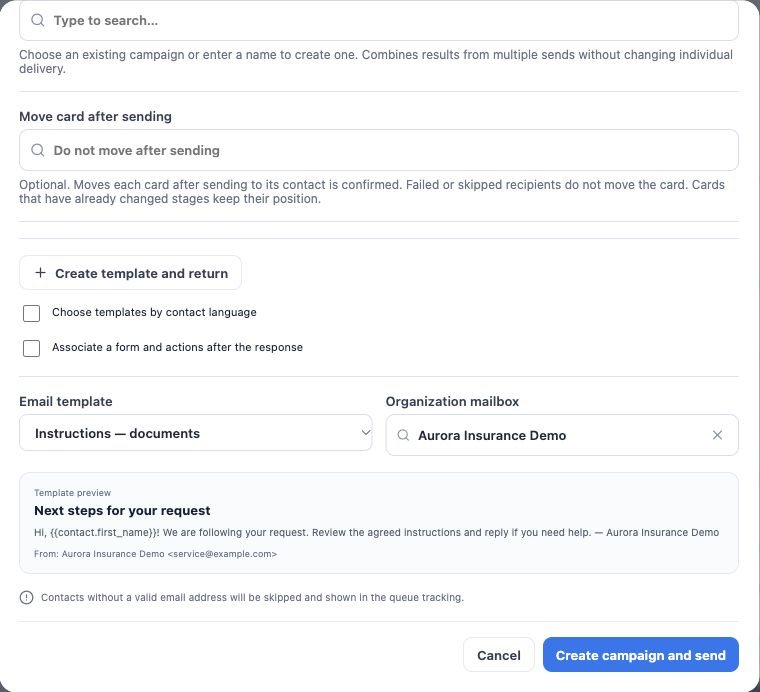
- Click Send email in the selection bar.
- Choose Organization mailbox or Email marketing according to agency setup. Check sender, connection/domain and applicable limits.
- Choose the email template and read its subject, preview and sender.
- Use Create template and return if needed; recheck the selection afterward.
- Review and click Create campaign and send. This starts processing; check its results in Delivery center.
Contacts without valid email addresses are skipped and appear in monitoring. The selected card count is not a guaranteed sent-message count.
Send bulk SMS
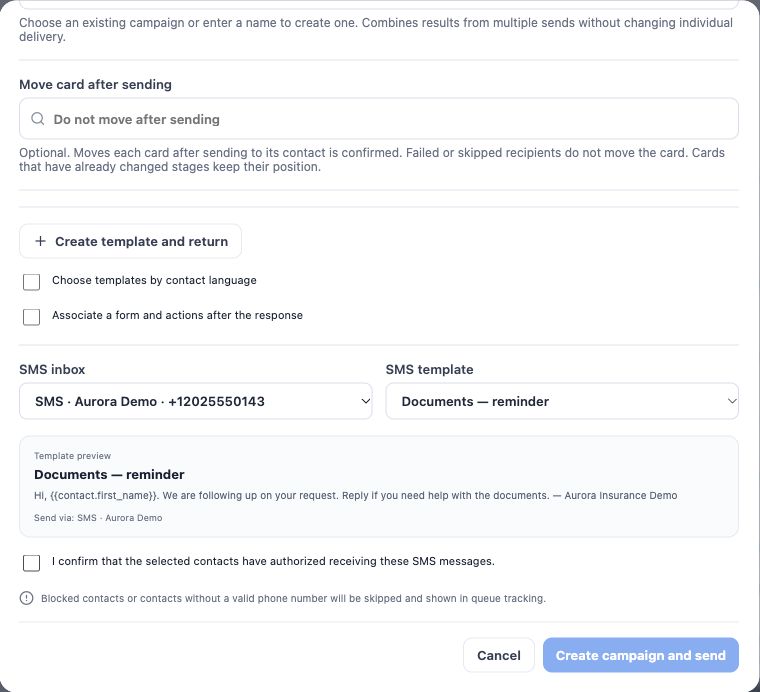
- Click Send SMS.
- Choose the SMS inbox and template.
- Read the preview and check merge fields. Keep the next action clear.
- Confirm recipient authorization only when it applies to the selected group.
- Review and create the campaign. Blocked contacts or invalid numbers are skipped; check recipient outcomes.
Send bulk WhatsApp
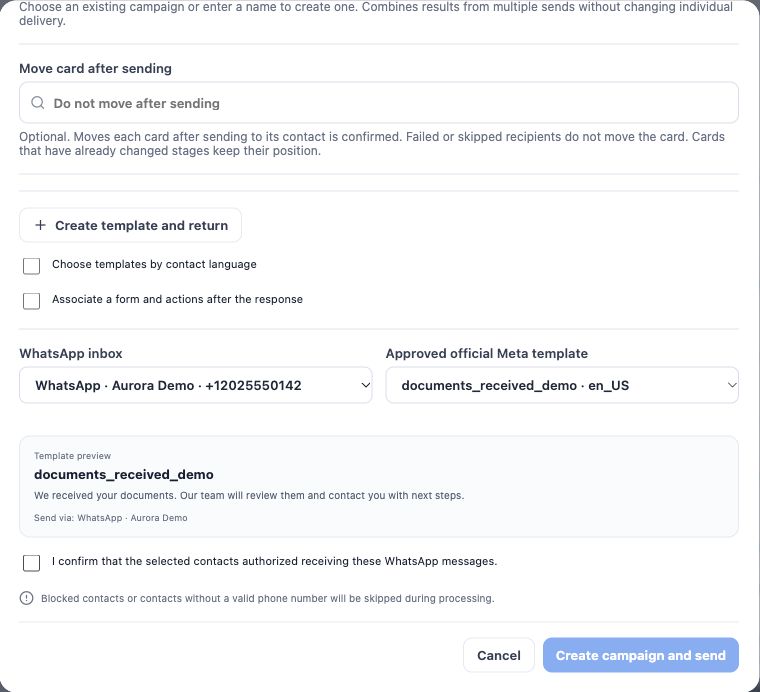
- Click Send WhatsApp.
- Choose the WhatsApp inbox. For the official channel, choose the approved Meta template and check language.
- Fill required parameters and review the preview. This document acknowledgement example has no variables.
- Confirm authorization for the selected recipients and review the batch.
- Create the campaign and follow processing. Do not repeat the entire batch just because a few recipients failed.
Choose templates by language and combine reporting
For multilingual groups, use Choose templates by contact language, set the default and associate available language versions. Check contact preferences and the fallback shown in configuration. Changing your interface language does not translate the client’s message automatically.
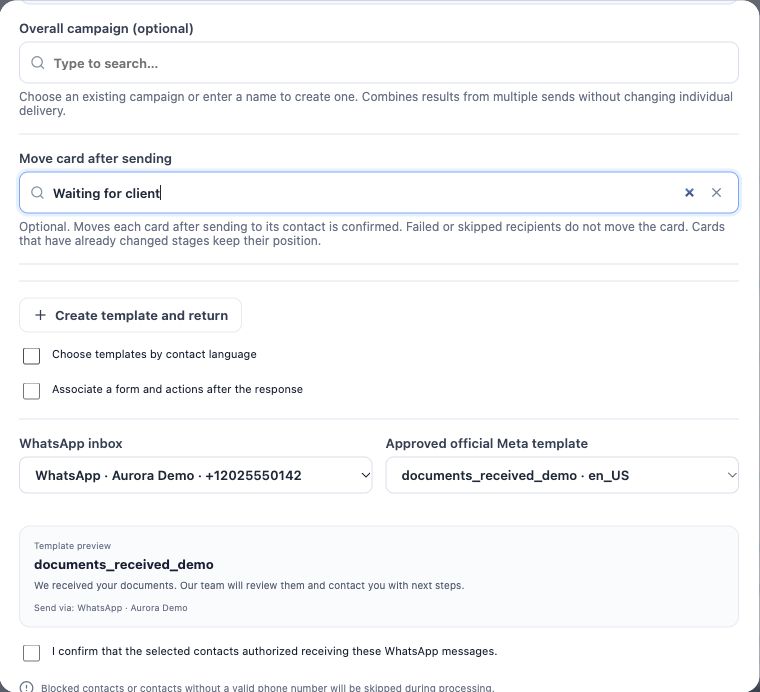
An optional Overall campaign groups reporting for several sends; it does not select recipients. To request forms with individual links and post-response actions, use form association and the Documents or Open Enrollment guides.
Move cards after sending is confirmed
Under Move card after sending, choose a board stage such as Waiting for client. Each card moves after sending to its contact is confirmed. Failed or skipped recipients do not move it. Cards manually moved in the meantime keep their position.
This does not wait for reading, reply or signature. If the destination sends the same automatic invitation, movement may trigger a second message. Choose a destination without that duplicate rule.
Follow Delivery center and handle exceptions
- Open Delivery center and locate the campaign or channel processing.
- Review pending, sent, failed and skipped items and recipient details.
- Resolve invalid data, blocking, channel/template setup or sending-capacity issues.
- When available, retry only eligible failures. For uncertain outcomes, inspect history and provider status before resending.
- Return to Kanban, check movement and handle replies in Conversations.
Campaign creation starts processing. Confirmed sending does not prove reading; a reply does not finish service by itself. The team must review the response and decide the next action.
Keep learning
- Organize activities and processes with Kanban
- Create and edit Kanbans and stages
- Create and follow Tasks every day
- Automate SMS, email and WhatsApp through stages
- Update and move activities in bulk
- Manage Open Enrollment
- Serve your clients
Updated October 24, 2026.