For: CRMDAY One users with the Insurance profile.
Choose the event and action
An automation connects an event to an action: enter Waiting for client → send instructions by SMS, for example. Actions run in the background in the configured order. Each rule needs a purpose, correct recipient and prepared channel.
The three illustrated examples are paused alternatives. You do not need to send the same update through all three channels. Avoid independent campaigns and rules duplicating the same message.
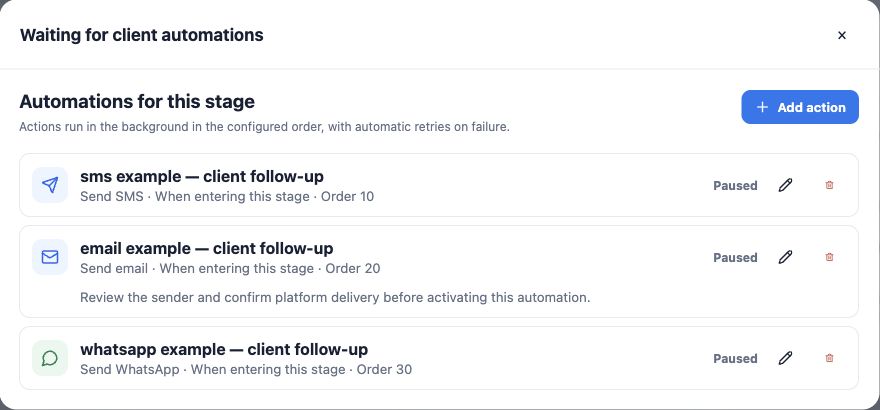
Create or edit a rule
- As an administrator, open the board and the column’s Automations.
- Use Add action or Edit on an existing rule.
- Choose When entering this stage and the sending action for these examples.
- Give the rule a recognizable name and execution order.
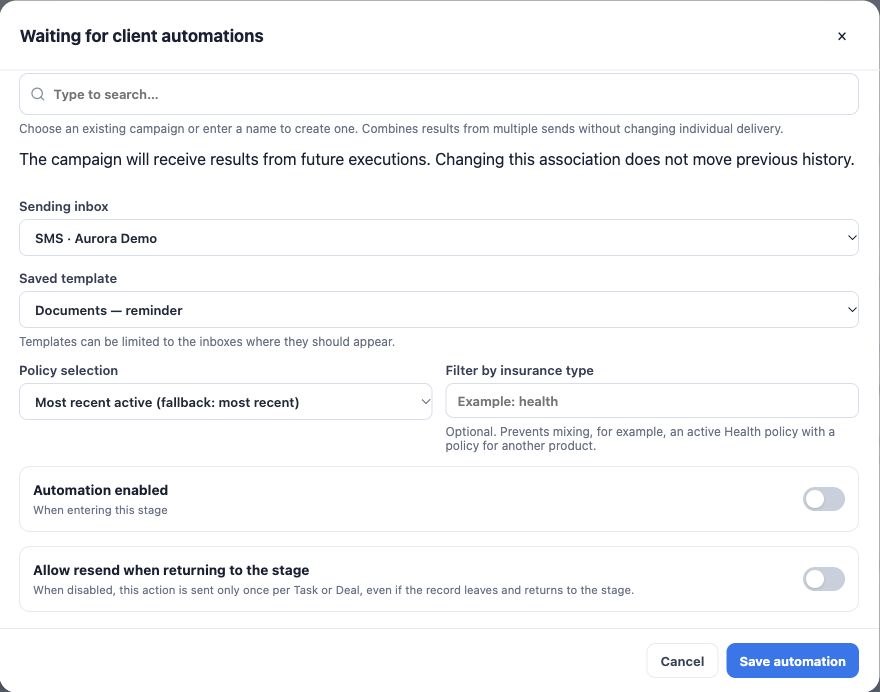
- While preparing, turn off the active-automation setting. Check it explicitly: not every new action type starts paused.
- Leave re-sending on stage reentry disabled unless repetition is intended.
SMS example: explain the next step
After a checked card enters Waiting for client, send a short document reminder. Under Send SMS, choose an SMS sending inbox and saved template, or free text when available.
Example: “Hi, {{contact.first_name}}. We are following your request. If you need help with documents, reply to this message. — Aurora Insurance Demo”. Use supported merge fields and check that markers are resolved.
The linked contact needs a valid, eligible phone number. A WhatsApp inbox does not configure the SMS channel.
Email example: provide detailed instructions
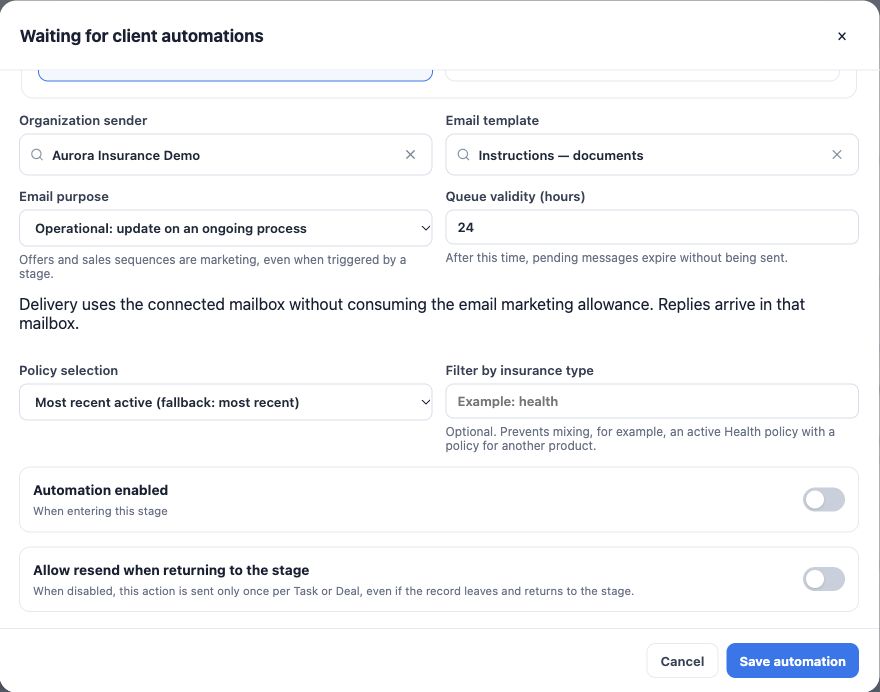
Under Send email, choose Organization mailbox using a connected mailbox, or Email marketing with the platform’s domain and sending capacity configured. Connected mailboxes follow provider limits; the volume recommendation on screen is not an unlimited-capacity guarantee.
- Choose the sender and email template with a clear subject and instructions.
- Check purpose: an ongoing-process update may be operational; offers and commercial sequences are marketing even inside Kanban.
- Set queue validity: pending messages expire without sending after that period.
- Read blockers and required confirmations before activation. Saving settings does not prove sending.
Example subject: “Next steps for your request”. Explain what is pending, how to respond and who will follow up.
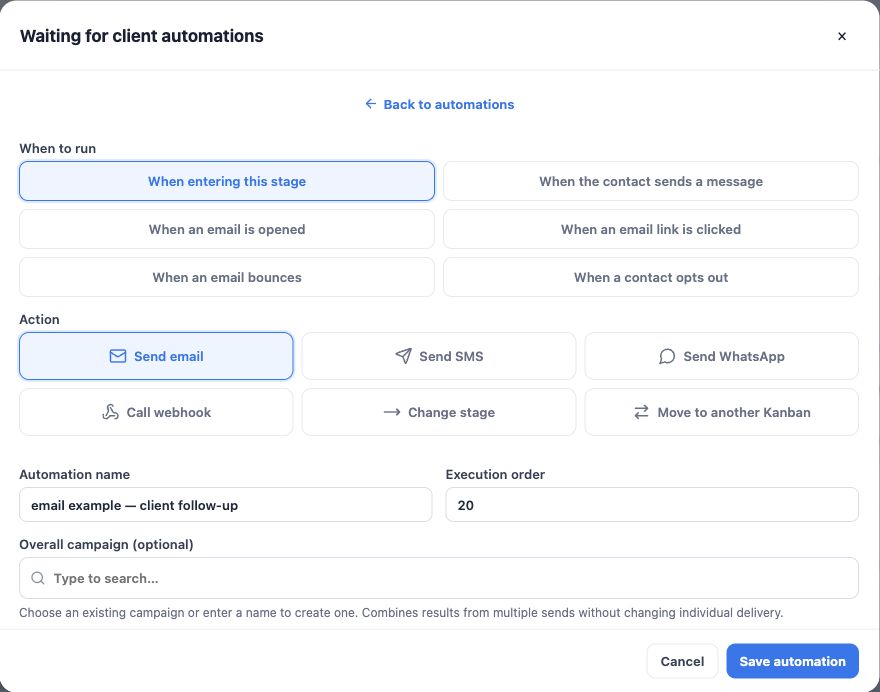
WhatsApp example: acknowledge received documents
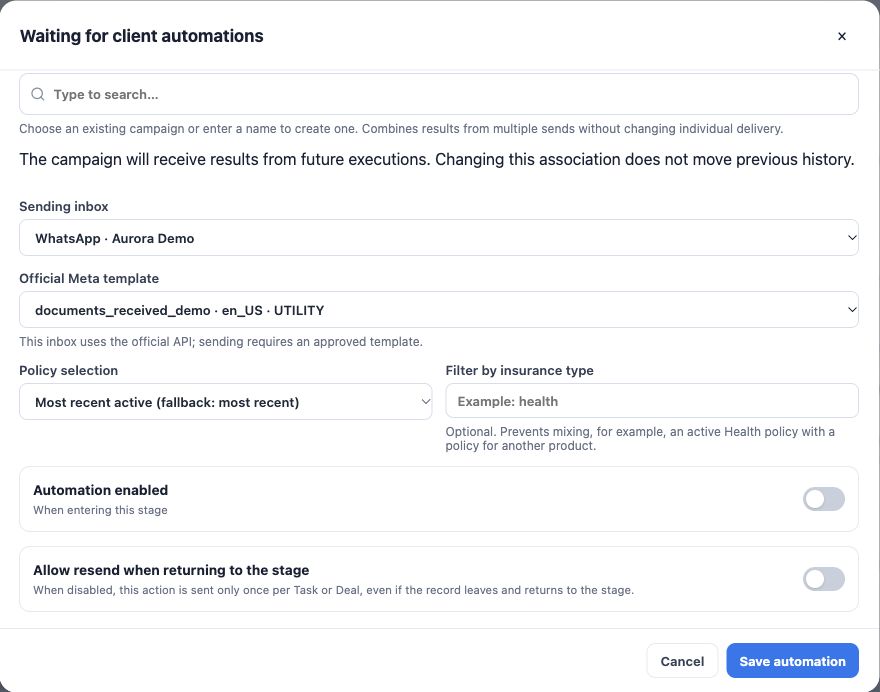
Under Send WhatsApp, select the correct inbox. Official WhatsApp uses an approved template and compatible language. The fictitious documents_received_demo example has no variables: “We have received your documents. Our team will review them and contact you with the next steps”.
In your actual process, attach this acknowledgement to a stage representing documents that were really received, after the operator checks them. Screens use one demonstration stage to compare channels. An ordinary saved message does not replace official approval. If the model needs parameters, check workflow compatibility and every value before use.
Test, enable and prevent unintended repetition
- Save paused and reopen to verify stage, trigger, channel, template, language and status.
- Run a controlled test with an authorized test contact before using real lists.
- After review, enable the rule and save required confirmations. Creating or moving cards into the stage may trigger sending.
- Check the Task timeline and Delivery center for results, pending items and failures.
Reentry protection is per Task or Deal, not per person across all records. Two Tasks for one contact can send twice. If a template uses Policy fields, check the policy selection and product filter.
Automate organization and review exceptions
Actions can also change a stage or move work to another Kanban. A received-message trigger can respond to a source or word/phrase; this does not verify that a document is correct. Avoid destination loops and assign a person to exceptions.
Queued does not mean sent; sent does not mean read or answered. Correct failures and inspect history before retrying. For a group you select for each send, see bulk messages.
Keep learning
- Organize activities and processes with Kanban
- Create and edit Kanbans and stages
- Create and follow Tasks every day
- Update and move activities in bulk
- Send bulk messages and follow processing
- Manage Open Enrollment
- Serve your clients
Updated October 24, 2026.