For: CRMDAY One users with the Insurance profile.
Create an activity with a clear outcome
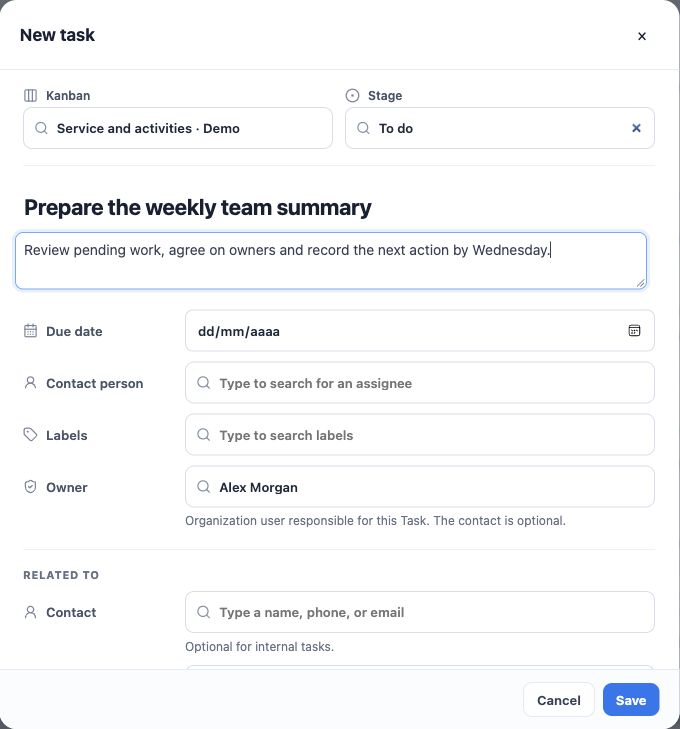
- In the right board, click New task or Add task in the desired column.
- Check Kanban and Stage. Entering a stage with active automations can execute its rules.
- Write a title with an action and goal, such as “Request Bruno’s documents”.
- Describe what needs to happen and how completion will be verified.
- Check Owner, the user responsible for the record, choose who will perform the work and complete required agency fields.
Link the client when appropriate
Under related records, choose Contact and, when needed, Account. Contact is optional for internal Tasks such as preparing a team meeting. Messages and actions that use client data require the correct linked contact.
Associated conversations are limited to that contact’s conversations. Linking them preserves context. Typing “Maria” in the title does not tell the system which client record should receive a message.
See Tasks and their stages in the contact record
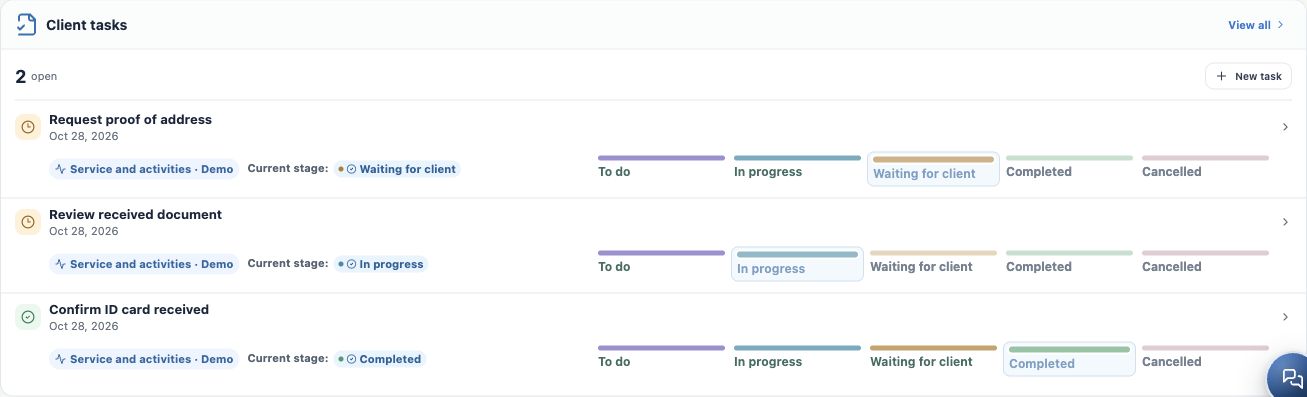
Linking a card to a contact makes the same Task appear in that client’s record. Follow activities from different boards and see their current stages without searching every Kanban.
- Open Contacts and select the client, or follow the contact link on a card.
- In the record, check Client tasks or Tasks under related records. Review title, board and current stage.
- Use View all for the complete list. Open a Task to check assignee, due date, notes and attachments.
- When permitted, the record offers stage controls to move the same Task. Review first: destination movement can trigger automations.
| Example activity | Stage |
|---|---|
| Request proof of address | Waiting for client |
| Review received document | In progress |
| Confirm ID card received | Completed |
For Maria, request, review and confirmation have different outcomes. When the document arrives, record the result and advance the appropriate activity; do not create another card simply because you opened the contact record. An internal Task without a contact does not appear as that client’s activity. Lists respect your access.
Set deadlines, assignees and labels
- Set the due date and the person responsible for execution.
- When available, choose a Reminder and Also by email. A Task reminder helps the team remember work; it is not an automatic client message.
- Apply topic labels such as Documents, After-sales or Internal.
- Save and check the card’s stage and contact.
A due date does not itself schedule an SMS, email or WhatsApp automation. The examples in this section trigger on stage entry, so plan the movement accordingly.
Open the Task and record progress
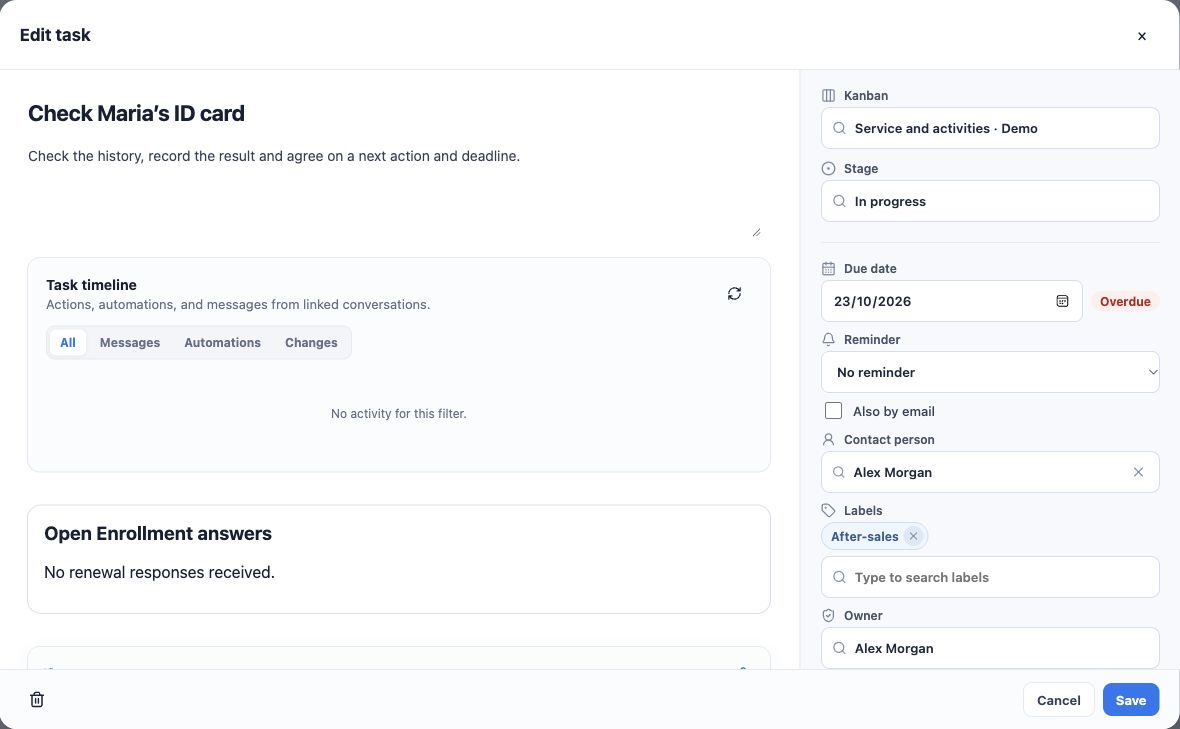
Click the card title to open Edit task. Review its fields and Task timeline, including message, automation and change filters. An empty timeline does not establish that service took place; record what was done.
Use Notes for internal context and Attachments for record files, according to access. “Client will send the document tomorrow; Taylor will review it” makes the next action explicit. Internal notes do not replace a reply sent from Conversations.
Edit and move the work
- Update the description, due date, assignee, labels or related records.
- Choose the destination Stage and save. To transfer to another process, choose Kanban first and then its stage.
- You can also drag the card to another column. Check the destination before dropping.
- Locate or reopen the card to verify the saved result.
Movement may trigger destination rules. If another person changed the record while you were editing, refresh and inspect the current state before repeating the operation.
Close with a recorded result
Before moving to Completed, check the outcome and record it. Use Cancelled with a reason when work will not continue. Work waiting for a client should remain in an open stage with a follow-up plan.
If a card seems missing, check board, filters, collapsed columns and pagination. Correct unexpected contact or assignee links in its record. See bulk updates to reorganize several Tasks together.
Keep learning
- Organize activities and processes with Kanban
- Create and edit Kanbans and stages
- Automate SMS, email and WhatsApp through stages
- Update and move activities in bulk
- Send bulk messages and follow processing
- Manage Open Enrollment
- Serve your clients
Updated October 24, 2026.