For: CRMDAY One users with the Insurance profile.
Before configuring
Board, stage and automation setup requires appropriate permissions. If the buttons are missing, ask an administrator to prepare the structure. Your ability to work with cards depends on your access.
Define the goal, team, stages and completion criteria first. Check existing automations before renaming, duplicating or removing stages.
Create a board
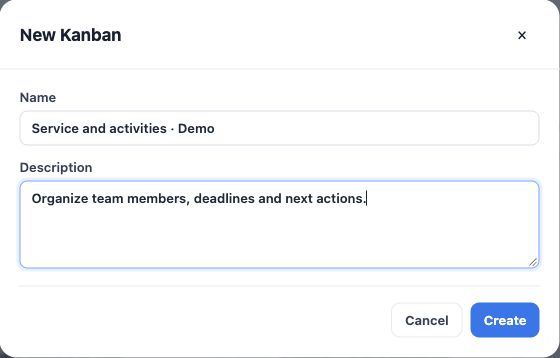
- Open Kanban and click New Kanban.
- Enter a clear Name, such as “Service and activities”.
- Use Description to explain its purpose: internal work and client service with an assignee, deadline and next action.
- Click Create and check the selected board. Review its stages and add any missing ones before including work.
Edit the board and stage order
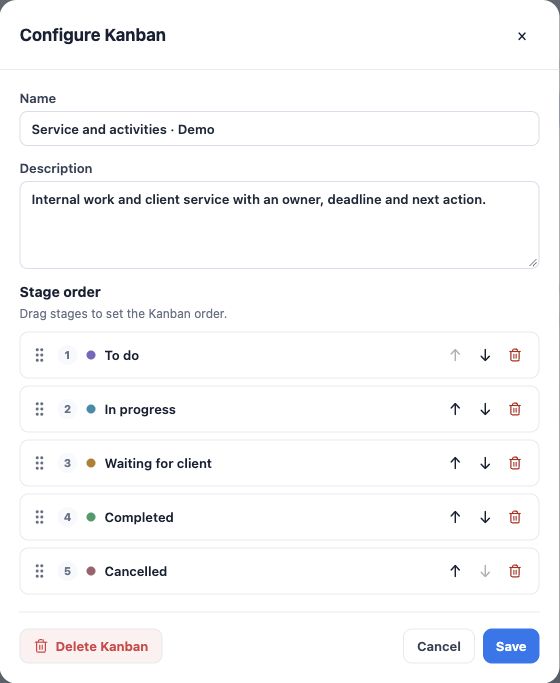
- Select the board and click Configure Kanban.
- Update its name or description.
- Under Stage order, drag stages or use the move-up and move-down buttons.
- Save and check the board’s sequence.
Arrange columns in the order work happens. Reordering columns does not move Tasks between stages.
Add and edit a stage
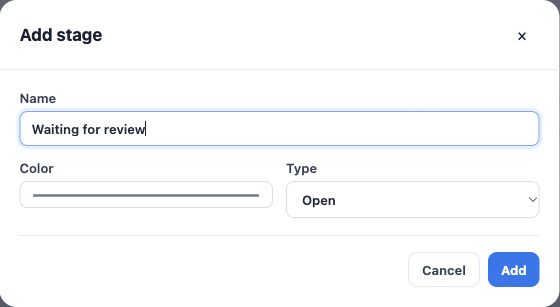
- Click Add stage.
- Enter a specific name and choose a color. The name must remain understandable without relying on color alone.
- Choose the Type: Open, Completed or Cancelled. Intermediate stages should remain open.
- Click Add, then adjust its position in Configure Kanban.
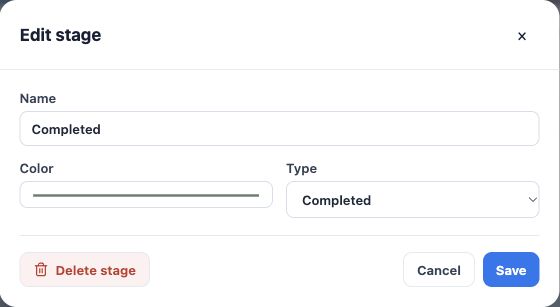
- To change an existing stage, click its Edit stage icon, review name, color and type, and save.
Use final stage types intentionally
Waiting for client remains open because work still needs follow-up. Reserve Completed and Cancelled for real outcomes. Moving a Task to a final stage cancels its pending reminders; do not use a final stage simply to hide pending work.
The stage’s name and type are separate settings. Calling it “Completed” does not replace choosing the right type. Open Enrollment also has its own renewal-closing configuration.
Duplicate a structure after checking its rules
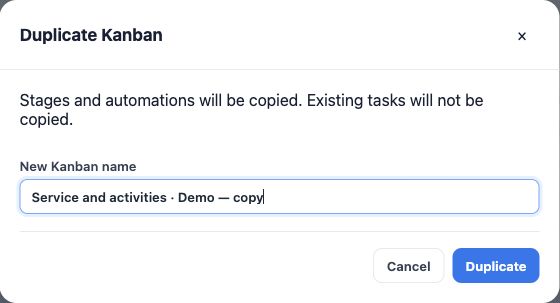
Duplicate Kanban asks for a new board name. It copies stages and automations, but does not copy existing Tasks.
Before adding or moving cards to the copy, review its automation status, channels, templates and destinations. A reused structure can contain rules that already send messages.
Remove stages or boards only after resolving dependencies
Move Tasks to a suitable destination and check automation references before using Delete stage or Delete Kanban. Tasks, including archived or trashed ones, other rules’ destinations and pending processes can block deletion. Read the reason and resolve the dependency. A Kanban must retain at least one stage.
Deleting a stage also removes its configured automations. Do not delete service records just to bypass a blocker. After setup, open a Task and check that its available destinations match the agreed workflow.
Keep learning
- Organize activities and processes with Kanban
- Create and follow Tasks every day
- Automate SMS, email and WhatsApp through stages
- Update and move activities in bulk
- Send bulk messages and follow processing
- Manage Open Enrollment
- Serve your clients
Updated October 24, 2026.