For: CRMDAY One users with the Insurance profile.
Images show actual system screens in a local demonstration environment with fictitious data. They represent different moments in the examples; stage names and fields may vary by agency.
Review the record before making changes
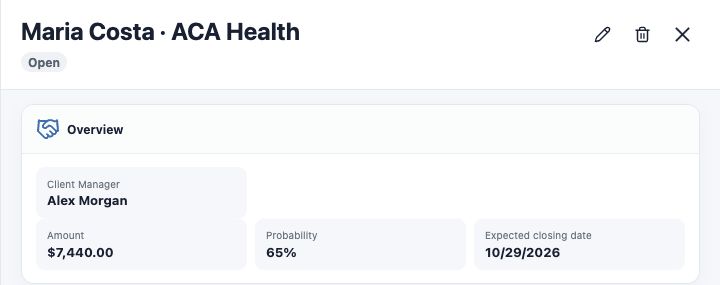
Open the Deal’s name and confirm its identity and related contact. Overview shows amount, probability, expected closing date and Client Manager. Other sections show sales details, insurance product, contact and conversations, labels and activities, depending on enabled modules.
Maria Costa is in Proposal in the example. Before advancing, Alex checks what was agreed and whether a follow-up is pending. A stage change should follow an actual event in the negotiation.
Edit the opportunity details
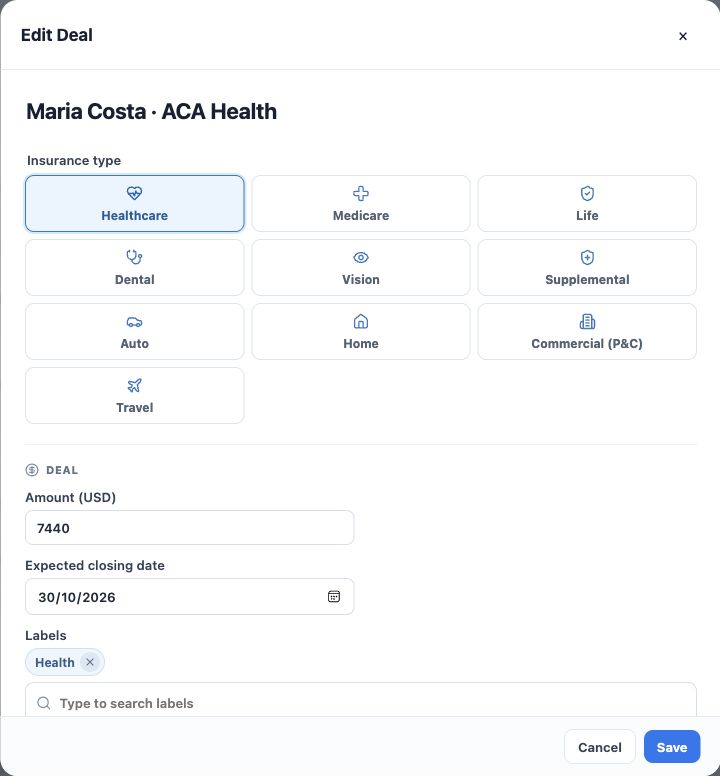
- In the record, click the pencil icon, Edit.
- Update the name, product, amount, expected closing date, labels or responsible people using the available fields.
- Check the currency and estimate. Avoid replacing confirmed information with assumptions.
- Click Save, reopen the opportunity and verify the saved details.
The edit form is separate from stage movement. To change the stage, use the card in the pipeline. Some record fields also offer inline editing; confirm each change with its own save control.
Keep the contact and conversations consistent
In Contact and conversations, review the linked person and relevant conversations. Use Save relationships after changing these links and check the result. Changing the contact requires reviewing selected conversations, which must belong to the correct person.
Use Open contact to check the complete contact record. Labels help organize opportunities, but do not replace a sales stage or the next task.
Move the card to the correct stage
- Return to Pipeline and locate the Deal.
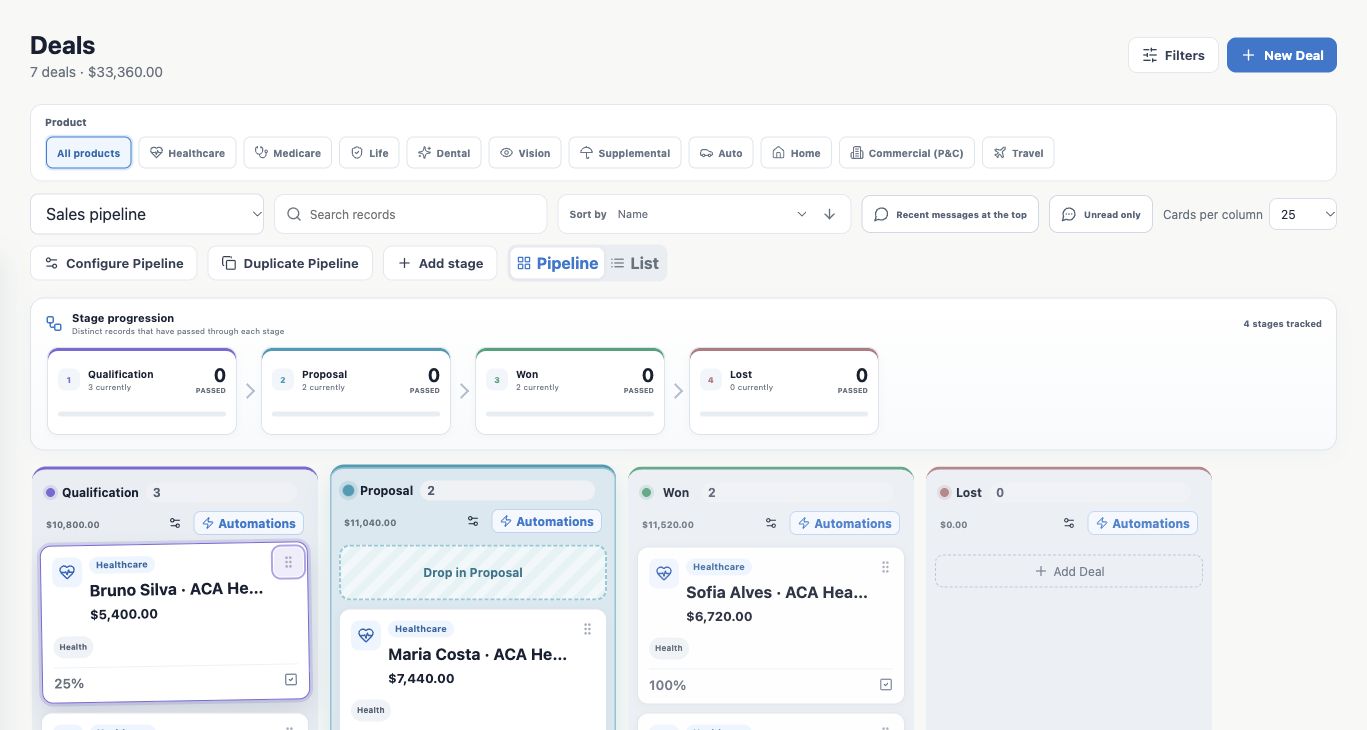
- Use the movement handle to drag the card to its destination column. Check the highlighted destination before releasing it.
- Alternatively, focus the card’s handle, press Space, choose a stage with the left/right arrow keys and press Space again to confirm. Esc cancels.
- Wait for confirmation, check the column and reopen the Deal if needed. For Lost, complete the loss-reason dialog.
In the example, Bruno’s card is selected in Qualification and Proposal is highlighted as the destination. Confirm only after real progress. On touch devices, use the handle and check the destination before releasing.
Check the effect and resolve discrepancies
A move can update status and probability and trigger automations configured by the agency. Before moving to a stage whose effects you do not know, confirm the process with your team. Do not test stage changes on real opportunities.
If another person changed the Deal, refresh and review its current state before retrying. If a card seems missing, check search, product, filters and pipeline. You are done when details and stage remain correct after reopening. To make the next step visible, see Record tasks and track the next step.
Keep learning
- Understand the pipeline and its stages
- Create a Deal linked to a contact
- Record tasks and track the next step
- Close an opportunity as won or lost
- Find and organize your clients
Updated October 24, 2026.