For: users who receive leads or help clients.
Screens show the actual system in a local environment with fictitious data. People and contact details are examples only. List columns may vary with your settings.
Before you start
Check the selected agency in the sidebar and have the person’s name, phone number or email address ready. Search covers the contacts available to your access in that agency.
A lead received through a form or Conversations may already have a record. When that person returns or becomes a client, find the existing record to continue their history.
1. Open Contacts and search by name
- Open Contacts in the sidebar.
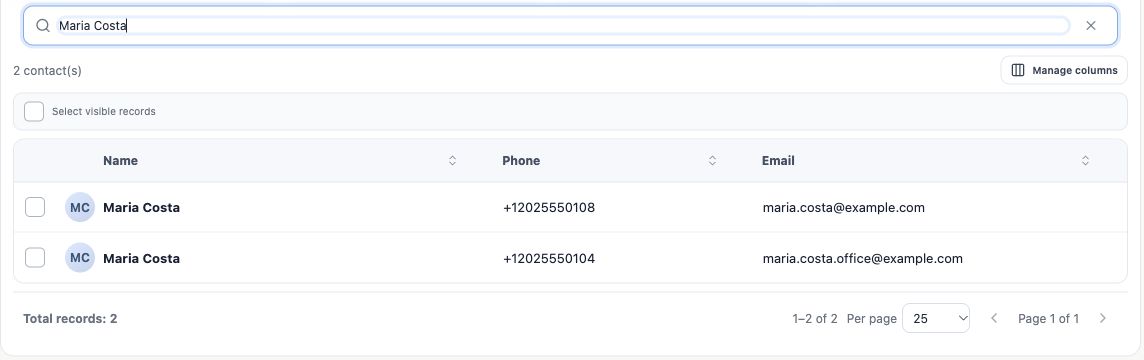
- In Name, phone or email, enter the name you know. For example: Maria Costa.
- Wait for the list to update and check the result count. If the full name does not help, try part of it and review the results.
The example has two people named Maria Costa. Their name alone is not enough to choose a record.
2. Use email to distinguish the records
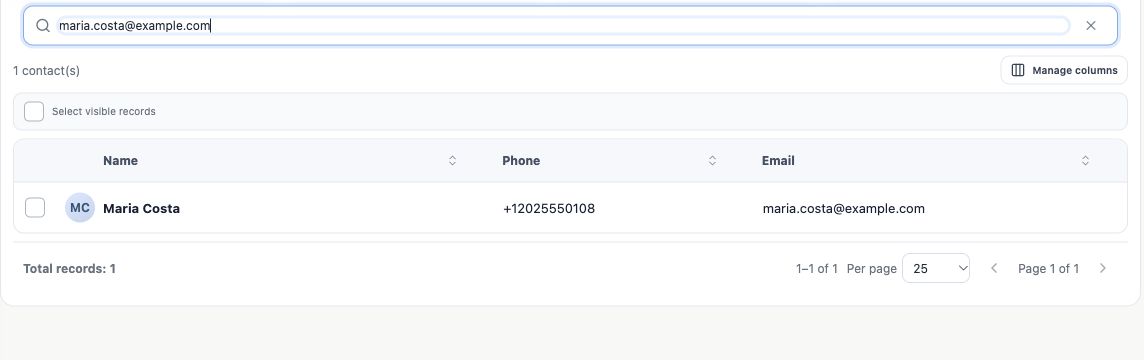
Replace the name in the search with the email address the person provided: maria.costa@example.com. In the example, the list changes from two records to one.
Compare the displayed email and phone with the details the person confirmed. If those columns are hidden, use Manage columns to show them when available, or open the record to check the details.
3. Check by phone as well
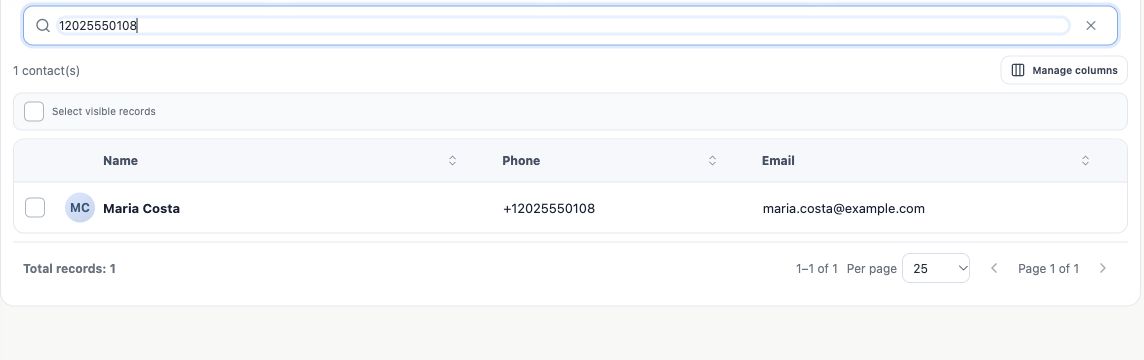
You can also replace the search with the phone number. In the example, 12025550108 finds the same Maria Costa. The digits include the country code.
If a formatted number returns nothing, check the digits and country code, then try the format stored in the record. Do not conclude that the person is missing after a single attempt.
4. Open the result and verify the person
- Click the contact’s name to open the record.
- Check the name, phone and email against the details provided during the conversation.
- Review the available information and history to confirm the match: previous conversations, opportunities, policies or tasks may help.
- If it is the same person, continue from this record and preserve its links.
Take care: identical names do not mean identical people. Family members may also share a phone or email. If you are unsure, confirm the details before changing any record.
No results?
- Check your typing. Try another part of the name, then the phone or email.
- Check active filters. A list opened from an indicator may already be filtered. Use Clear search to remove the text; if conditions are applied, use Clear filters next to Filters. These are separate controls.
- Check the agency and your access. If you know the record exists, ask the agency’s administrator to check access before creating a duplicate.
- Only then consider New contact. If the searches and checks do not identify an existing record, follow your agency’s contact creation process.
Found two records that appear to belong to the same person? Do not delete records to try to combine their history. Ask the person responsible for the contact database to review the links and the appropriate correction.
How to confirm success
You have opened a record that matches the details confirmed by the person and know where to continue the conversation. If you still cannot confirm their identity, keep checking before creating or editing a record.
Keep learning
- Understand the journey from lead to after-sales
- Understand Contacts, Accounts, Deals, Policies and Tasks
Updated October 24, 2026.