For Insurance agency Owners and administrators.
Understand the two records
There are two steps: the official template, created and approved in Meta for an inbox, and the local model under Message templates, which references it for reuse. Creating or duplicating a local model does not obtain new approval.
On the official API, replying outside 24 hours after the customer’s last message requires an approved template. A customer message opens the window again. See the official WhatsApp policy.
Create in the official inbox catalog
- Open Channels → Inboxes and locate the connected WhatsApp Meta API inbox.
- Click Manage templates, then New template. Availability depends on an official inbox managed through the supported integration.
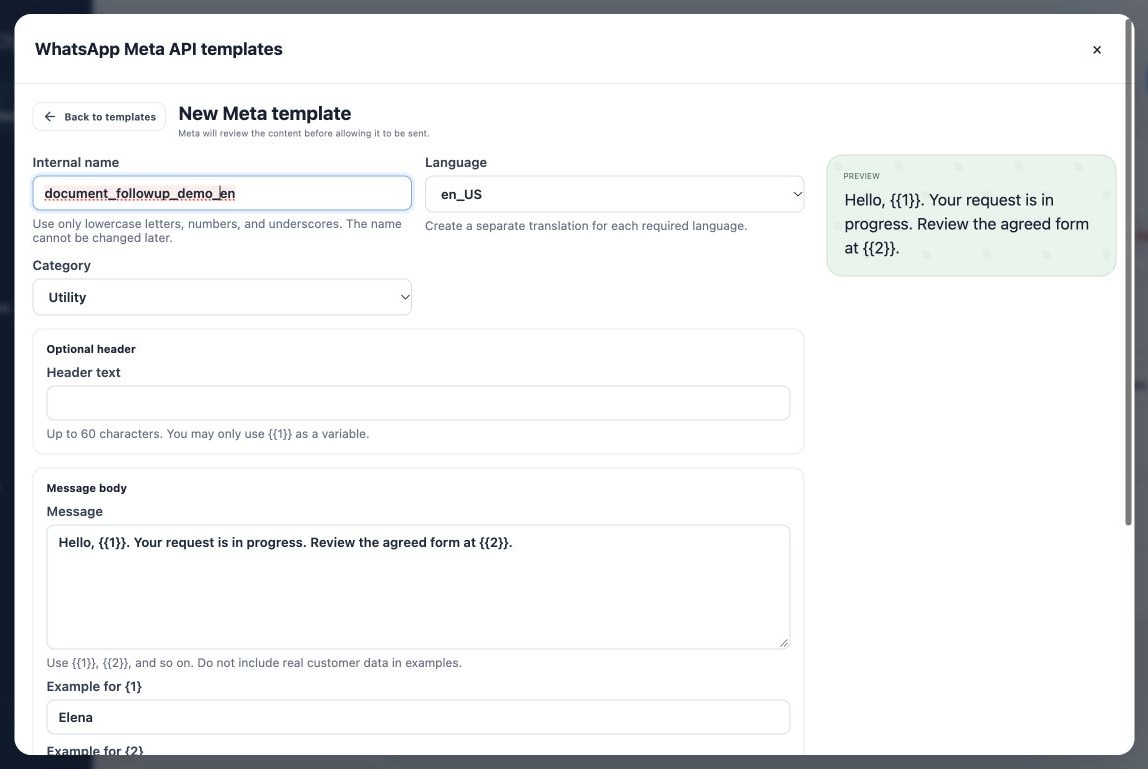
- Enter Internal name with lowercase letters, numbers and underscores. Explicitly choose Language: it may start at en_US even when the interface uses another language.
- Choose Utility for an appropriate process update or Marketing for commercial content. Write the body and any supported header, footer or buttons.
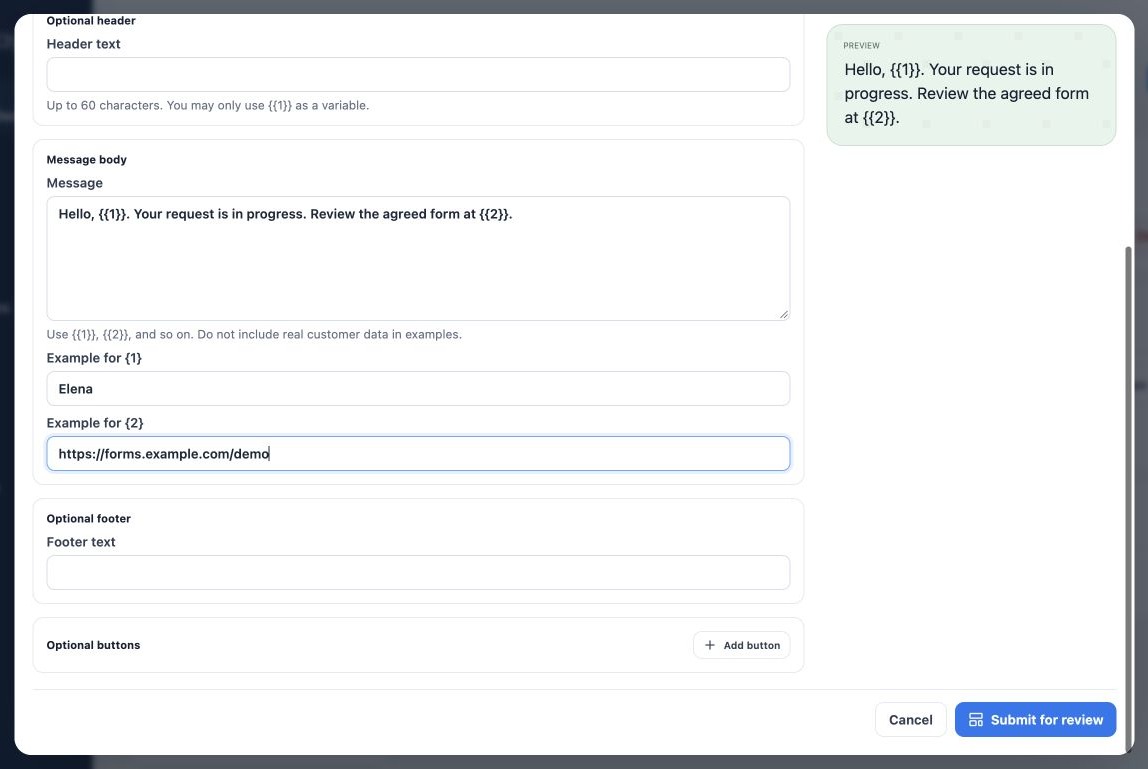
- Use sequential positional variables {{1}}, {{2}} and fill every example with fictitious data. Do not put {{contact.first_name}} directly in Meta-submitted text.
- Review the preview and click Submit for review when ready to submit the agency’s actual content.
In the example, {{1}} represents Elena and {{2}} a demonstration link. Examples help review; they are not values to send to every client. Name and language cannot change after creation; translations require separate records.
Track approval and synchronization
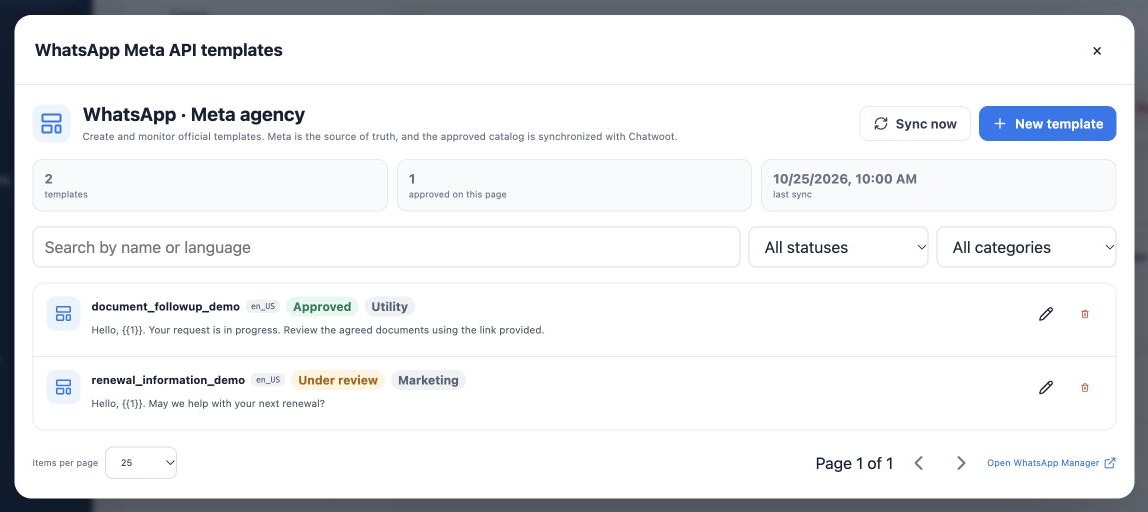
Return to the catalog and use search and status, category and language filters. Pending is not ready. Approved can be used when synchronized and eligible. Rejected, Paused and Disabled block new sends; read the reason where available and adjust through the offered path.
Use Sync now and check the last synchronization time. Edits may require another review. Advanced formats shown only for monitoring must be edited in WhatsApp Manager. Approval timing is not guaranteed, and previous approval does not remove future restrictions.
Associate the library and prepare parameters
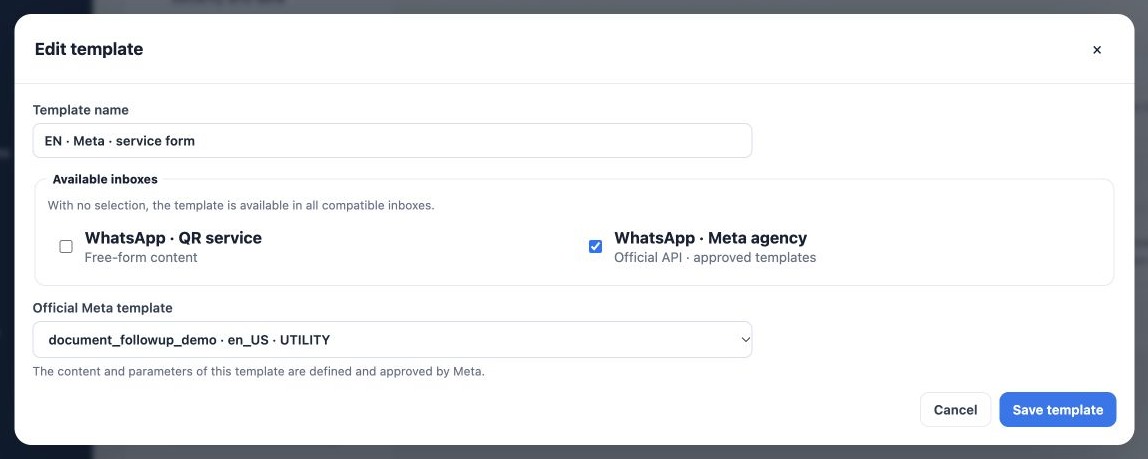
- Return to Message templates → WhatsApp and click New template.
- Name it by purpose and language.
- Explicitly select the correct Meta inbox. Under Official Meta template, choose the approved name and language.
- Save and reopen to verify inbox and official reference. If selecting several official inboxes, the template must be available and approved in all.
- In the sending workflow, fill or map required variables and review the preview. A local entry does not automatically determine what {{1}} and {{2}} mean.
In Conversations, the official-template selector uses the inbox’s catalog and asks for required parameters. For Open Enrollment, review {{form.link}} mapping and match the approved language to the configured version. Duplicating a local model retains the old reference; change it for a different version.
Related guides
- Organize your agency’s message templates
- Create email templates with merge fields
- Create SMS and free-content WhatsApp models
- Maintain versions, test and use templates
- Administrator manual
Reviewed October 26, 2026.