For Insurance agency Owners and administrators.
Understand this channel
WebWidget embeds chat in your website so a visitor can start a conversation with the agency. For example, someone opens a renewal page, starts chat and asks for help. Your team receives the message in the website inbox in Conversations.
Registration creates the service channel. It does not automatically install chat on the site and is separate from a Web-to-lead form or an Aria agent widget. Have CRM administrator access and arrange installation with the website maintainer. Identify any existing chat before adding another, to avoid duplicate buttons and destinations.
Register the inbox and correct website
- Open Administration → Settings → Channels → Inboxes → New inbox.
- Choose Web widget.
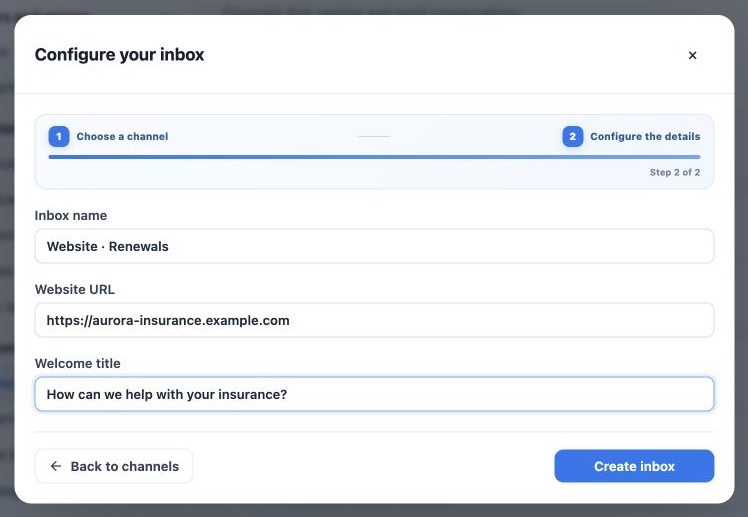
- Enter a recognizable name such as Website · Renewals. It identifies the inbox to your team.
- In Website URL, enter the complete address where chat will be installed. Use the actual agency URL; the image uses a fictitious domain.
- In Welcome title, write a short, clear invitation for visitors. It supports up to 80 characters.
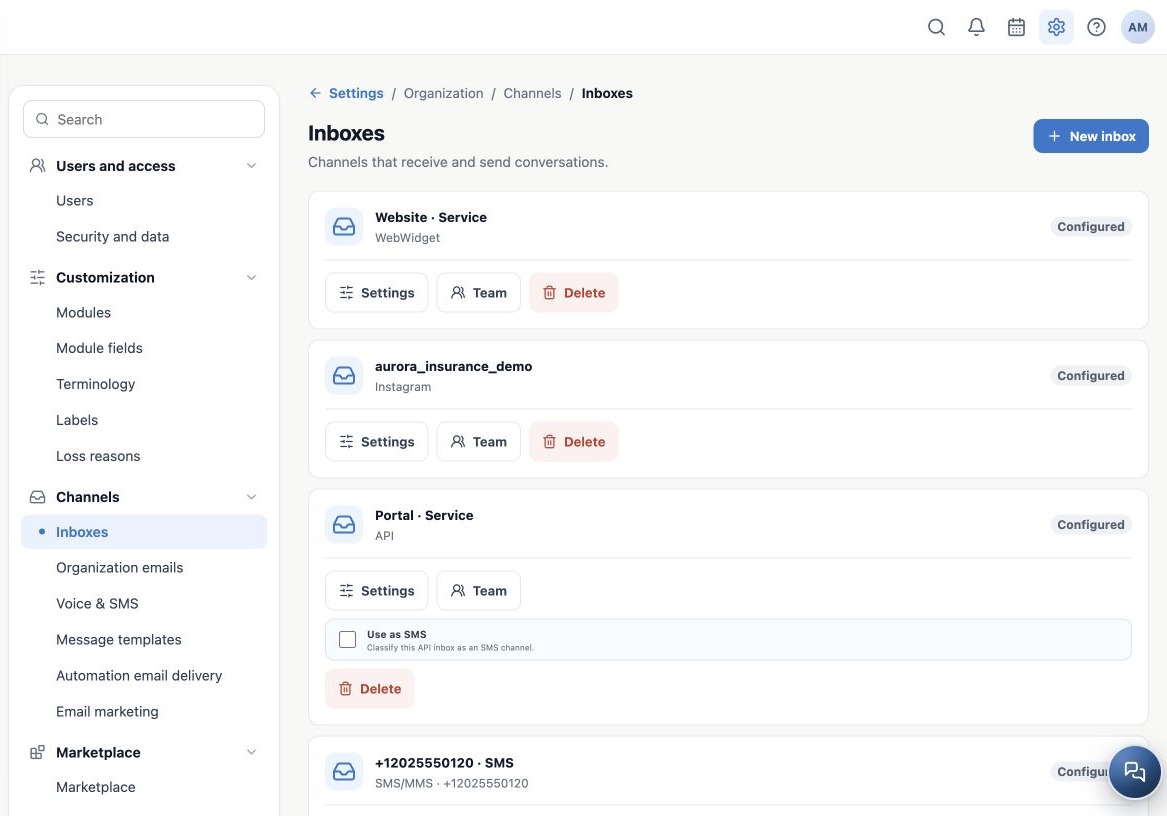
- Click Create inbox and verify the new WebWidget card.
The internal inbox name and visitor welcome title serve different purposes. Your welcome text is agency-authored content: switching your profile language does not automatically translate it. Plan the message and installation for your website languages.
Arrange installation with the website maintainer
- Record which inbox was created, which agency owns it and which pages should show chat.
- Ask support or the technical administrator for installation code generated for this inbox and the correct environment. The current CRMDAY wizard has no copy-script button and does not install code.
- The website maintainer applies the code through the site manager or source project and publishes the change. Never substitute another agency’s sample.
- Arrange a test-page check followed by the published site. Confirm only the intended widget appears.
The registered URL is not proof of installation or website access protection. The technical administrator must check any domain, content-policy or script-loading requirements. Renaming in Settings changes inbox identification, not the installed address or other widget settings.
Assign the team and run an end-to-end test
- On the WebWidget card, click Team, select agents and save.
- Open the published site as a visitor, preferably in a test session without an administrative login.
- Open chat and send a fictitious question such as I would like to renew my plan.
- In Conversations, select the website inbox, locate the new message and reply.
- Confirm the response appears in that same visitor chat. Repeat on mobile and the relevant pages.
An anonymous conversation may not identify an existing client. Check details before linking the correct contact; matching first names do not prove identity. Test content should not contain real documents or personal data.
Resolve common problems
| Symptom | Check |
|---|---|
| Chat absent | Code installed and published on the right page; website rules and blockers. |
| No incoming message | Code belongs to the correct inbox and agency; send a new test. |
| Team cannot see it | Inbox members, Conversations access and filters. |
| Unexpected language | Welcome text and installation settings; administrator locale does not translate free text. |
| Two chats | Existing installations, tag manager and Aria widget; review with the site maintainer. |
For help, provide page URL, inbox name, test time and a symptom image without personal data. Configured confirms registration; visitor → team → visitor testing confirms service.
Related guides
- Understand inboxes and choose your channel
- Connect WhatsApp using a QR code
- Configure bulk-message limits and schedules
- Prepare the official WhatsApp Meta API connection
- Complete Meta signup: an illustrated walkthrough
- Verify Meta API and prepare templates
- Manage team, connection and authentication changes
- Set up an SMS inbox
- Connect Instagram for messaging support
- Create an API inbox for an integration
- Administrator manual
Updated October 25, 2026.