For Insurance agency Owners and administrators.
What a section organizes
A section groups additional fields in the module’s record or form. Document follow-up can group status, dates and outstanding items. Contacts has its own data sections; the other modules offer Additional information and organization-created sections.
A field section does not create a related policy list, attachment panel or new module. It is also different from organizing the layout of whole sections on a contact record.
Create a section inside the field editor
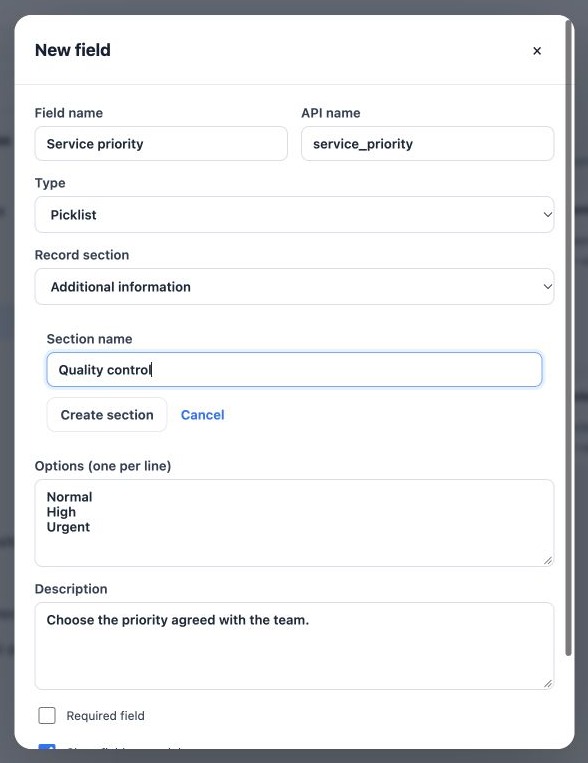
- Open New field or Edit field in the correct module.
- Click Create new section.
- Enter its Section name, for example Quality control.
- Click Create section.
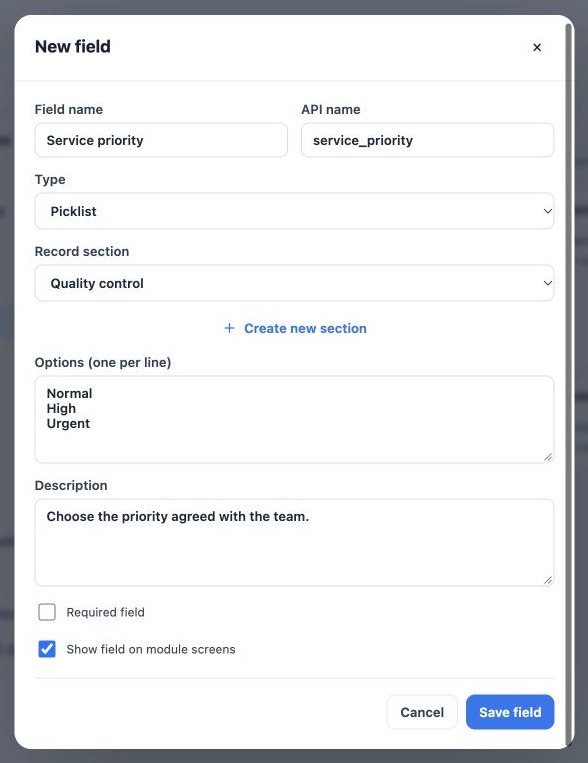
- Confirm the new section is selected in the section selector.
- Complete the field and click Save field.
Move a field to an existing section
- Open Edit field from the module catalog.
- Select the desired record section.
- Save and reopen to confirm.
- Open a record and check where the field appears.
This changes presentation of the same field; it does not copy it or change its API name. A section created in Tasks does not automatically exist in Policies. The association belongs to the selected module.
Keep the structure simple
Use a few clear sections, such as Service preferences, Documentation or Quality control. Avoid one section per field. Check for an existing section with the same name before creating another.
The current screen supports creating and choosing sections. It has no full interface for renaming, deleting or dragging sections and fields into a different order. Coordinate broader restructuring with support. Custom section names remain as entered when users change language.
Related guides
- Plan your fields and choose the right module
- Create fields and configure select options
- Edit, hide and deactivate fields safely
- Validate fields, languages and integrations
- Administrator manual
Updated October 25, 2026.