For Insurance agency Owners and administrators.
Prepare the example
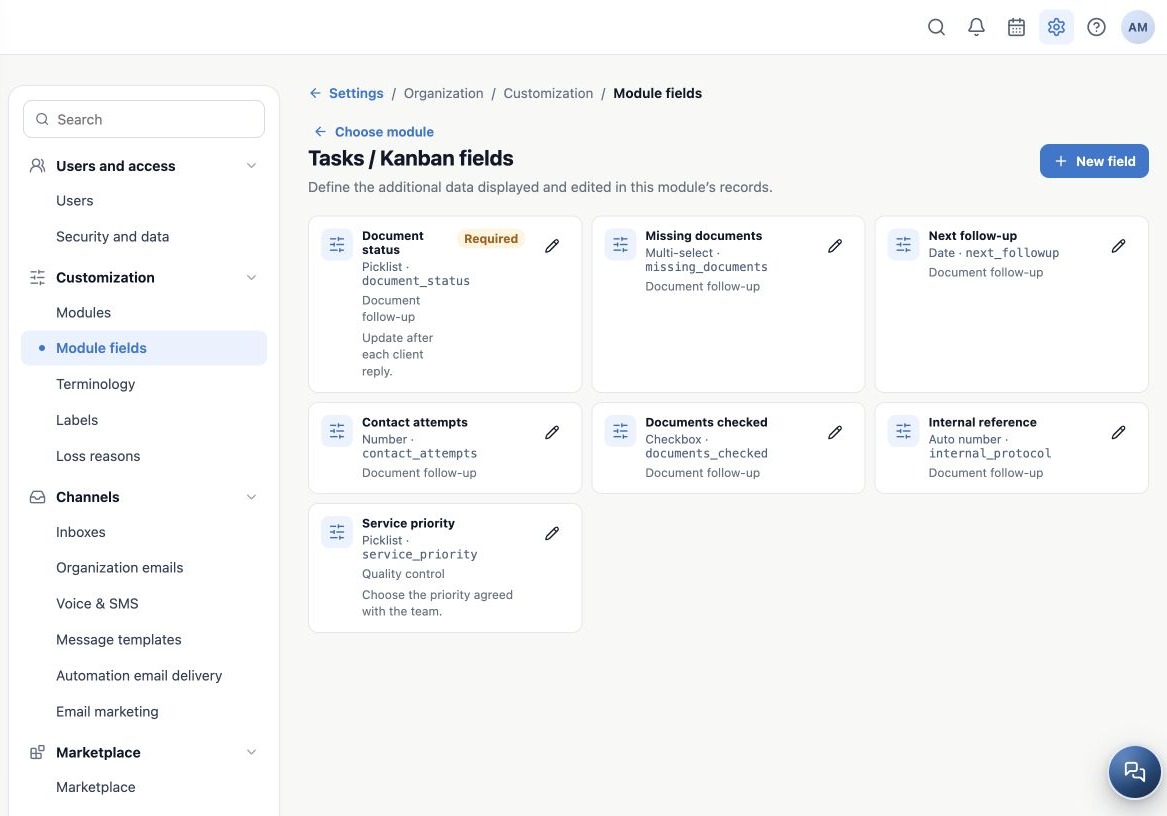
We will create Service priority in Tasks / Kanban with Normal, High and Urgent options. Open Module fields and choose Tasks / Kanban. The field is used on organization activities; it does not automatically prioritize dispatches or trigger automation.
Enter the new field
- Click New field.
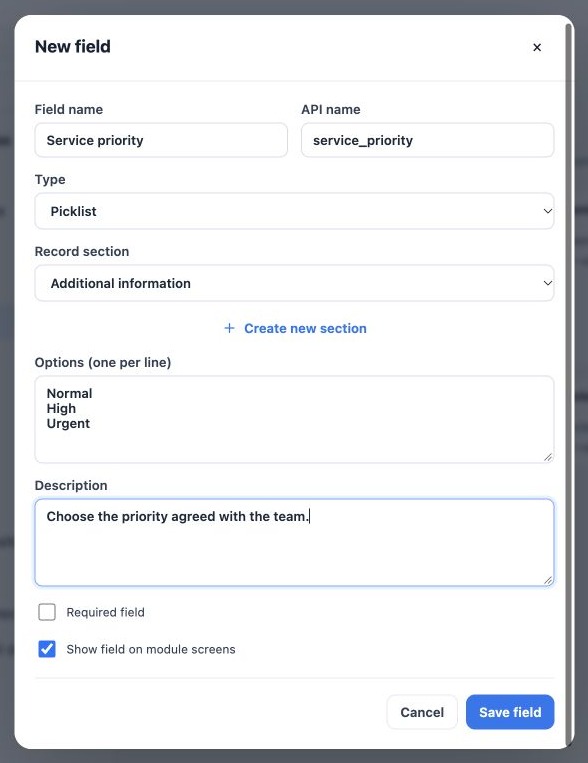
- Enter the Field name, such as Service priority.
- Enter a clear API name, such as service_priority, or let the system generate it from the label.
- Choose the Type: Picklist.
- Select the Record section or create a new section.
- Enter Normal, High and Urgent on separate lines under the options control.
- Add a description explaining how to choose the priority.
- Review Required field and Show field on module screens; click Save field.
Keep the API name stable
The API name is the field’s identity, not a password. Use a simple, readable key without spaces and a consistent agency convention. Check the key shown on the saved card, because automatic generation can normalize the entered name.
After creation, the editor does not allow changing the API name or type. If you need a different type, plan a new field and value migration with support rather than assuming automatic conversion. Avoid standard field names or integration-reserved keys.
Verify before asking staff to use it
- Find the newly created card.
- Open Edit field and verify key, type, options and section.
- Close and reopen settings to confirm persistence.
- Create or edit a test Task, choose an option, save and reopen it.
If sections fail to load, use Reload sections. Save field remains unavailable while sections are loading or while a new section is still being created. Do not proceed without confirming the configuration.
Related guides
- Plan your fields and choose the right module
- Choose among the available field types
- Organize fields into record sections
- Validate fields, languages and integrations
- Administrator manual
Updated October 25, 2026.