For Insurance agency Owners and administrators.
Open General access
Go to Settings → Users and access → Security and data → General access. Setup combines three decisions: the starting model, each module’s default and when rules take effect. Record the current settings and the people and workflows to test before changing them.
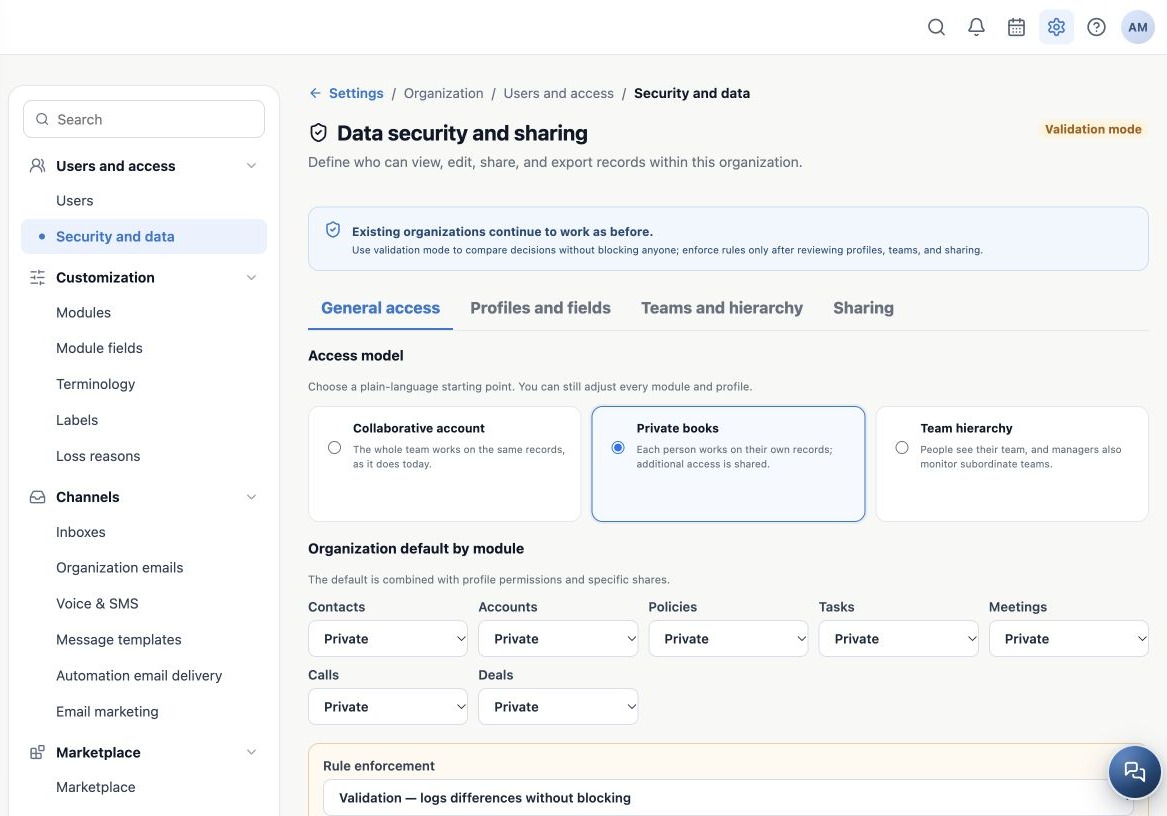
Compare the access models
| Model | Agency example |
|---|---|
| Collaborative account | A small team services the same book and works on shared records. |
| Private books | Sam works on his own records and receives specific exceptions through sharing. |
| Team hierarchy | Agents work with their team; managers see subordinate teams when their profiles allow it. |
Selecting a model updates the proposed module defaults. Review each module before saving. Contacts, Accounts, Policies, Tasks, Meetings, Calls and Deals may require different decisions. The model is a starting point; profiles and shares must also be reviewed.
Understand what Public means
| Default | Effect within the module |
|---|---|
| Private | Visibility depends on scope, responsibility and sharing. |
| Public read-only | Opens viewing within the organization without itself granting editing. |
| Public read and write | Opens viewing and editing within the organization and affects operational actions such as changing Owner and bulk actions. |
Public here means within the organization, not published on the internet. A public default can broaden access even when a profile uses Own only. For a genuinely restricted book, review the Private default, every assigned profile and all shares.
Example: set Contacts and Policies to Private to separate books, then share only clients that service staff need. The person who created a record is not necessarily its Owner.
Save without confusing setup with active protection
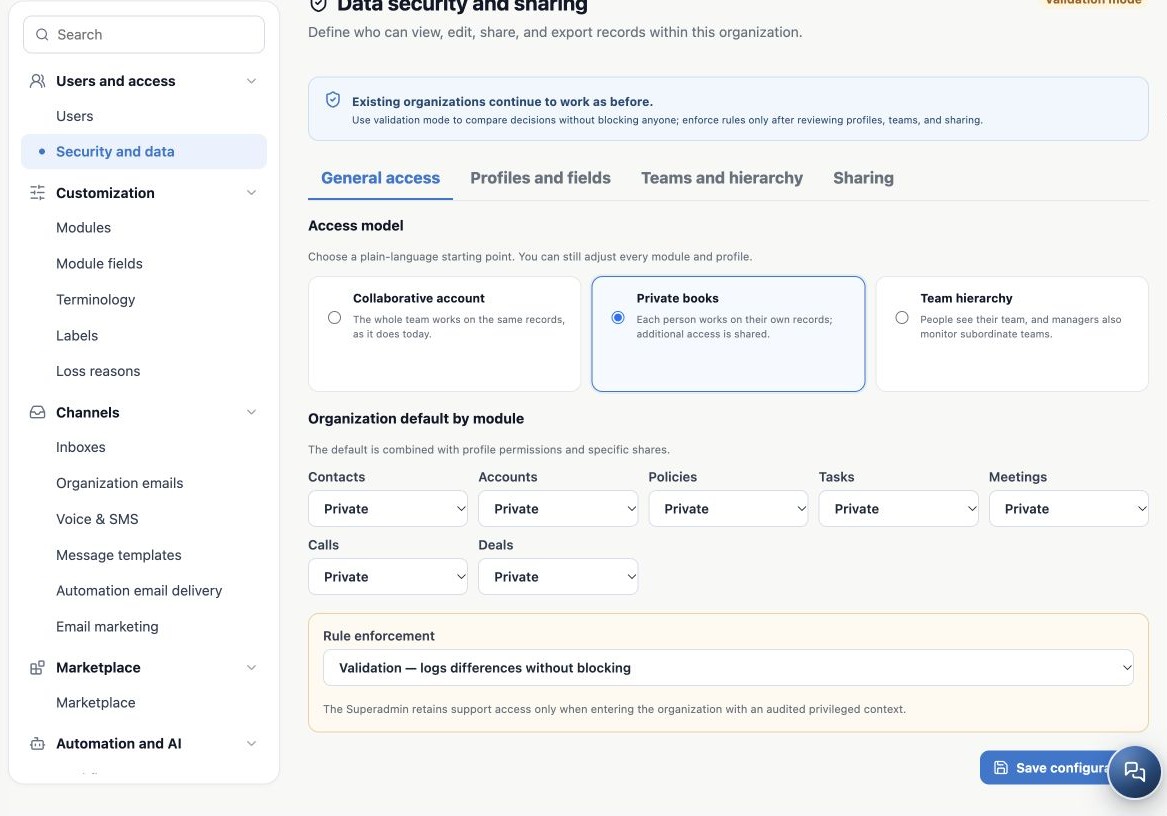
Under Rule enforcement, select the appropriate mode and click Save configuration. Reopen and check the model, module defaults and mode badge.
| Mode | Behavior |
|---|---|
| Compatibility — does not block | Keeps previous access behavior. New settings are not an active restriction. |
| Validation — logs differences without blocking | Keeps previous access while recording differences. This does not test an actual access block. |
| Enforce — rules control access | The configuration starts restricting access. Use it after validating workflows. |
Do not switch to Enforce just to experiment during agency service hours. Plan a pilot and follow the validation guide.
Related guides
- Plan users and access for your agency
- Configure your agency’s Producers
- Create profiles and define actions and record scopes
- Validate rules and maintain everyday security
- Administrator manual
Updated October 25, 2026.