For Insurance agency Owners and administrators.
Before sending an invitation
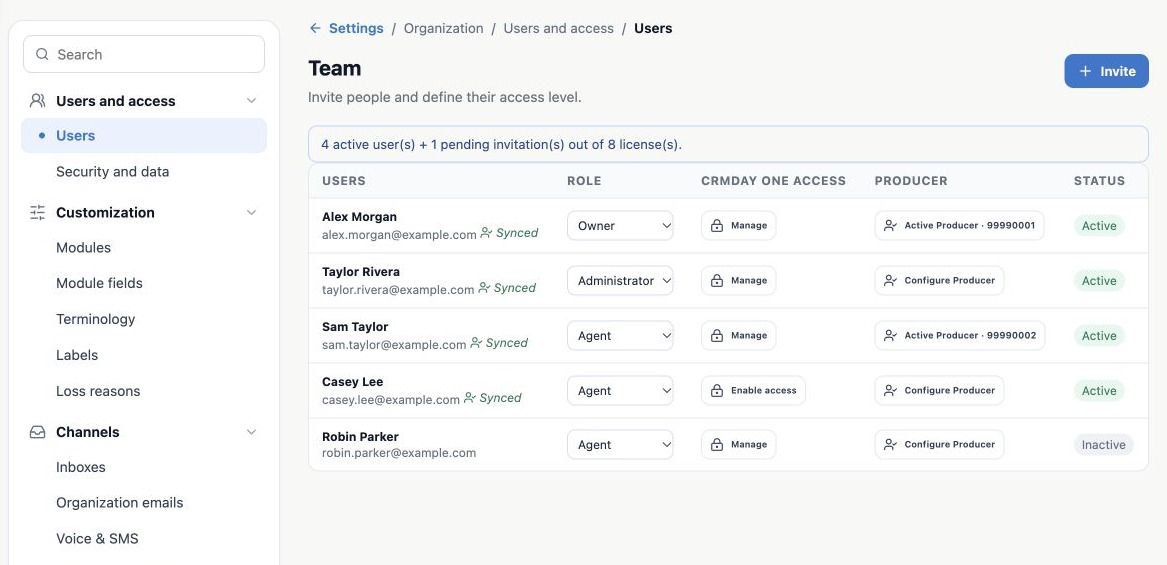
Open Settings → Users and access → Users. Check the selected agency and the count of active users, pending invitations and licenses. A valid invitation for someone not already occupying a license reserves capacity; an expired invitation stops reserving it. The person joins the team after accepting.
Example: 4 active users + 1 pending invitation out of 8 licenses leaves 3 available. If Invite is disabled because capacity is full, follow the link to additional licenses or review usage with the subscription manager.
Create the invitation
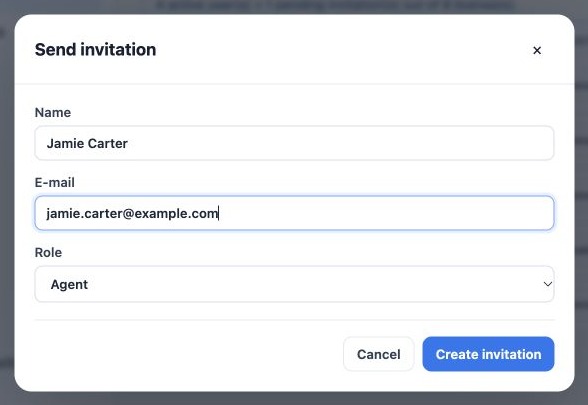
- Click Invite.
- Enter the person’s name and work email. Double-check the address.
- Select Agent, Administrator or Owner. For operational work, start with Agent and configure the appropriate profiles afterward.
- Click Create invitation.
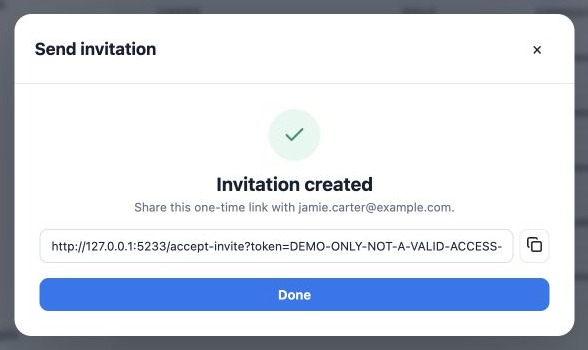
- On confirmation, copy the one-time link and share it only with its recipient through an agency-approved channel. Click Done.
The system attempts to email the invitation. The screen also provides its link; creating an invitation does not prove the recipient received the email. If it did not arrive, check the address and spam folder and use the generated link.
What the invited person should do
- Open the invitation link.
- Confirm their name and set and confirm their own password, using at least 8 characters.
- Complete acceptance and check which organization they entered.
- Set their language and time zone in the profile and test access to required modules.
The link is valid for 7 days and can be used once. A new invitation for the same email replaces the previous pending invitation. Do not reuse old links or post access links in groups or in this manual.
A synced user without CRMDAY One access
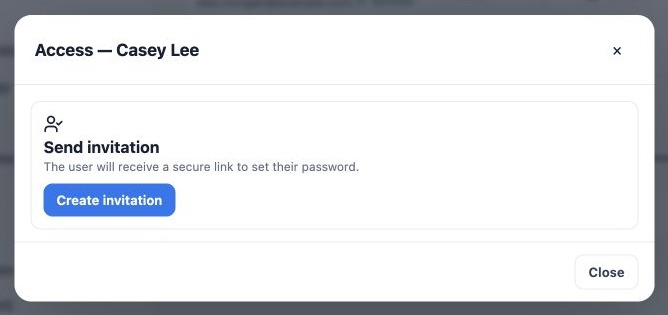
A person may be marked Synced without having a CRMDAY One password yet. In the CRMDAY One access column, choose Enable access or Manage → Create invitation. The user sets their own password through the link. Agency administrators cannot directly set another person’s password; that option belongs to platform Superadmin support.
Verify the result: after acceptance, reload the list, confirm Active status and ask the person to sign in. This screen shows a pending count rather than a named list of pending invitations. Generate another invitation if the link expired or was used. For a wrong organization or persistent error, give support the email and error message, without sending the password or full invitation link.
Related guides
- Plan users and access for your agency
- Manage user roles, status and offboarding
- Validate rules and maintain everyday security
- Administrator manual
Updated October 25, 2026.