For: CRMDAY One users with the Insurance profile.
Start with the purpose of the request
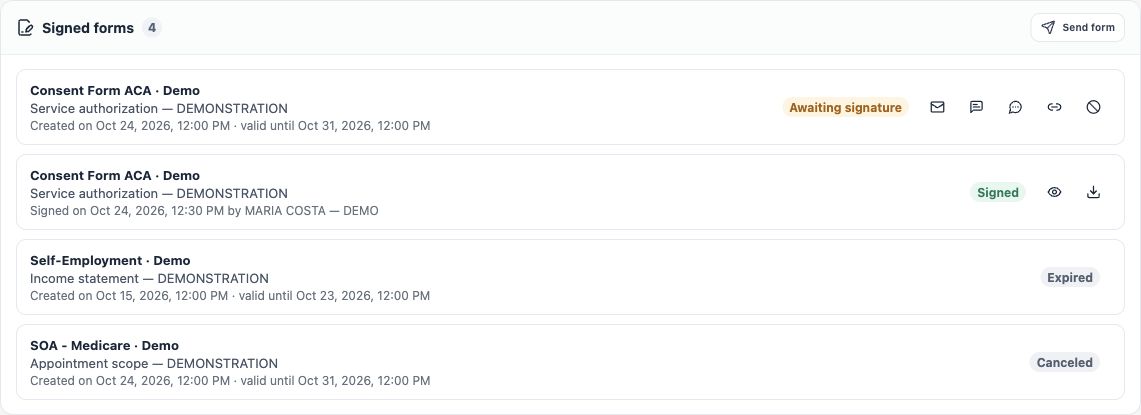
Use CRMDAY One forms to send a document identified with the contact and Producer, receive answers and record the client’s own signature. Start in the person’s record, under Signed forms. Despite its name, this area also lists requests still awaiting signature.
In this module, Maria Costa is served by Alex Morgan at fictitious Aurora Insurance Demo. Images use a customized demonstration authorization and an Open Enrollment example. Demonstration text does not replace the template approved for your agency’s operation.
- Define what you need: authorization, application details, a record update or supporting documents.
- Check the contact, service context and client’s language.
- Choose the matching template and review its preview before generating a link.
- Then track sending, return and next actions; generating a link alone does not complete the request.
Know the library templates
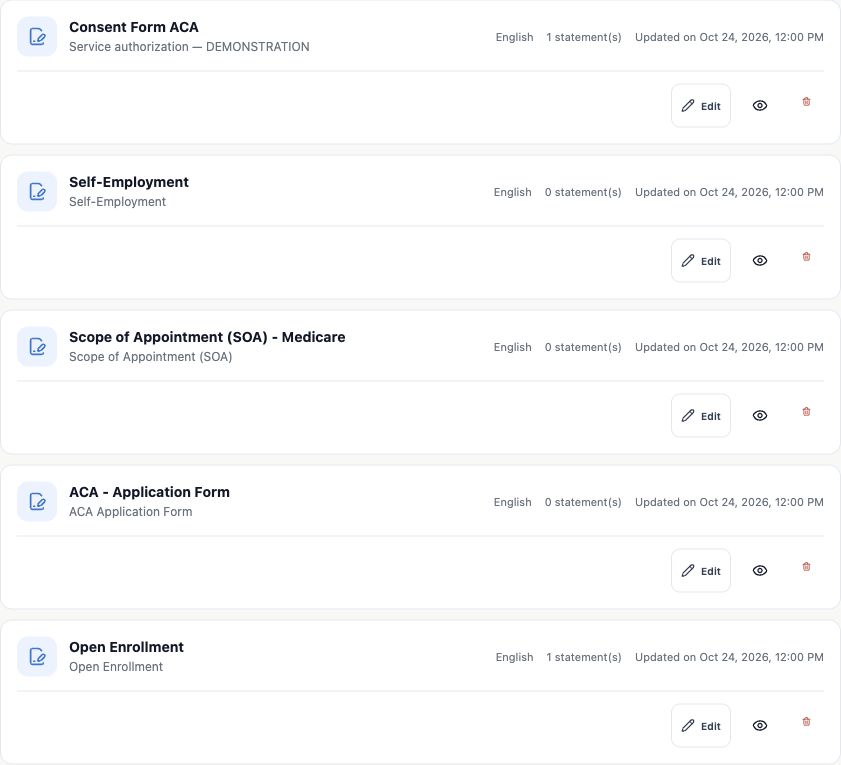
| Template | Purpose in the system |
|---|---|
| Consent Form ACA | Consent template for ACA service. Review your agency’s configured text before use. |
| Self-Employment | Self-employment/income statement template. Check the period, fields and details to complete. |
| Scope of Appointment (SOA) - Medicare | Records the scope of products to discuss in a Medicare interaction. It is not enrollment in a plan. |
| ACA - Application Form | Collects applicant, spouse and dependent information, supporting documents and signature. |
| Open Enrollment | Updates information for the next period, with conditional questions, documents and review before signing. |
Available templates are those registered and active in your organization; copies may have been customized. A regular user can select an available template. Creating and maintaining the catalog is handled by someone with administration permissions.
A document to sign differs from an attachment
A signature template creates a request with a link and tracked state. A file stored in Attachments does not by itself become a form or request a signature. To collect files, choose a flow offering that step, such as ACA - Application Form or Open Enrollment; not every template supports uploads.
To store a confirmation already received, attach it to the right record. To ask the client to read and sign text, use a form request. For plan ID cards, follow the member organization described in policy documents and ID Cards.
Check content language as well as link language
Link language sets the initial filling experience. It does not guarantee automatic translation of any customized agency text. Read the title, body, fields and statements in the preview. If the template lacks the content needed in the client’s language, ask the catalog administrator for the appropriate version.
Open Enrollment offers localized filling and saves its canonical PDF in English. Other templates follow their configured content: review the preview instead of assuming every model has the same language behavior.
Verify your choice
The template requests exactly the needed information, is in the appropriate language and matches the correct person’s interaction. If no template fits or agency details are incomplete, resolve that before sending. Continue with Prepare the request and generate its link.
Keep learning
- Prepare the request and generate its link
- Send by message or email
- Track requests and resolve link issues
- Check answers, documents and signature
- Organize outstanding items and next actions
- Create the policy with the wizard
- Save and share the ACA simulation
Updated October 24, 2026.