For: CRMDAY One users with the Insurance profile.
Two tools with different purposes
| Tool | When to use it |
|---|---|
| Canned responses | Insert reusable text into the editor and personalize it before sending. |
| Official templates | Send an approved template available in the inbox, with its defined language and variables. |
Changing the interface language does not automatically translate an agency’s saved response or a client’s message. Choose and review content in the client’s language. These demonstration examples were prepared in each language.
Insert a canned response
- Check client message mode in the conversation.
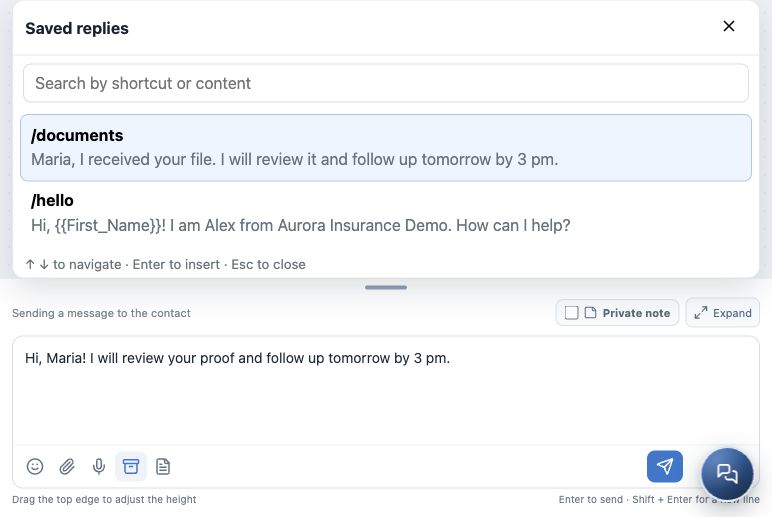
- Click Canned responses in the editor toolbar, or type / followed by the shortcut name.
- Search by shortcut or content and choose a suitable response. Arrow keys navigate; Enter inserts the selection and Esc closes the panel.
- Review the inserted text. Adjust name, document, deadline and instructions for this case. Insertion does not send it.
- Click Send message or press Enter only after review. Check the history.
Use an approved template when required
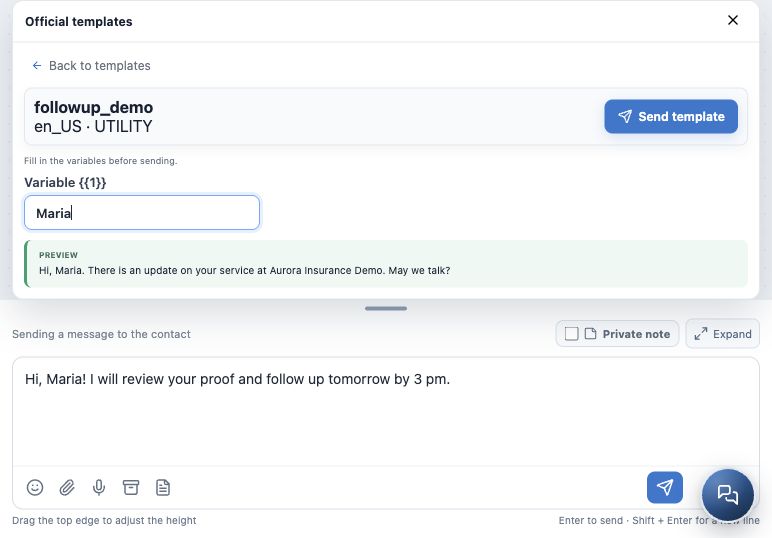
- Click Templates, or choose the approved-template action shown when the official WhatsApp service window is closed.
- Select an available template and check its language. Its name may be a code defined by the agency.
- Fill in all requested variables, such as the client’s name. Read the complete Preview to spot missing values or unsuitable text.
- Check the recipient and click Send template. This requests sending directly; it is not just an insert-into-editor action.
- Check the message and delivery result in history.
If the needed text is unavailable
If the canned response list is empty, write a manual message when allowed by the channel and ask the agency administrator to register frequently used text. The Saved replies button in the filter area opens management tools available to your access.
If the inbox has no suitable approved template, ask the administrator to configure it. Editing a canned response cannot bypass a closed service window: it remains a free-form message. The followup_demo template pictured is fictitious and does not mean that your agency already has it.
Check before leaving
The final text fits the language and context, with no unresolved variables. You used the correct send action and checked the result in history. To arrange a review with another person, continue with private notes and colleague involvement.
Keep learning
- Get to know Conversations
- Start, reply to and follow a conversation
- Send files, images and audio messages
- Record private notes and involve a colleague
- Track and close a service conversation
- Request documents and signatures
- Create and track policies
Updated October 24, 2026.